How to Create a Strong Password You’ll Actually Remember
Updated November 18, 2026 | Reading time: approximately 8 minutes
Have you ever created a complicated password, only to forget it the next time you needed to sign in?
You’re not alone. Many people struggle to remember passwords for email, banking, shopping, and other online accounts.
The good news is that learning how to create a strong password doesn’t mean memorizing a confusing combination of random letters, numbers, and symbols.
A strong password can be easier to manage when you use a long passphrase or a trusted password manager.
In this beginner-friendly guide, you’ll learn how to make stronger passwords, avoid common mistakes, and protect your accounts without constantly resetting your login information.
Table of Contents
How to Create a Strong Password in 5 Easy Steps
Step 1: Make Your Password Long
Password length is one of the most important factors in password security.
The National Institute of Standards and Technology (NIST) recommends using passwords that are at least 15 characters long when a password is your only authentication factor.
A longer password generally provides better protection against guessing attacks than a short, complicated one.
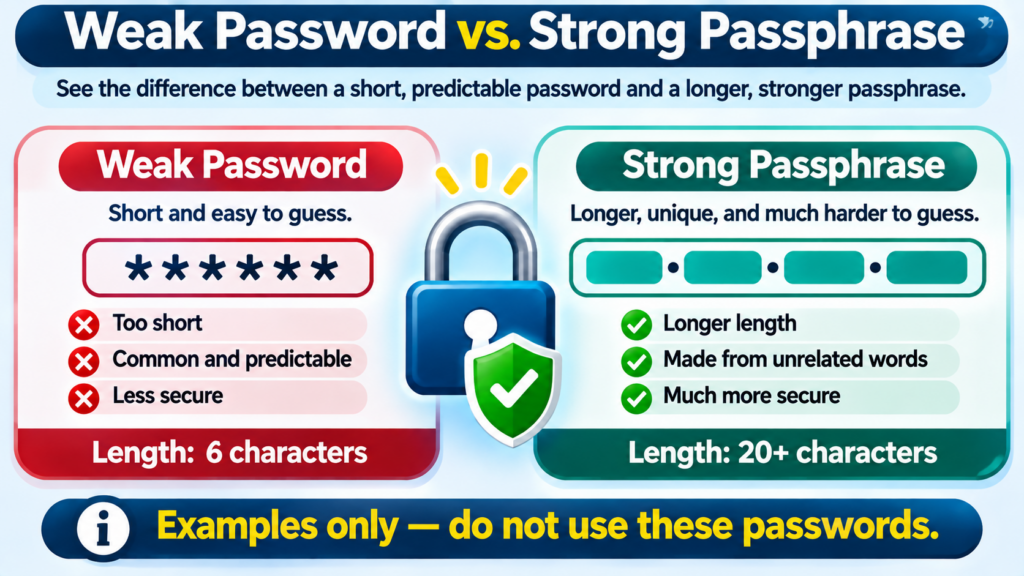
For example:
Weak password: Dog123
Better example: LanternRiverTulipBasket
The longer example contains several unrelated words, making it easier to picture and remember.
However, don’t use this exact example as your real password. It’s published here for demonstration.
Tip: When possible, aim for at least 15 characters, and use a unique password for every important account.
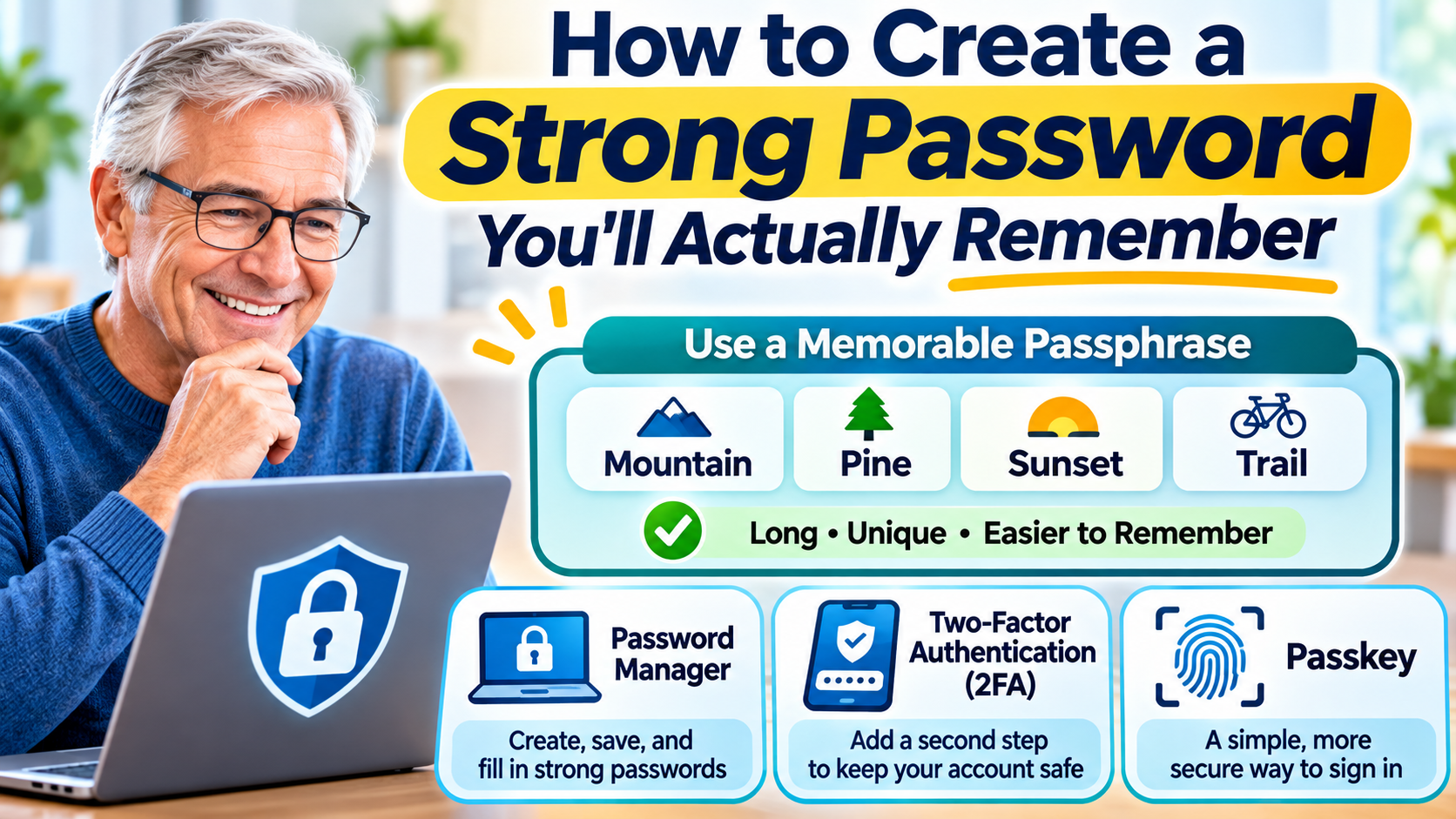
Step 2: Try a Passphrase Instead of a Complicated Password
A passphrase is a password made from several words.
Instead of trying to remember something like:
X7#mQ2!vP9
You might find it easier to remember a longer sequence of unrelated words.
For example:
PebbleOrbitCandleMeadow
This is only a demonstration. Don’t use it as your actual password.
For a stronger passphrase, choose words randomly rather than using a familiar sentence, song lyric, quotation, or personal information.
A memorable passphrase can help you avoid using short passwords that are easy to guess.
Important: Simply combining predictable words doesn’t automatically create a secure password. Random selection and sufficient length matter.
Step 3: Never Reuse the Same Password
One of the biggest password mistakes is using the same password for multiple websites.
Imagine using one password for your email, online shopping, and banking.
If one website suffers a data breach, criminals may try that stolen password on your other accounts.
This is called credential stuffing.
To reduce your risk:
- Use a different password for every account.
- Prioritize email, banking, and financial accounts.
- Replace passwords you’ve reused across websites.
- Use a password manager to avoid memorizing everything.
Remember: Even a very strong password becomes risky when it’s reused.
Step 4: Use a Password Manager
A password manager is a tool that stores and organizes your passwords.
Instead of memorizing dozens of passwords, you generally remember one strong master password or use your device’s supported authentication method.
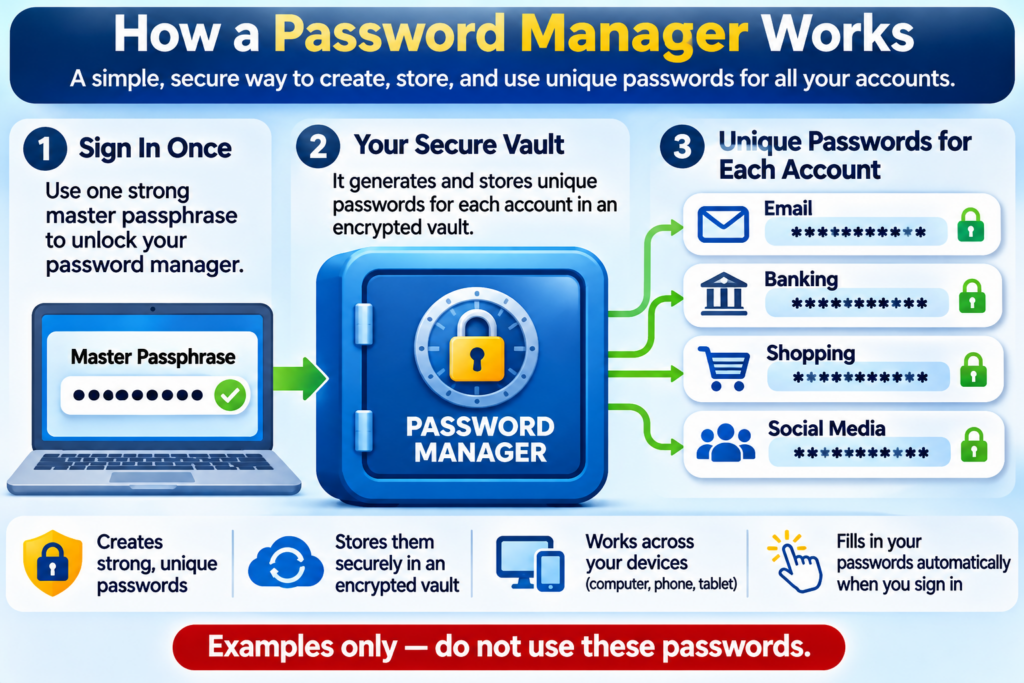
Password managers can:
- Generate long, random passwords
- Save passwords for different websites
- Fill in login information
- Help you avoid reusing passwords
- Synchronize passwords across supported devices
Examples include:
Google Password Manager: Available through Chrome and supported Android devices.
Apple Passwords: Available on supported Apple devices.
Bitwarden: A password manager that works across multiple platforms.
1Password: Another password manager with cross-device support.
Choose a reputable password manager that works with your devices and offers appropriate security features.
If you use a password manager with a master password, make that password especially strong and unique.
Tip: Make sure you understand the password manager’s recovery options before relying on it for all your accounts.
Step 5: Turn On Two-Factor Authentication
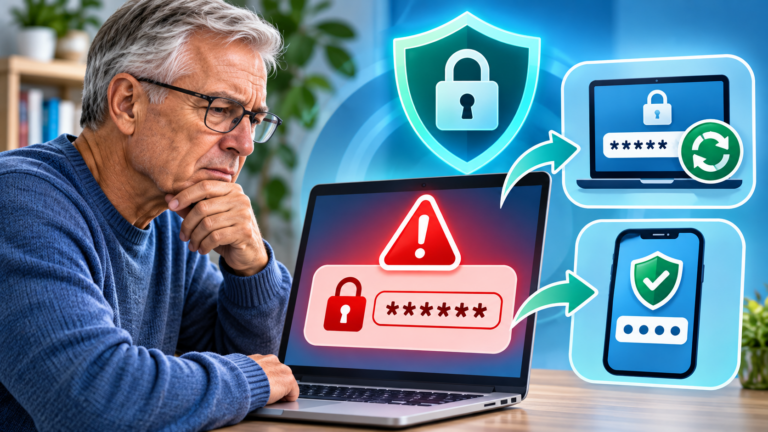
Even a strong password can be stolen through phishing, malware, or a data breach.
That’s why two-factor authentication is important.
Two-factor authentication, often called 2FA, requires another form of verification when signing in.
Examples include:
- A code from an authenticator app
- A security key
- A notification on a trusted device
- A one-time code sent by text message
When available, phishing-resistant methods such as passkeys or security keys provide stronger protection than SMS codes.
Example:
Someone discovers your password, but your account also requires confirmation from your trusted device.
Without that additional verification, the attacker may be unable to sign in.
Important: Never share a one-time security code with someone who calls, texts, or emails you unexpectedly.
How to Make a Password Easier to Remember
A strong password doesn’t have to be impossible to remember.
Here are three practical approaches.
Method 1: Use Random Words You Can Picture
Imagine four unrelated objects or scenes.
For example:
HarborPianoOtterLantern
You could picture an otter playing a piano beside a lantern at a harbor.
That mental image may help you remember the sequence.
This is a demonstration only. Create your own randomly selected words rather than copying published examples.
Method 2: Use a Password Manager to Remember for You
For most people with many online accounts, a password manager is more practical than trying to memorize every password.
It can create unique passwords and store them securely.
You then focus on protecting access to the manager itself.
Method 3: Use a Long, Unique Master Passphrase
If your password manager requires a master password, consider a long passphrase made from randomly selected words.
Choose something you haven’t used anywhere else.
Don’t base it on your birthday, address, pet’s name, or other information someone could discover about you.
Common Password Mistakes to Avoid
Even people who understand password security sometimes make these mistakes.
Using Personal Information
Avoid passwords based on:
- Your name
- Your birthday
- Your address
- Your pet’s name
- Your spouse’s name
- Your phone number
Personal information may be available through social media or public records.
Using Common Passwords
Examples of weak passwords include:
123456passwordqwertyadmin123
These are widely known and often tested by attackers.
Making Small Changes to an Old Password
Changing Summer2025! to Summer2026! doesn’t necessarily make it secure.
Predictable changes are easier for attackers to guess.
Sharing Passwords Through Email or Text
Avoid sending passwords in ordinary messages.
If you need to share account access, look for a secure sharing feature in your password manager or an account’s built-in family or team access options.
Changing Passwords Too Often Without a Reason
You don’t necessarily need to change every password on a fixed schedule.
Modern NIST guidance discourages requiring periodic password changes without evidence of compromise.
Instead, change a password when:
- You suspect it has been stolen.
- A service reports a relevant data breach.
- You’ve accidentally shared it.
- You’ve reused it on another compromised account.
Are Passkeys Better Than Passwords?
Passkeys are a newer way to sign in without typing a traditional password.
Depending on the service and device, you may sign in using:
- Your fingerprint
- Face recognition
- Your device PIN
- A device-based security confirmation
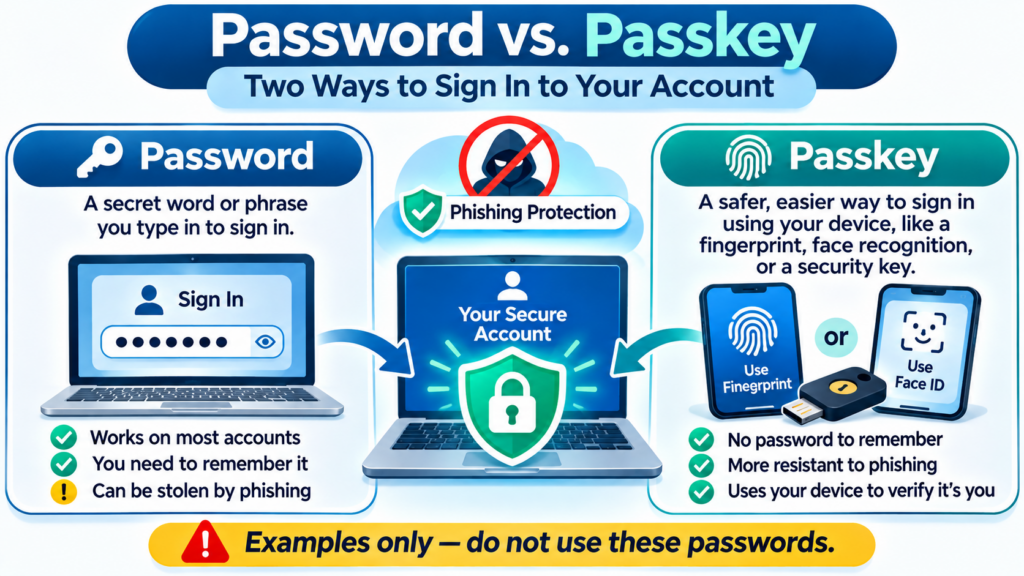
Passkeys use cryptographic technology and are designed to resist phishing attacks.
They’re supported by a growing number of websites and services, although not every account offers them.
For beginners: If a trusted service offers passkeys and your devices support them, they’re worth considering.
Make sure you understand how to recover access if your phone or computer is lost.
How to Check Whether Your Password Has Been Compromised
Some password managers and browsers can alert you when saved passwords appear in known data breaches.
For example, Google Password Manager includes a password-checking feature.
If you receive a credible warning:
- Open the affected website or app directly.
- Change the compromised password.
- Use a new, unique password.
- Check whether you’ve reused the old password elsewhere.
- Enable two-factor authentication if available.
Don’t follow unexpected email links asking you to verify or change a password. Visit the official service directly instead.
What If You Keep Forgetting Your Passwords?
If remembering passwords is difficult, try these solutions:
- Use a password manager. Let it generate and store unique passwords.
- Choose a memorable master passphrase. Use a long, randomly generated word sequence.
- Set up account recovery. Keep your recovery email and phone number current.
- Save recovery codes securely. Store backup codes somewhere protected and accessible.
- Consider passkeys. They may simplify sign-in on supported services.
Avoid storing passwords in an unprotected document on your computer.
If you keep a written recovery record, store it securely and don’t leave it where others can easily find it.
Frequently Asked Questions
How do I create a strong password that’s easy to remember?
Use a long passphrase made from randomly selected, unrelated words. For multiple accounts, consider a password manager that generates and stores unique passwords.
How long should a strong password be?
NIST recommends a minimum of 15 characters when a password is the only authentication factor. Longer, randomly generated passwords or passphrases are generally preferable.
Are special characters required for a strong password?
Not necessarily. Length, unpredictability, and uniqueness are more important than simply adding a symbol or number. Some websites still require particular characters.
Is it safe to use a password manager?
A reputable, properly configured password manager is generally a good way to create and store unique passwords. Protect it with strong authentication and understand its recovery process.
Should I change my passwords every month?
Usually not. Modern guidance favors changing passwords when there’s evidence they may be compromised rather than forcing routine changes without a reason.
Can I use the same strong password for multiple accounts?
No. Each account should have a unique password to reduce the damage if one service experiences a breach.
What is the difference between a password and a passkey?
A password is a secret you enter to sign in. A passkey uses cryptographic credentials associated with your device or password manager, helping protect against phishing.
Final Thoughts
Learning how to create a strong password is one of the simplest ways to improve your online security.
Start by choosing long, unique passwords or passphrases. Avoid personal information and predictable patterns, and never reuse the same password across important accounts.
For everyday convenience, consider using a reputable password manager and enabling two-factor authentication.
The best password strategy is one that protects your accounts without making them impossible to manage.
Related DailyTechHelp.com guides:
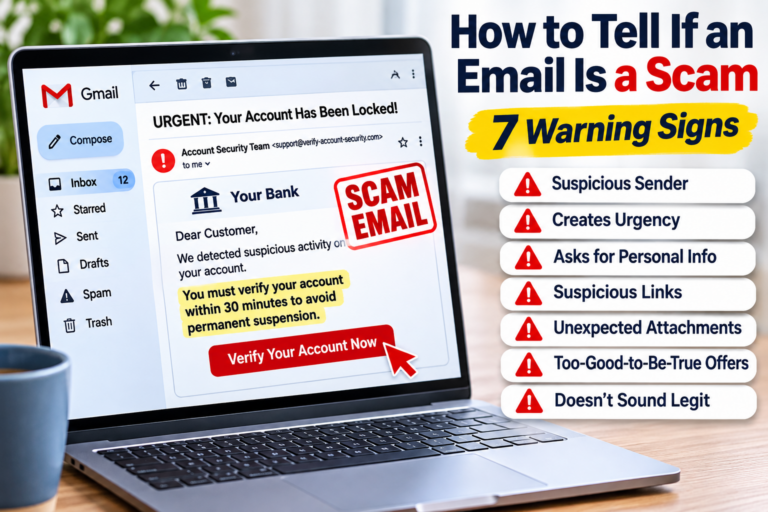
- How to Tell If an Email Is a Scam (7 Warning Signs)
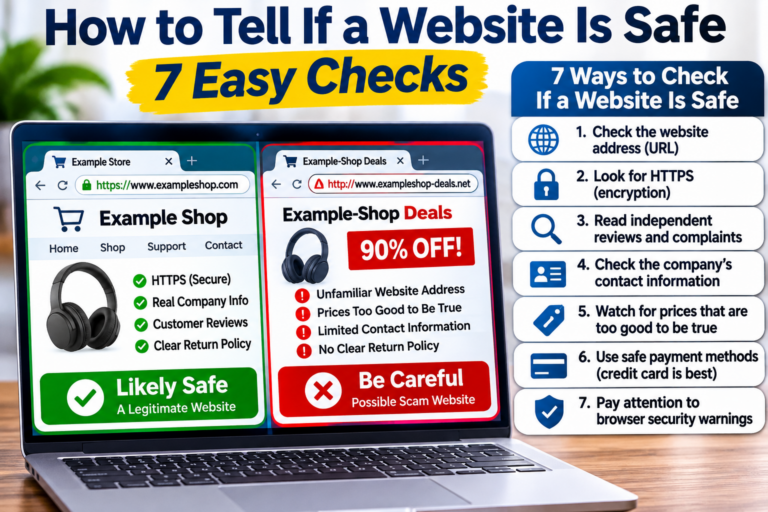
- How to Tell If a Website Is Safe (7 Easy Checks)
Sources and further reading: