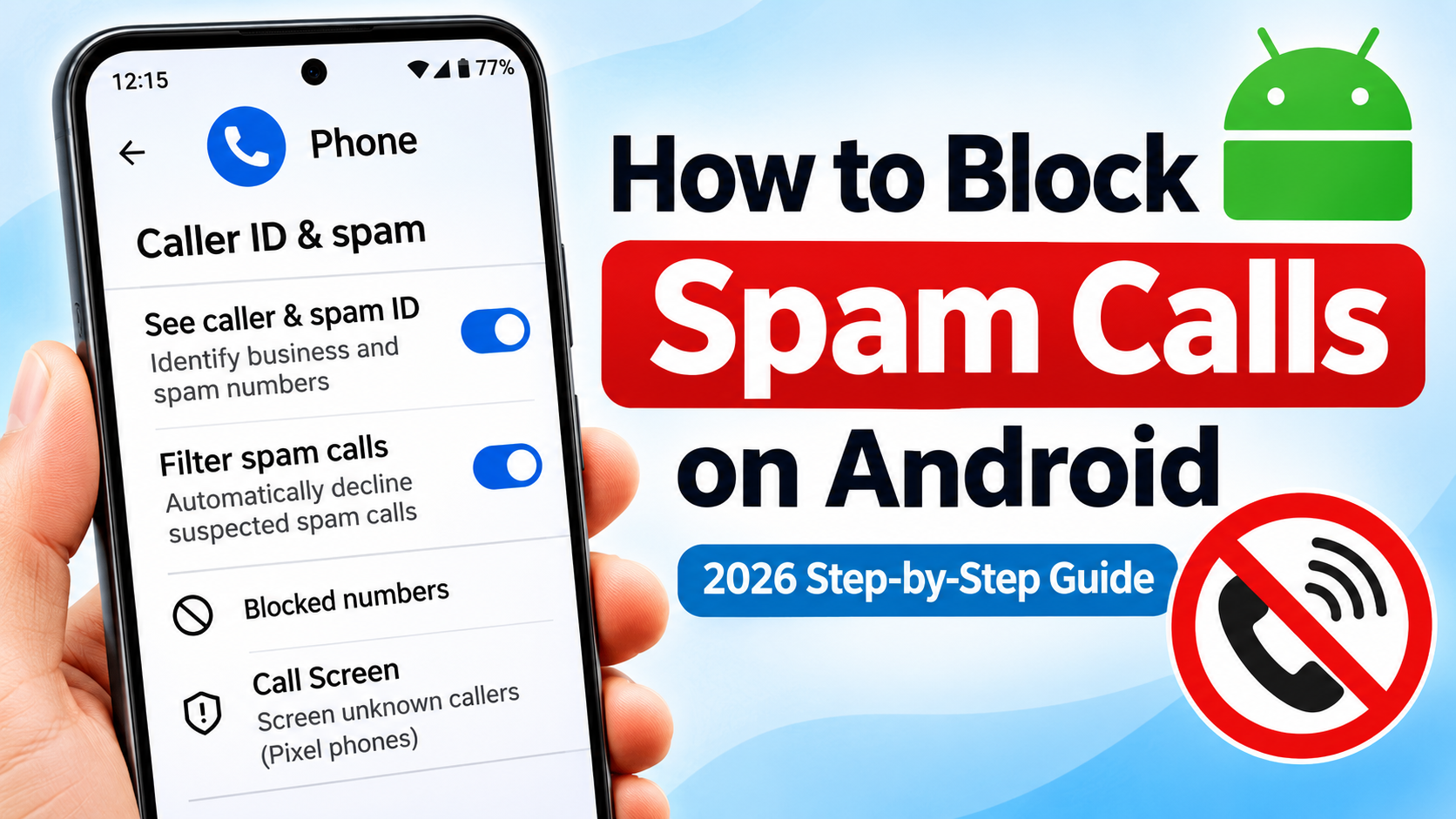
How to Block Spam Calls on Android (2026 Step-by-Step Guide)
Updated November 2026 • Estimated reading time: 6 minutes
Tired of your Android phone ringing with unwanted calls from telemarketers, robocallers, and suspicious numbers?
If you’re wondering how to block spam calls on Android, the good news is that many Android phones have built-in tools that can help. You can identify suspected spam callers, block unwanted numbers, and sometimes automatically filter suspicious calls.
In this easy step-by-step guide, we’ll explain how to use the Phone by Google app to reduce unwanted calls without paying for another service.
Before you begin: These instructions are for phones using the Phone by Google app. Some menu names and features vary by phone manufacturer, software version, and country. Samsung Galaxy phones may use a different Phone app.
Table of Contents
1. Turn On Spam Call Protection on Android
One of the best ways to reduce unwanted calls is to enable your phone’s built-in spam protection.
On a phone using the Phone by Google app:
- Open the Phone app.
- Tap the three-dot menu or More options.
- Select Settings.
- Look for Caller ID & spam or Spam and Call Screen.
- Enable See caller & spam ID, if available.
- If you see Filter spam calls, turn it on to automatically filter suspected spam calls.
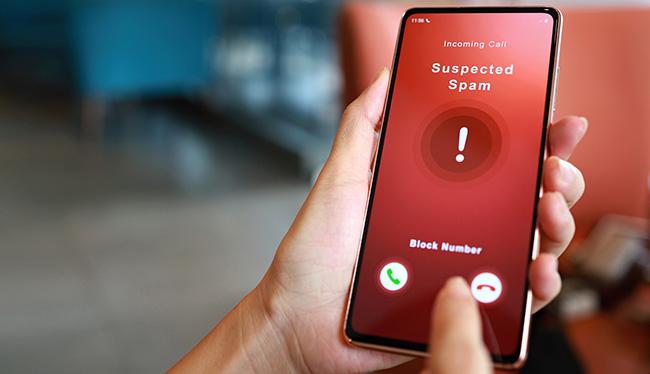
The caller ID feature helps identify unfamiliar callers and may display warnings such as “Suspected spam caller.”
If automatic spam filtering is available, suspected spam calls may be prevented from ringing your phone normally.
Tip: If you don’t see Filter spam calls, your phone may have a different spam protection system. Not every Android model offers identical options.
2. How to Block Spam Calls on Android Using Built-In Protection
If the same number repeatedly calls you, blocking it is usually the simplest solution.
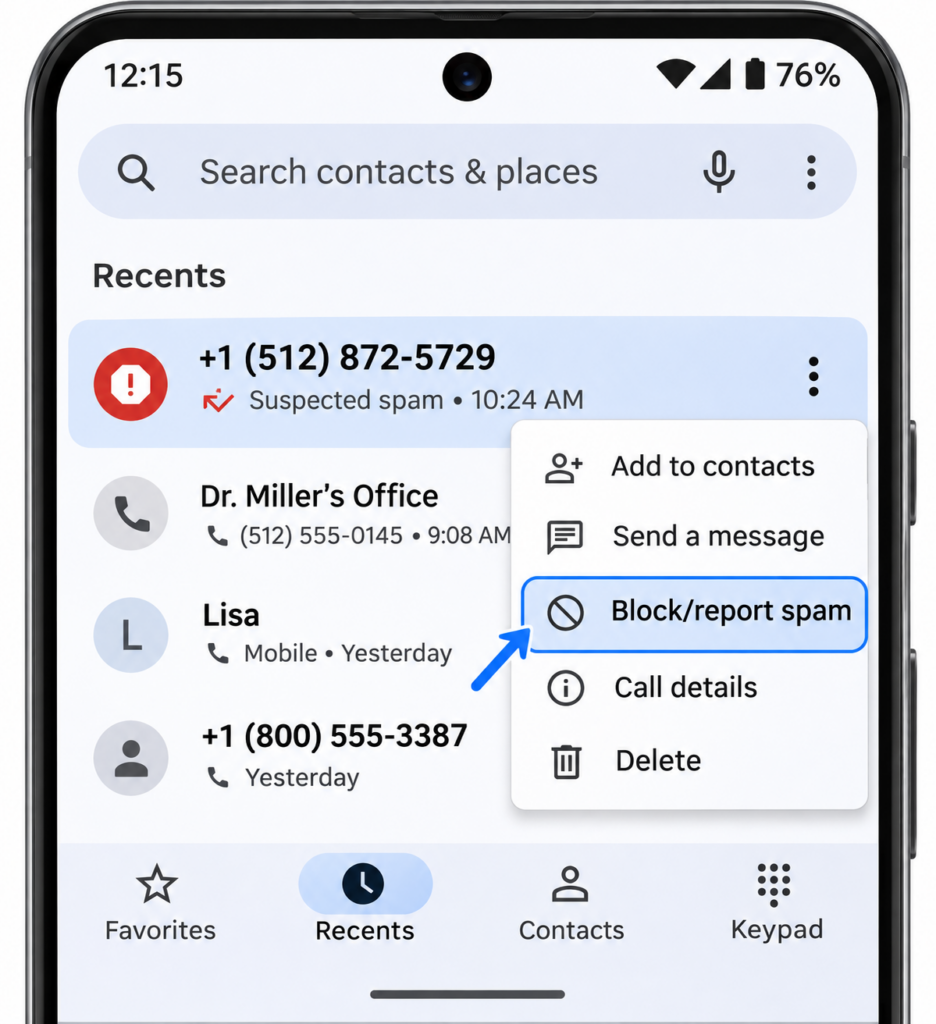
Here’s how:
- Open the Phone app.
- Open your recent calls or call history.
- Find the unwanted phone number.
- Tap the call or press and hold it.
- Select Block or Block/report spam.
- Confirm the action if prompted.
Your phone should automatically decline future calls from that blocked number.
Keep in mind that scammers frequently change or disguise their phone numbers, so blocking individual numbers won’t eliminate every unwanted call.
3. Block Private or Unidentified Numbers
Some unwanted callers hide their phone numbers.
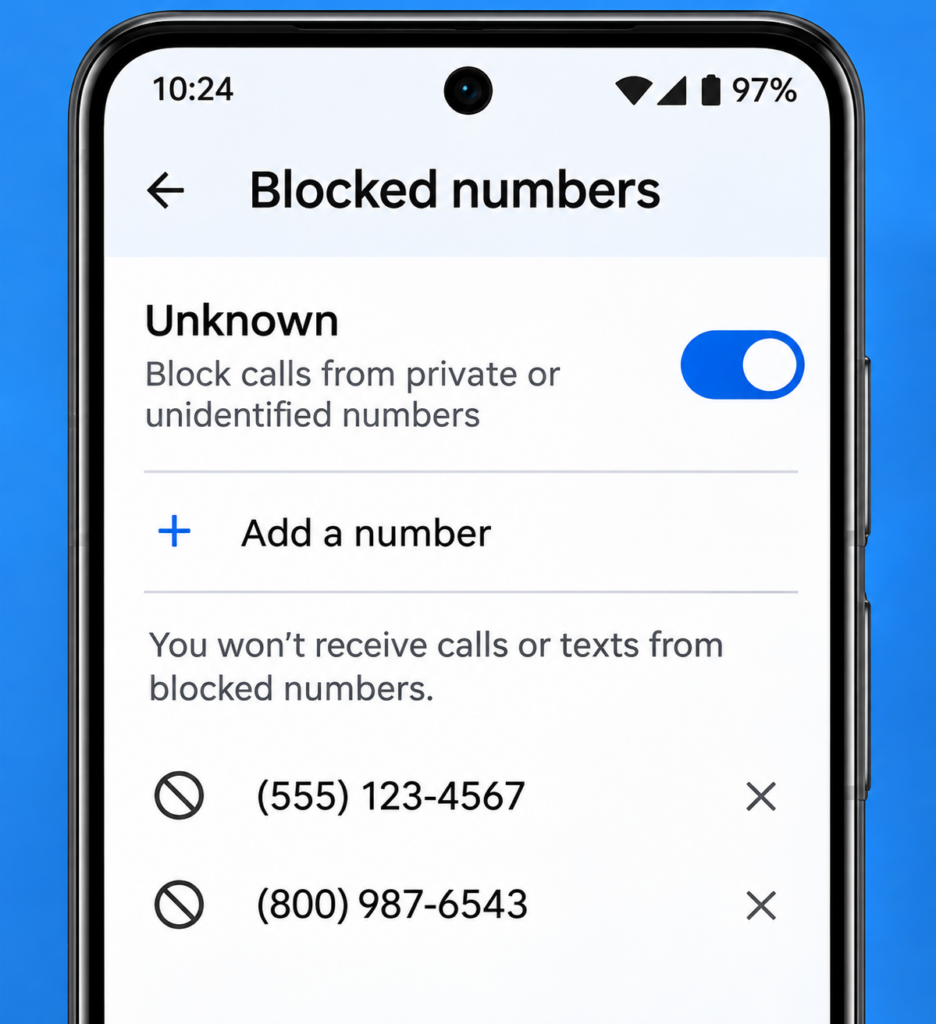
On phones using Phone by Google, you can block calls from private or unidentified numbers:
- Open the Phone app.
- Tap the three-dot menu.
- Select Settings.
- Tap Blocked numbers.
- Turn on Unknown.
Important: This setting blocks private or unidentified numbers. It does not block every number that is missing from your Contacts list.
For example, an ordinary phone number you haven’t saved may still be able to call you.
That distinction is useful if you regularly receive legitimate calls from new numbers.
4. Report Spam Calls on Android
Reporting suspicious calls can help improve spam identification.
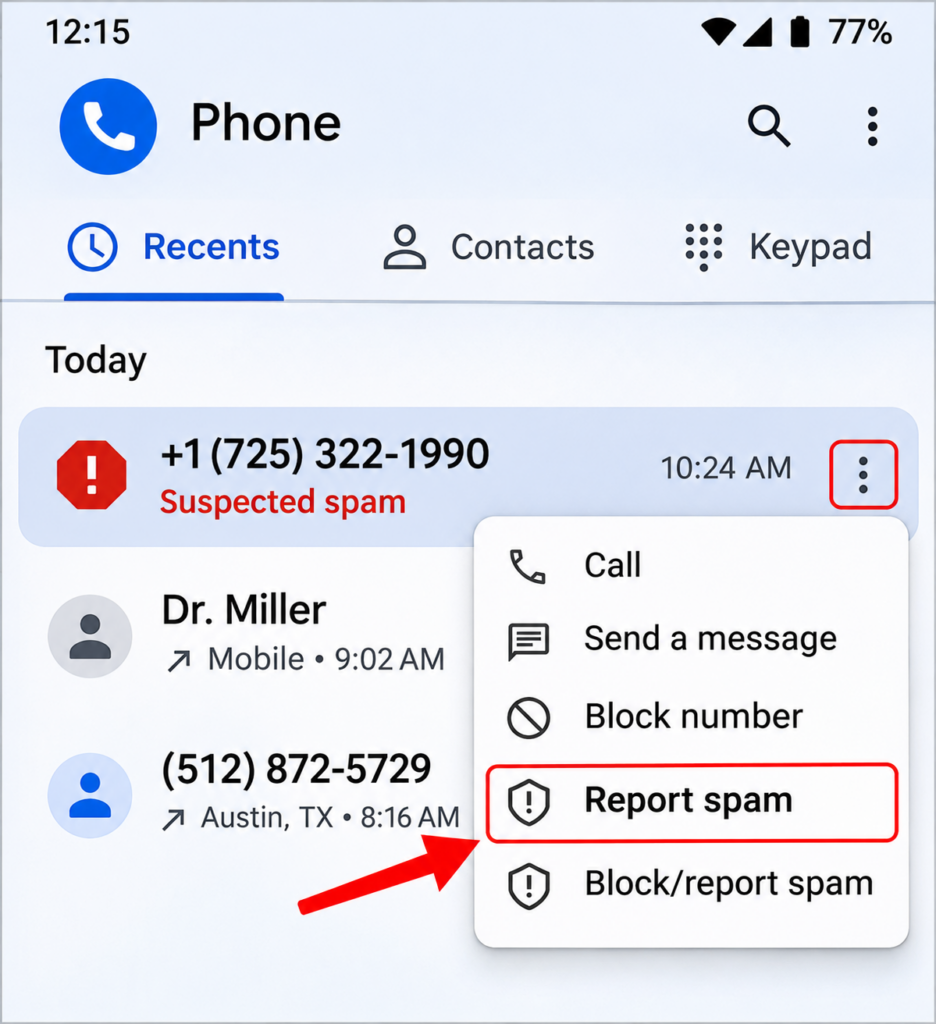
To report a call:
- Open the Phone app.
- Find the suspicious call in your call history.
- Tap or press and hold the call.
- Select Report spam or Block/report spam, depending on your app version.
- Follow the prompts.
Reporting a number helps Google’s spam detection system recognize unwanted callers.
Another useful step when learning how to block spam calls on Android is reporting suspicious phone numbers. Reporting unwanted calls helps improve spam detection and may reduce future interruptions.
Only report calls you reasonably believe are spam. If a legitimate business or person has been incorrectly labeled, some versions of the app offer a Not spam option.
5. Use Call Screen on Google Pixel Phones
Some Google Pixel phones offer a particularly useful feature called Call Screen.
Instead of requiring you to answer every unfamiliar call, Call Screen can ask the caller who they are and why they’re calling.
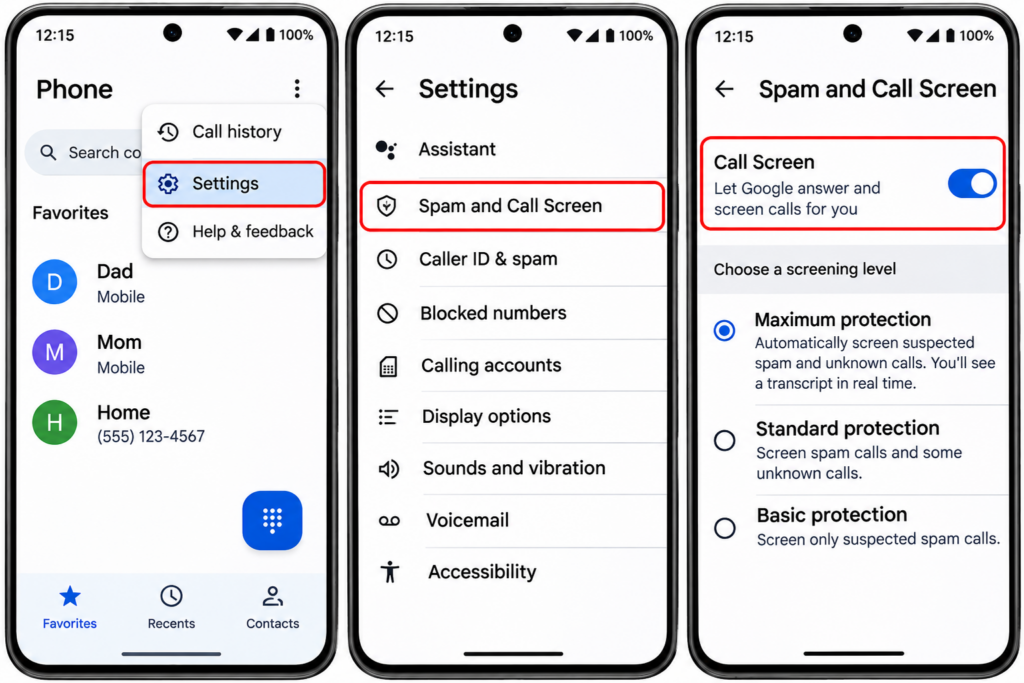
Depending on your Pixel model and country, screening may happen automatically or be started manually.
To find the setting:
- Open the Phone app.
- Tap More options → Settings.
- Look for Spam and Call Screen or Call Screen.
- Select Call Screen.
- Choose the available protection settings for your phone.
On supported phones, automatic screening can help identify suspicious callers before your phone rings.
Not every Android phone supports Call Screen, and the available settings vary by model and region.
6. How to Unblock a Phone Number
Accidentally blocked someone important?
You can remove their number from your blocked list.
- Open the Phone app.
- Tap More options → Settings.
- Select Blocked numbers.
- Find the number you want to unblock.
- Tap the remove or clear icon next to it.
- Select Unblock.
The number should now be able to call you again.
Calls made while the number was blocked may not appear in your call history.
7. What If Spam Calls Keep Coming?
Even after enabling spam protection, some unwanted calls may still get through.
Here are a few additional precautions:
- Don’t answer suspicious calls. If you don’t recognize the number, consider letting it go unanswered.
- Don’t share personal information. Never provide passwords, banking information, or verification codes to an unexpected caller.
- Don’t trust caller ID alone. Scammers can make calls appear to come from legitimate organizations.
- Check your mobile carrier’s protection features. Some carriers offer additional spam filtering.
- Keep your Phone app updated. Updates may improve call handling and spam detection.
If someone claims to represent your bank or another important organization, hang up and contact the organization using a phone number from its official website or your account documents.
If you’re still wondering how to block spam calls on Android, combining several protection methods is usually more effective than relying on one setting. Use spam filtering, block repeat callers, and check whether your mobile carrier offers additional protection.
8. Which Android Spam Protection Method Is Best?
| Method | Best for |
|---|---|
| Caller ID & spam protection | Identifying suspected spam callers |
| Filter spam calls | Automatically reducing suspicious calls when supported |
| Block a number | Stopping a particular caller |
| Block unknown/private numbers | Rejecting calls that hide caller identification |
| Report spam | Helping identify unwanted callers |
| Pixel Call Screen | Screening callers before answering on supported phones |
For most people, the best starting point is to enable caller ID and spam protection, then block repeat offenders.
If your phone supports automatic spam filtering or Call Screen, those features may provide additional protection.
9. What If Spam Calls Still Come Through on Android?
If you’re still receiving unwanted calls, try these troubleshooting steps:
- Check spam protection. Open the Phone by Google app and review Settings → Caller ID & spam or Spam and Call Screen, depending on your device.
- Enable automatic filtering if available. Some Android phones offer a Filter spam calls option that prevents suspected spam calls from ringing normally.
- Block repeat callers. Open your recent calls and block numbers that repeatedly contact you.
- Check your mobile carrier’s protection. Your carrier may provide additional spam detection or call filtering.
If you use a Samsung Galaxy phone, your menus may be different from those in the Google Phone app.
Important: Blocking private or unidentified numbers doesn’t necessarily block ordinary phone numbers that aren’t saved in your contacts.
10. Frequently Asked Questions
Can I block all spam calls on Android?
No method guarantees that every spam call will be blocked. However, built-in spam detection, call filtering, and number blocking can substantially reduce unwanted interruptions.
Is spam call blocking free on Android?
Many Android phones include free spam protection through their Phone app. Some mobile carriers and third-party services offer additional features that may cost money.
Will blocking a number stop text messages too?
That depends on the apps and blocking method used. Blocking through Google Contacts can also prevent texts from that number, while other apps may handle calls and messages separately.
Does blocking unknown numbers block everyone outside my contacts?
Not in Phone by Google. Its Unknown setting blocks private or unidentified numbers, not all unsaved phone numbers.
Why do spam calls keep coming from different numbers?
Some spammers use automated dialing and change or disguise their caller ID information. Blocking one number doesn’t necessarily stop calls from others.
Is spam protection the same on Samsung and Google Pixel?
No. Samsung Galaxy phones may use Samsung’s own Phone app and spam identification features, while Pixel phones use Google’s Phone app and may offer Call Screen.
Final Thoughts
Learning how to block spam calls on Android doesn’t have to be complicated.
Start by checking your Phone app’s caller ID and spam protection settings. Block persistent callers, report suspicious numbers, and consider additional call screening if your phone supports it.
These simple steps can make your phone quieter while helping you avoid suspicious calls.
Helping someone who uses an iPhone instead? Our guide to making an iPhone battery last longer covers simple settings that can reduce battery drain.
Related guides:
Official Google instructions: