How to Stop Spam Text Messages on iPhone (2026 Step-by-Step Guide)
Updated November 2026 • Estimated reading time: 6 minutes
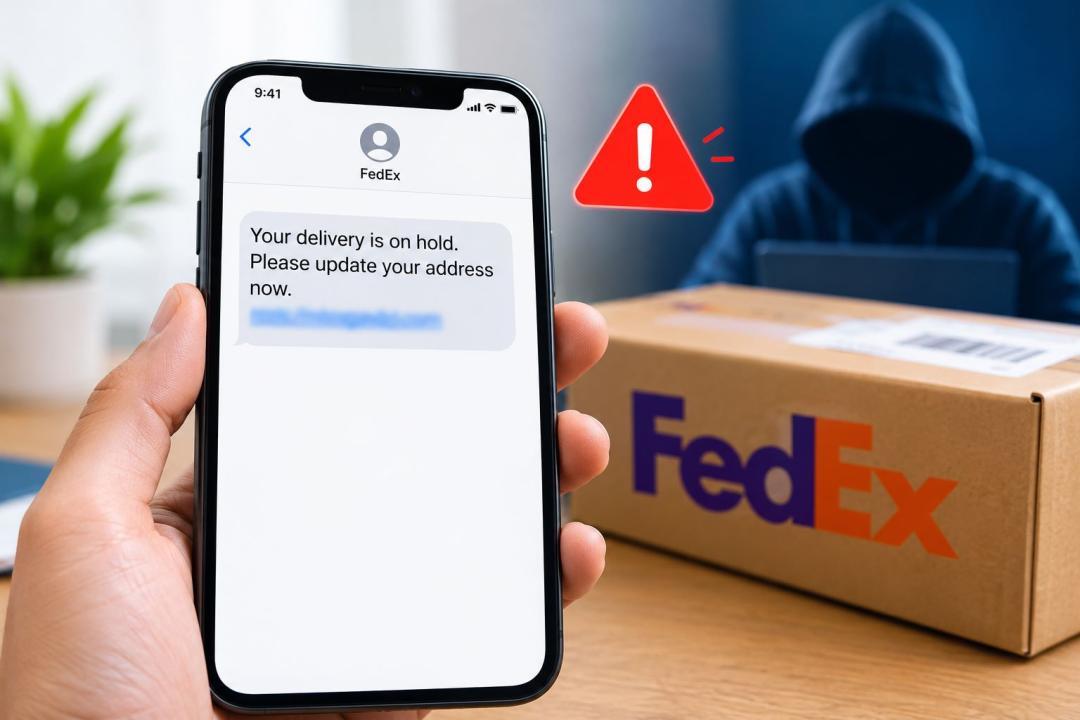
Are you tired of receiving unwanted text messages about fake deliveries, suspicious bank alerts, prizes you’ve supposedly won, or offers you never requested?
If you’re wondering how to stop spam text messages on iPhone, Apple includes several built-in features that can help. You can filter messages from unknown senders, report suspicious texts, and block numbers that repeatedly contact you.
The best part? You can get started without downloading an app or paying for a subscription.
In this beginner-friendly guide, we’ll walk through the settings step by step.
Table of Contents
1. How to Stop Spam Text Messages on iPhone Using Unknown Sender Filtering
One of the easiest ways to reduce unwanted text notifications is to separate messages from people you don’t recognize.
On an iPhone running iOS 26:
- Open the Messages app.
- Tap the Filter button near the top of your conversation list.
- Select Manage Filtering.
- Turn on Screen Unknown Senders.
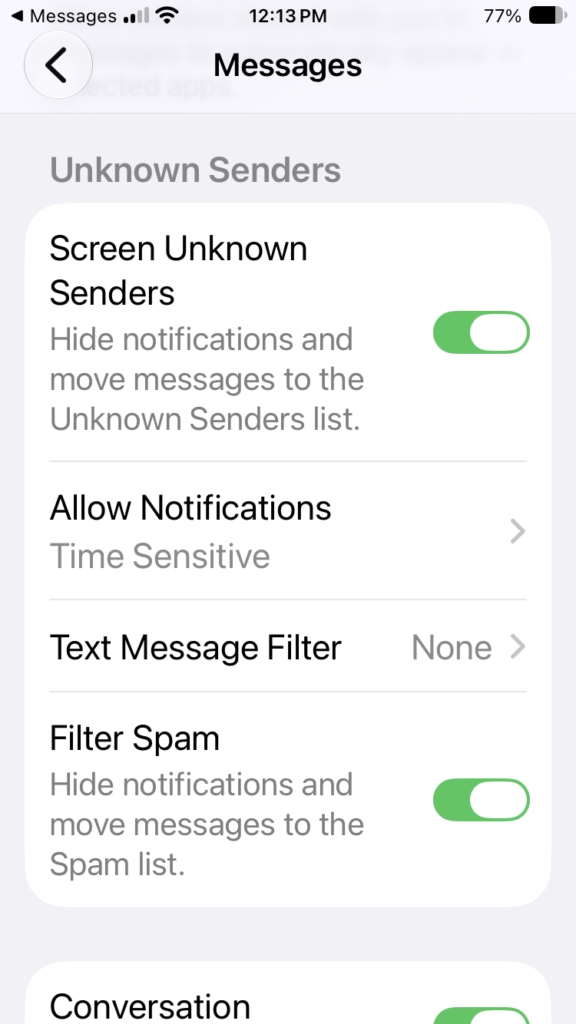
Messages from unknown senders will now appear in a separate folder rather than mixing with your main conversations.
You can also find this setting under Settings → Apps → Messages → Unknown Senders.
Important: This feature filters messages rather than permanently blocking them. Legitimate texts from unfamiliar numbers may also be filtered.
2. Find Messages From Unknown Senders
After enabling screening, you may occasionally want to check whether an important message was filtered.
Here’s how:
- Open Messages.
- Tap the Filter button.
- Select Unknown Senders.
- Review the messages in that folder.
If you recognize a sender, open the conversation and select Mark as Known.
You can also add the sender to your Contacts.
This is particularly helpful when you’re expecting a message from a new business, service provider, or acquaintance.
3. Report Spam Text Messages on iPhone
Another useful step when learning how to stop spam text messages on iPhone is reporting suspicious messages. Reporting unwanted texts can help identify spam and reduce future interruptions.
When you receive a suspicious message, reporting it can help identify unwanted messages.

To report an unopened spam text:
- Open Messages.
- Find the unwanted conversation.
- Swipe left on it.
- Tap Delete.
- Choose Delete and Report Spam, if available.
If you’ve already opened the message, look for a Report Spam option near the bottom of the conversation. Report only messages you believe are suspicious
The available reporting options can vary by message type and mobile carrier.
Remember: Reporting a message doesn’t automatically block the sender. If you want to prevent further messages from that number, follow the next section.
4. Block a Spam Text Number
If you keep receiving unwanted messages from the same number, you can block it.
- Open the Messages app.
- Select the unwanted conversation.
- Tap the sender’s name, number, or icon at the top.
- Tap Info.
- Scroll down and select Block Contact.
After blocking the sender, messages from that number won’t be delivered to you.
Be aware that blocking a contact can also affect their ability to reach you through other Apple communication apps.
5. Check Your Spam Folder
Your iPhone can identify certain suspicious messages and move them into a Spam folder.
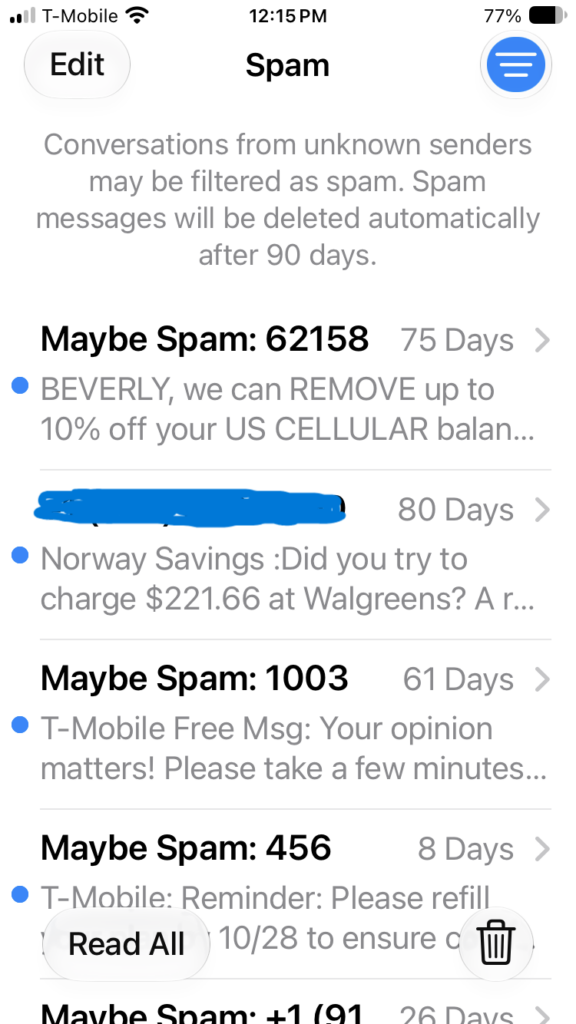
To review these messages:
- Open Messages.
- Tap the Filter button.
- Select Spam.
- Review the messages.
If a legitimate message was incorrectly classified as spam, open it and select Not Spam, then Move to Messages.
This is worth checking occasionally, especially when you’re expecting an important text.
6. Manage Notifications From Unknown Senders
Not every unfamiliar number is a spammer.
You might receive legitimate messages containing appointment reminders, delivery updates, or verification codes.
To manage which unknown messages can notify you:
- Open Settings.
- Tap Apps → Messages.
- Find Unknown Senders.
- Tap Allow Notifications.
- Choose the message categories you want to allow.
Available categories can vary by country and region.
This gives you more control over interruptions without requiring you to block every unfamiliar sender.
7. How to Recognize a Scam Text Message
Not every unwanted text is simply advertising. Some messages are designed to steal your money or personal information.
Watch for these common warning signs:
- Urgent demands: A message claims your account will be locked unless you act immediately.
- Unexpected delivery problems: A text says you must pay a small fee to receive a package you weren’t expecting.
- Suspicious links: The sender directs you to an unfamiliar website.
- Requests for personal information: A message asks for passwords, bank details, or verification codes.
- Too-good-to-be-true offers: You supposedly won a prize or gift card you never entered to receive.
If a message claims to be from your bank, delivery company, or another business, contact that organization through its official app or website instead of using the link in the message.
Don’t reply to suspicious texts, including messages asking you to respond with a word such as STOP. For legitimate businesses you recognize, opting out may be appropriate, but responding to an unknown scammer can confirm that your number is active.
8. Which Spam Text Protection Method Is Best?
| Method | Best for |
|---|---|
| Screen Unknown Senders | Keeping unfamiliar texts separate |
| Report Spam | Flagging suspicious messages |
| Block Contact | Stopping messages from a particular sender |
| Spam Folder | Reviewing automatically detected spam |
| Notification Controls | Reducing interruptions while allowing important alerts |
For most iPhone users, a good starting point is to enable Screen Unknown Senders, review the Spam folder occasionally, and block repeat offenders.
No single setting will eliminate every unwanted text, but combining these features can make your Messages app much easier to manage.
The best way to stop spam text messages on iPhone is to combine several built-in features. Screening unknown senders, reporting suspicious messages, and blocking repeat offenders can help keep your inbox manageable.
9. What If Spam Text Messages Keep Arriving on Your iPhone?
If unwanted text messages continue appearing, check these settings:
- Verify your message filtering settings. Open Settings → Apps → Messages and confirm that Screen Unknown Senders and Filter Spam are enabled, if available.
- Check your filtered messages. Open Messages and look for the Unknown Senders or Spam folders. Their location may vary by iOS version.
- Block repeat offenders. If the same number repeatedly sends unwanted messages, block that sender.
- Avoid replying to suspicious texts. Don’t click unfamiliar links or respond to messages asking for passwords, payments, or verification codes.
Spam filtering cannot identify every suspicious message, particularly when scammers use new phone numbers.
Tip: If an important text seems to be missing, check your filtered message folders before assuming it was never delivered.
10. Frequently Asked Questions
Can I stop spam texts completely on my iPhone?
Not necessarily. Spammers can change phone numbers and sending methods. However, screening unknown senders, reporting suspicious messages, and blocking repeat offenders can reduce unwanted messages.
Does blocking a number stop text messages?
Yes. Blocking a specific number prevents messages from that number from being delivered through Apple’s supported communication services.
Will I miss important messages if I filter unknown senders?
Possibly. Legitimate messages from unsaved numbers may be moved to the Unknown Senders folder. Check that folder regularly and review your notification settings.
Do I need an app to block spam texts?
No. Your iPhone already includes several useful tools. Third-party filtering apps are optional.
Why am I suddenly getting so many spam texts?
Your number may have been added to a marketing list, exposed through a data breach, or targeted by automated messaging campaigns. A sudden increase doesn’t necessarily mean your iPhone has been hacked.
Should I reply STOP to spam texts?
Only when you’re confident the message comes from a legitimate business. Don’t respond to suspicious messages from unknown senders.
Final Thoughts
Learning how to stop spam text messages on iPhone doesn’t require complicated settings.
Start by enabling Screen Unknown Senders. Then report suspicious messages, block persistent senders, and check your filtered folders when necessary.
These simple steps can help you reduce unwanted interruptions while keeping important messages accessible.
Looking for more simple iPhone tips? Learn how to make your iPhone battery last longer with easy settings changes that take only a few minutes.
Related DailyTechHelp.com guides:
Official Apple instructions: Screen and Filter Text Messages on iPhone