How to Stop Spam Text Messages on Android (2026 Step-by-Step Guide)
Updated November 2026 • Estimated reading time: 7 minutes
Are you tired of receiving unwanted text messages about fake deliveries, suspicious bank alerts, or prizes you never entered to win?
If you’re wondering how to stop spam text messages on Android, your phone may already have the tools you need.
Google Messages includes built-in spam protection that can identify suspicious messages, move unwanted conversations into a separate folder, and help you block repeat offenders.
In this beginner-friendly guide, we’ll walk through the steps to make your Android text messages safer and easier to manage.
Before you begin: These instructions use the Google Messages app. Many Android phones, including Google Pixel and some Samsung Galaxy models, use this app. Your screens may look slightly different depending on your phone and app version.
Table of Contents
1. How to Stop Spam Text Messages on Android Using Spam Protection
The first thing to check is whether spam protection is enabled.
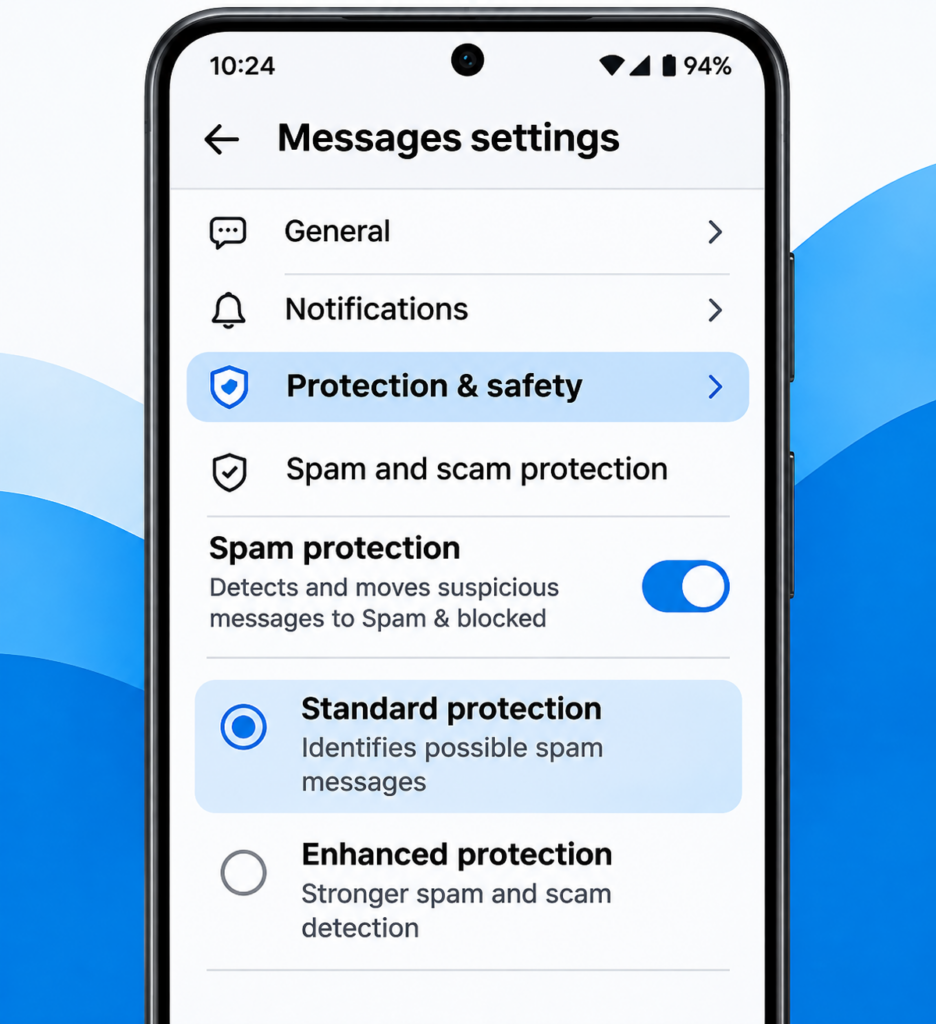
Google Messages offers built-in spam and scam detection. On supported versions, you may be able to choose between standard and enhanced protection.
Here’s how to find it:
- Open Google Messages.
- Tap your profile picture or initials in the upper-right corner.
- Select Messages settings.
- Tap Protection & safety.
- Select Spam and scam protection, if available.
- Choose Standard protection or Enhanced protection, depending on the options shown.
Standard protection identifies suspicious messages using built-in detection. Enhanced protection, when available, adds further scam detection capabilities.
On some phones, the setting may simply be called Spam protection, with an on/off switch.
Tip: Spam protection is normally enabled by default, but it’s worth checking.
2. Block a Spam Text Message Sender
If the same person or business keeps sending unwanted messages, you can block the conversation.
Follow these steps:
- Open Google Messages.
- Find the unwanted conversation.
- Touch and hold the conversation.
- Tap Block.
- Confirm by tapping OK.
Depending on your version of Google Messages, you may also see an option to report the conversation as spam.
Once blocked, the sender should no longer interrupt your regular message inbox.
Important: Scammers often use different phone numbers, so blocking one sender may not stop every unwanted message.
3. Report Spam Text Messages on Android
Reporting spam helps Google’s detection systems recognize unwanted messages.
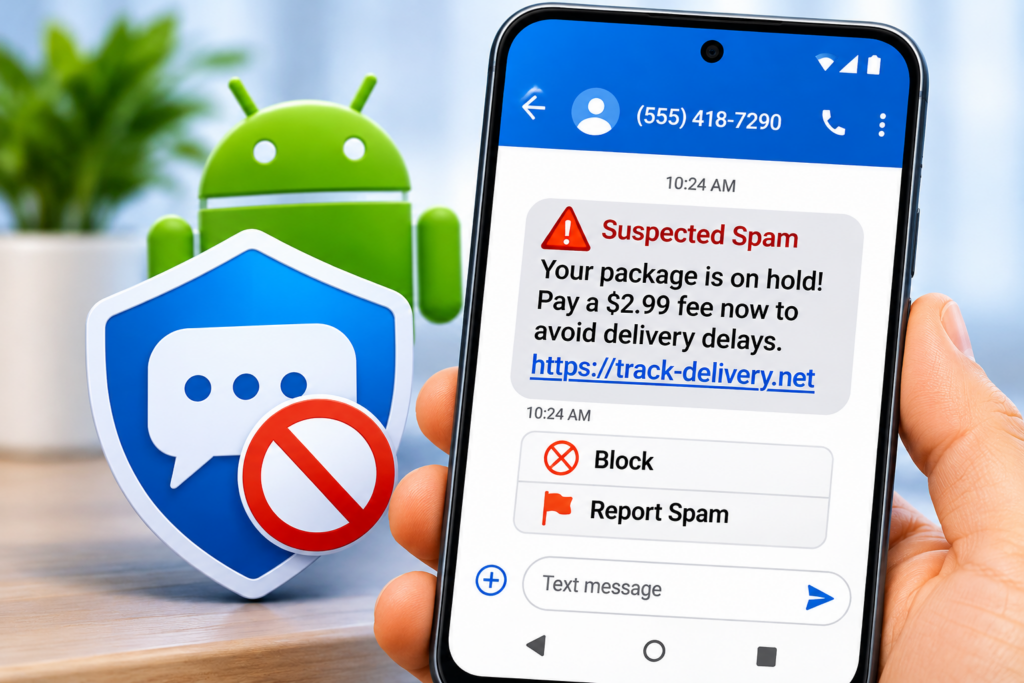
To report a suspicious conversation:
- Open Google Messages.
- Touch and hold the conversation.
- Tap Block or Block & report spam.
- Select Report spam if prompted.
- Tap OK.
You can also open a conversation, tap the three-dot menu, choose Details, and look for Block & report spam.
Reporting may share the sender’s number and recent incoming messages with Google or your mobile carrier to improve spam detection.
Only report messages you reasonably believe are spam.
4. Find Your Spam & Blocked Messages Folder
Google Messages can automatically move suspicious conversations out of your main inbox.
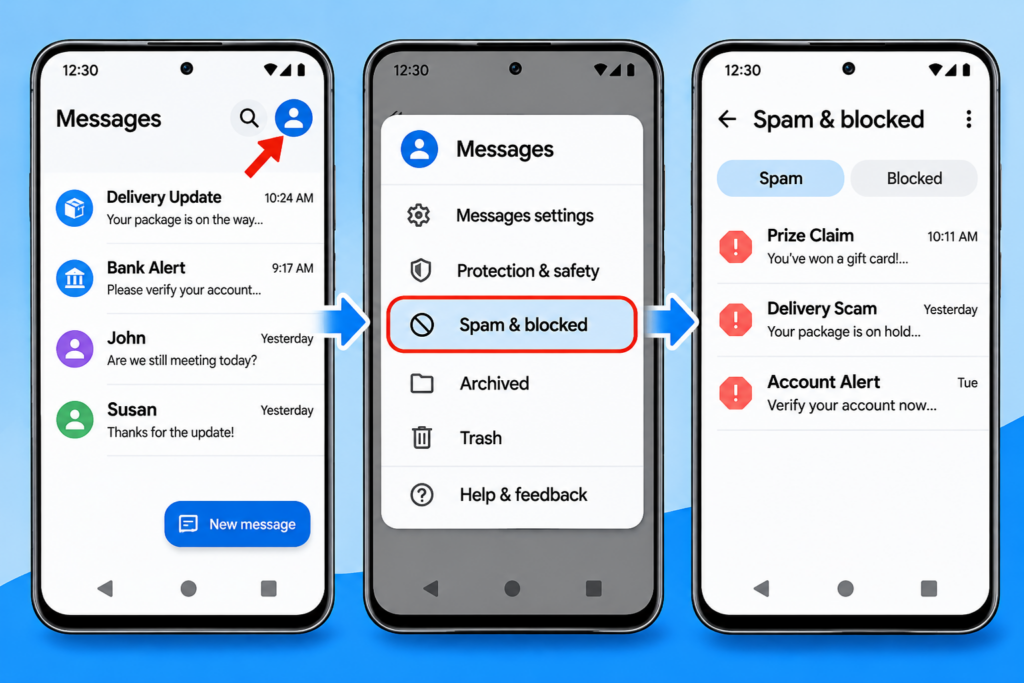
To check these messages:
- Open Google Messages.
- Tap your profile picture or initials.
- Look for Spam & blocked.
- Tap the folder to view filtered conversations.
Review this folder occasionally, especially if you’re expecting an important message that hasn’t arrived.
Tip: Be careful when opening suspicious messages. Avoid tapping unfamiliar links or calling phone numbers included in questionable texts.
5. Unblock a Number or Mark a Message as Not Spam
Sometimes Google Messages may incorrectly identify a legitimate message as spam.
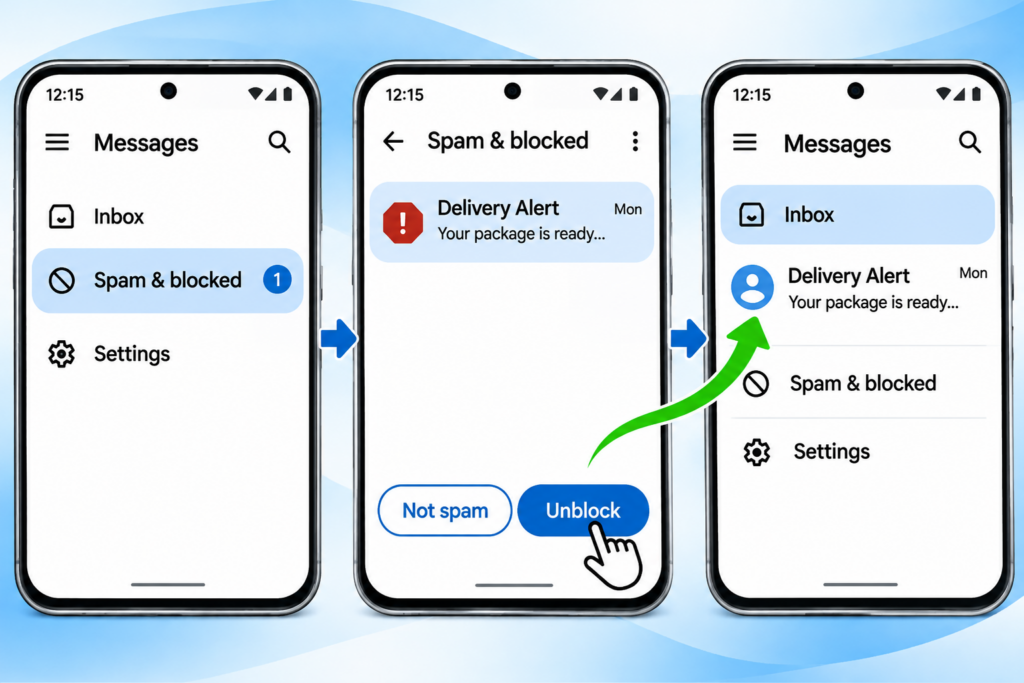
Fortunately, you can correct the mistake.
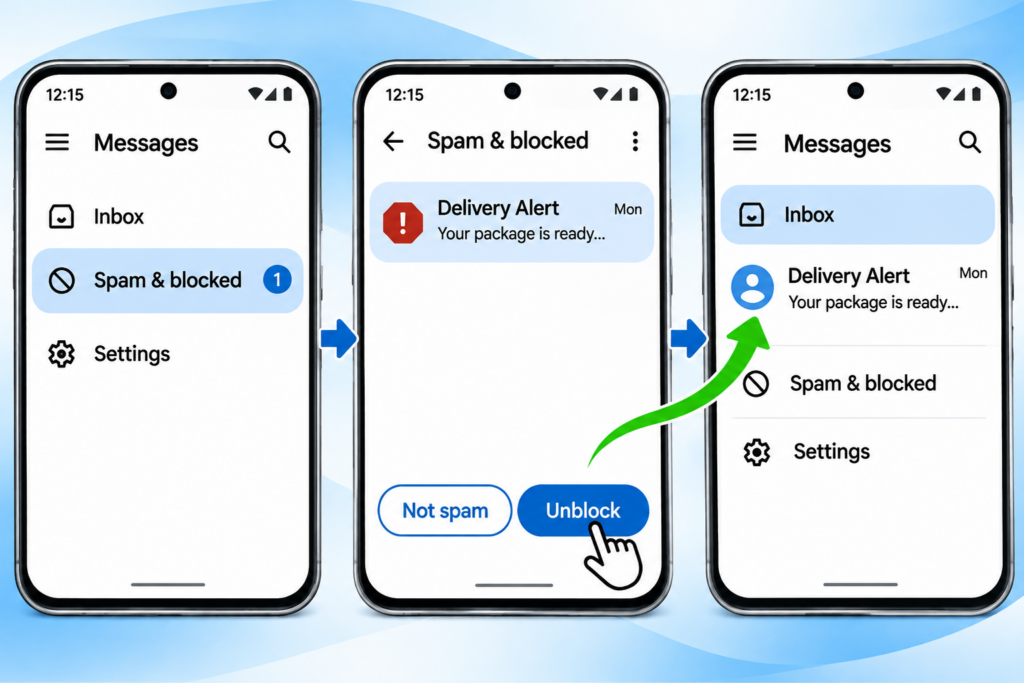
- Open Google Messages.
- Go to Spam & blocked.
- Select the conversation you want to restore.
- Tap Unblock or Not spam, depending on the available option.
- Confirm your choice.
Unblocking a conversation generally returns it to your main message list.
This is useful if an appointment reminder, delivery notification, or message from a new contact was incorrectly filtered.
6. How to Recognize a Scam Text Message
Even with spam protection enabled, some suspicious texts may still reach your inbox.
Watch for these warning signs:
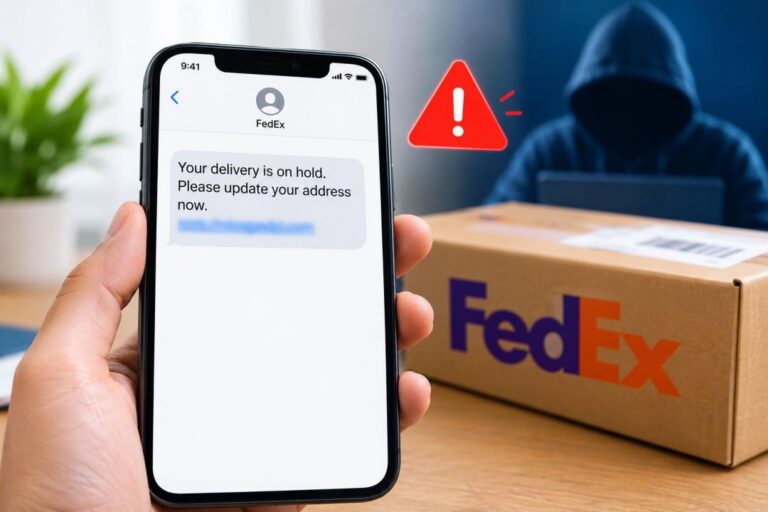
- Unexpected delivery problems: A text claims your package cannot be delivered until you pay a small fee.
- Fake bank alerts: A message says your account has been locked and asks you to verify information.
- Prize notifications: You supposedly won money or a gift you never entered to receive.
- Urgent requests: The sender pressures you to act immediately.
- Suspicious links: The message includes an unfamiliar website address.
- Requests for verification codes: Someone asks you to share a code sent to your phone.
Scammers sometimes disguise their phone numbers or impersonate familiar companies.
If you’re concerned about a message from your bank or delivery company, open the company’s official app or website yourself instead of using the link in the text.
7. What If Spam Text Messages Keep Coming?
If unwanted messages continue, combine several protective steps.
First, confirm that Google Messages spam protection is enabled.
Next, block and report repeat offenders.
You can also check whether your mobile carrier provides additional text message filtering.
Avoid replying to suspicious messages, even with the word STOP, unless you’re confident the sender is a legitimate business. Replying to a scammer may confirm that your number is active.
For legitimate promotional messages from businesses you recognize, Google Messages may offer an unsubscribe option.
The best approach to stopping spam text messages on Android is to combine automatic filtering with careful handling of suspicious messages.
8. Which Android Spam Text Protection Method Is Best?
| Method | Best for |
|---|---|
| Spam and scam protection | Automatically identifying suspicious texts |
| Block sender | Stopping messages from a particular number |
| Report spam | Helping improve spam detection |
| Spam & blocked folder | Reviewing filtered messages |
| Unblock or Not spam | Restoring legitimate conversations |
| Carrier spam filtering | Adding another layer of protection |
For most Android users, enabling Google Messages spam protection is the best starting point.
9. What If Spam Text Messages Keep Arriving on Android?
If Google Messages continues receiving unwanted texts, try these steps:
- Check spam protection. Open Google Messages → Profile picture → Messages settings and look for spam protection under Protection & safety or the available settings menu.
- Update Google Messages. Open the Google Play Store and check whether an update is available.
- Block and report suspicious senders. Use the Block & report spam option when you receive an unwanted message.
- Check your Spam & blocked folder. Some messages may already have been filtered out of your regular inbox.
Scammers frequently change their sending numbers, so blocking one sender may not stop future messages from different numbers.
Tip: If an expected message hasn’t arrived, check Spam & blocked to see whether it was filtered incorrectly.
10. Frequently Asked Questions
Can I stop all spam text messages on Android?
No spam filter catches every unwanted message. However, Google Messages spam protection, sender blocking, and reporting can reduce the number of suspicious texts reaching your inbox.
Is spam protection free on Android?
Yes. Google Messages includes built-in spam protection without requiring a paid subscription.
Does blocking a number delete its messages?
Blocking moves the conversation into the Spam & blocked area rather than necessarily deleting its contents. You can review blocked conversations later.
Can I block every text from an unknown number?
Google Messages primarily identifies suspected spam rather than automatically blocking every sender who isn’t saved in your contacts.
Does reporting spam notify the sender?
No. The sender isn’t directly notified that you submitted a spam report.
Will these instructions work on Samsung Galaxy phones?
They apply to Samsung phones using Google Messages. If your Samsung phone uses a different messaging app, the menu options may differ.
Why do spam texts keep arriving from new numbers?
Spammers frequently change numbers or use automated messaging systems. Blocking individual senders helps, but automatic spam detection provides broader protection.
Final Thoughts
Learning how to stop spam text messages on Android is easier when you know where to find the built-in protection settings.
Start by checking Google Messages spam protection. Then block and report suspicious senders, review your Spam & blocked folder occasionally, and avoid unfamiliar links.
These simple habits can help keep your inbox cleaner and protect you from common text message scams.
Related DailyTechHelp.com guides:
- How to Block Spam Calls on Android (Step-by-Step Guide)
- How to Stop Spam Text Messages on iPhone (Step-by-Step Guide)
- How to Stop Spam Calls on Your iPhone (Step-by-Step Guide)
Official Google resources: