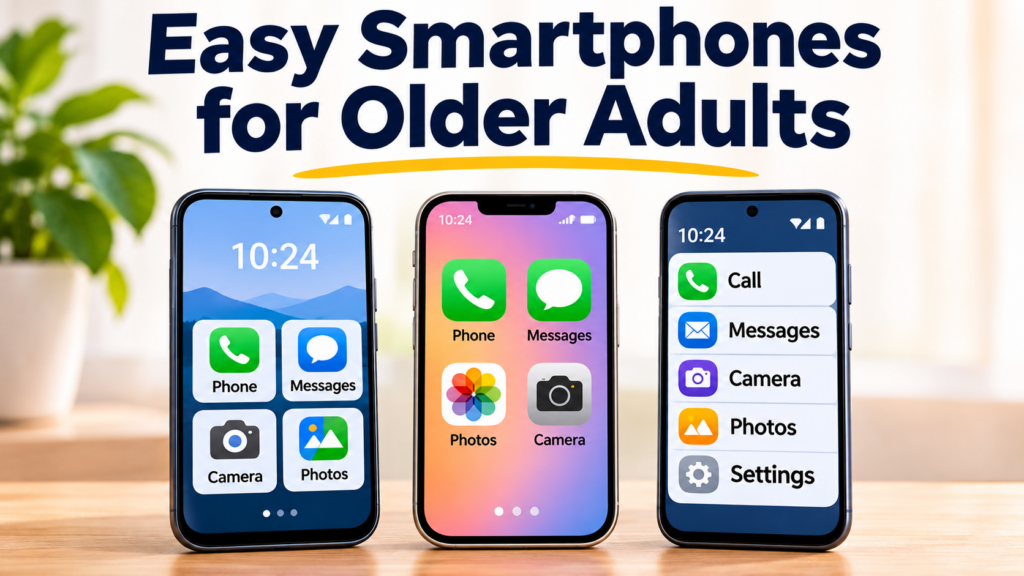
Best Simple Smartphones for Older Adults (2026 Buying Guide)
Buying a new smartphone doesn’t have to be complicated. Whether you’re purchasing your first smartphone, replacing an older phone, or helping a family member choose one, the most important thing is finding a phone that’s comfortable and easy to use.
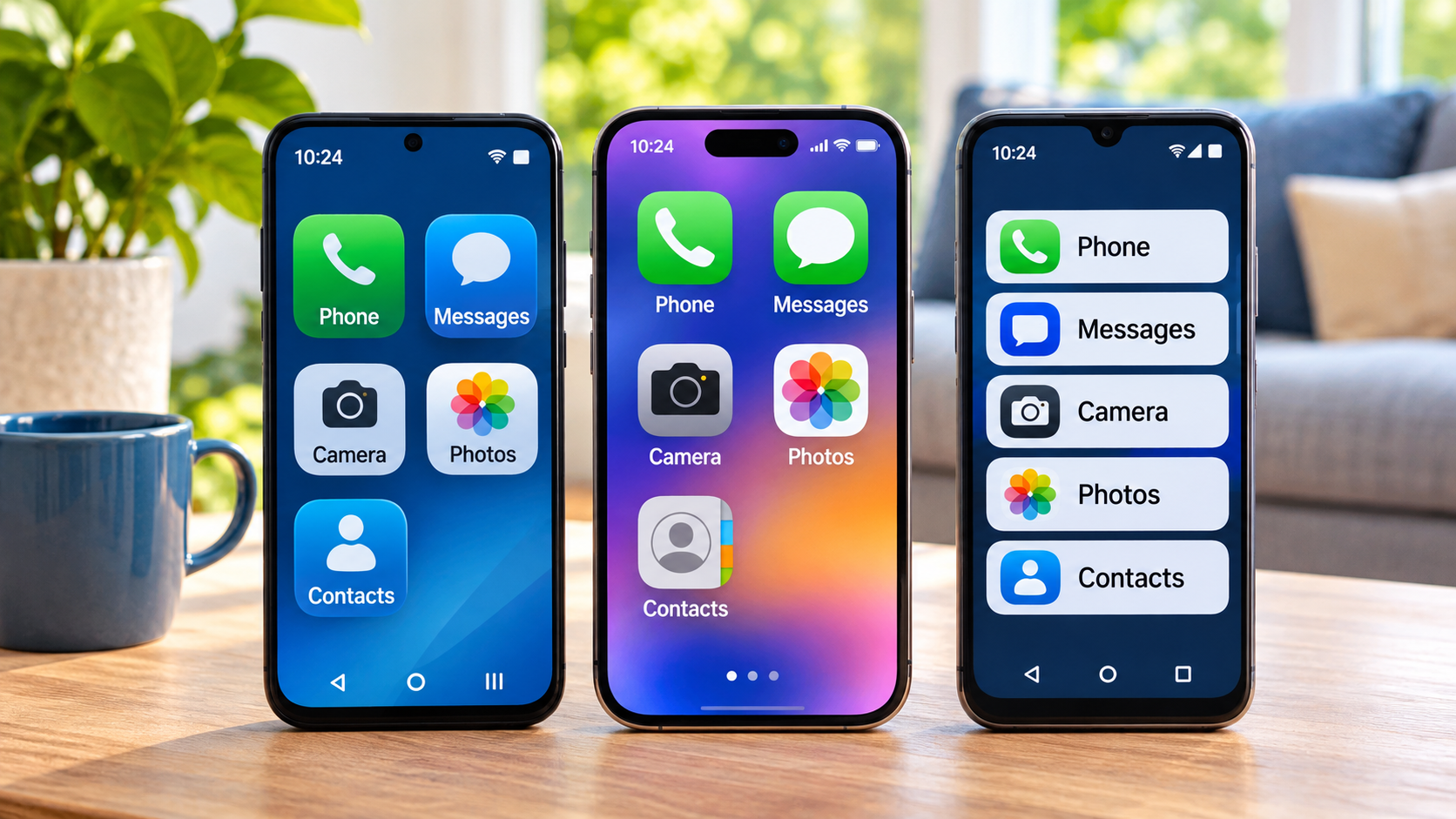
The best simple smartphones for older adults have easy-to-read screens, straightforward menus, clear speakers, and features that make calling, texting, and taking pictures easier.
You don’t necessarily need an expensive phone, either. Some affordable smartphones offer everything most people need.
In this guide, we’ll look at five smartphone options worth considering, explain what makes each one easier to use, and help you decide which is right for you.
Table of Contents
Choosing the best simple smartphones for older adults means looking beyond price and focusing on readability, ease of use, and everyday reliability.
Disclosure: This article contains affiliate links. If you purchase through these links, we may earn a commission at no additional cost to you.
Best Simple Smartphones for Older Adults: Quick Comparison
Here are our recommendations based on different needs.
| Smartphone | Best For | Main Advantage |
|---|---|---|
| Jitterbug Smart5 | First-time smartphone users | Large text and simplified menus |
| Apple iPhone 17e | People who want an iPhone | Accessibility settings and familiar Apple apps |
| Samsung Galaxy A17 5G | Budget-conscious Android users | Large display and customizable interface |
| Google Pixel 10a | People who want a straightforward Android phone | Helpful Google software features |
| Refurbished iPhone 13 | People looking to spend less | Familiar iPhone experience at a lower price |
Our top recommendation: The Jitterbug Smart5 is a strong starting point for someone who finds ordinary smartphones confusing. However, an iPhone or Samsung Galaxy may be a better choice if you want more flexibility in choosing your phone company.
1. Jitterbug Smart5 — Best for Beginners
The Jitterbug Smart5 is designed specifically for people who want smartphone features without complicated menus.
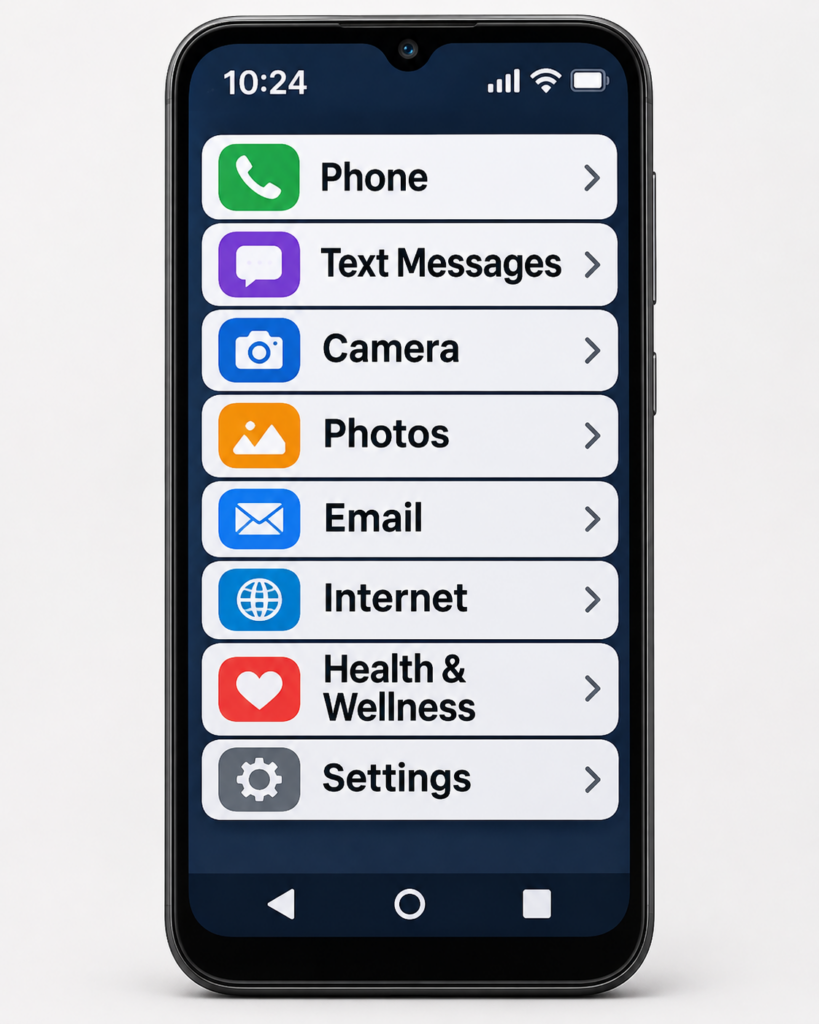
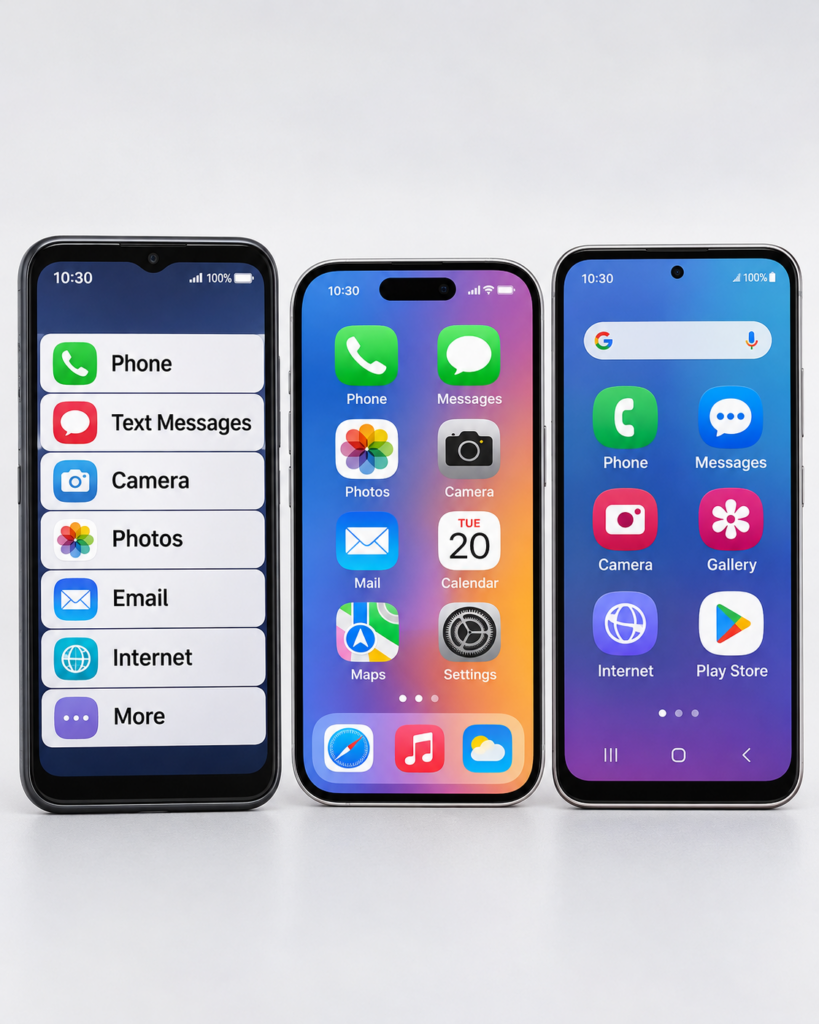
Unlike many smartphones that display dozens of small app icons, the Jitterbug uses a simplified, list-style menu with larger text.
That makes it easier to find common features such as making a call, sending a text message, opening the camera, or checking email.
What Makes It Easy to Use?
- Large 6.75-inch screen
- Big text and straightforward menus
- Voice typing for text messages
- Loud dual speakers
- Built-in voice assistant
- Video calling
- Optional access to emergency assistance services
The phone also supports Wi-Fi calling, which can be useful in places where cellular reception is weak but Wi-Fi is available.
What We Like
The biggest advantage is that the phone is designed to reduce confusion.
Someone who has never owned a smartphone may find the list-style menu easier to learn than a typical Android phone.
What to Consider
The Jitterbug Smart5 requires a Lively wireless service plan. You cannot simply purchase the phone and use it with any carrier.
Some emergency assistance and family notification features require higher-priced plans.
Best for: Someone buying their first smartphone who wants simple menus and telephone support.
Where to Buy: The Jitterbug Smart5 is designed for use with Lively wireless service. Before purchasing, check the available plans, monthly costs, and optional safety features.
Check Jitterbug Smart5 Availability at Amazon
Learn more: Jitterbug Smart5 at Lively
2. Apple iPhone 17e — Best for Older Adults Who Prefer Apple
An iPhone can be an excellent choice for older adults, particularly if family members already use iPhones.
Although iPhones have many features, you don’t have to use all of them. You can arrange the Home Screen so that only your most important apps are easy to reach.
For example, you might keep Phone, Messages, Camera, Photos, and FaceTime on the main screen.
What Makes an iPhone Easy to Use?
- Adjustable text size
- Display Zoom for larger controls
- Voice commands using Siri
- FaceTime video calling
- Accessibility features for vision and hearing
- Familiar apps for calling, messaging, and photos
Apple also offers Assistive Access, a simplified interface available on compatible iPhones. It can make common activities easier to navigate.
What We Like
An iPhone is particularly convenient when family members also use Apple products.
You can make FaceTime calls, share photos, and ask a family member to show you how to do something using a similar phone.
What to Consider
An iPhone may cost more than a budget Android phone, and the normal interface can initially seem busy.
Best for: Older adults who want an easy-to-customize smartphone and have family members familiar with Apple devices.
Where to Buy: The iPhone 17e is worth considering if you want a familiar Apple smartphone with accessibility features. Before ordering, check the storage capacity and whether the phone is compatible with your wireless carrier.
Check iPhone 17e Price and Availability on Amazon
Learn more: Apple iPhone
3. Samsung Galaxy A17 5G — Best Affordable Android Smartphone
You don’t have to spend hundreds of extra dollars to get a useful smartphone.
Samsung’s Galaxy A-series phones are designed to offer everyday smartphone features at a more affordable price than premium models.
The Galaxy A17 5G is worth considering if you want a large screen for reading messages, browsing websites, or looking at pictures.
What Makes It Easy to Use?
- Large touchscreen
- Adjustable font and display sizes
- Voice typing
- Google Maps and other familiar Android apps
- Customizable Home Screen
- Samsung accessibility settings
On compatible Samsung phones, Easy Mode can provide larger icons and a simpler Home Screen layout. Check the exact model’s software settings before purchasing if Easy Mode is important to you.
What We Like
You can keep the phone relatively simple by placing only the apps you regularly use on the Home Screen.
For example, you might keep Phone, Messages, Camera, and Photos visible and move everything else out of the way.
What to Consider
Samsung phones may include several preinstalled apps that beginners don’t need. Spending a little time organizing the Home Screen can make a big difference.
Best for: Someone who wants a reasonably priced smartphone with a large screen and everyday features.
Where to Buy: The Samsung Galaxy A17 5G is a good option for someone who wants a large screen and everyday smartphone features without paying for a premium model.
Check Samsung Galaxy A17 5G Price on Amazon
Learn more: Samsung Galaxy Phones
4. Google Pixel 10a — Best for Helpful Android Features
Google Pixel phones are another option for older adults who want a regular smartphone without having to learn a complicated collection of manufacturer-specific apps.
They use Google’s Android software and integrate with services such as Gmail, Google Photos, and Google Maps.
What Makes It Easy to Use?
- Adjustable text and display size
- Voice typing
- Google Assistant and other supported voice features
- Accessibility tools
- Google Photos for organizing pictures
- Helpful calling and spam-protection features, depending on location and settings
What We Like
The Pixel is a good choice if you already use Gmail, Google Photos, or other Google services.
You can also personalize the Home Screen to keep your most important apps easy to find.
What to Consider
The Pixel is still a full-featured smartphone, not a phone specifically designed for beginners. Someone who has never used a touchscreen may need help setting it up.
Best for: Someone who wants an Android phone with helpful software and Google services.
Where to Buy: The Google Pixel 10a is worth considering if you prefer Google’s Android software and helpful accessibility features. Check the storage capacity and carrier compatibility before purchasing.
Check Google Pixel 10a Price on Amazon
Learn more: Google Pixel Phones
5. Refurbished iPhone 13 — Best Lower-Cost iPhone Option
If you want an iPhone but don’t want to pay for a newer model, a refurbished iPhone 13 may be worth considering.
A refurbished phone is a previously owned device that has been inspected, cleaned, and sometimes repaired before being resold.
You can still use common iPhone features such as calling, texting, taking pictures, and FaceTime.
Why Consider a Refurbished iPhone?
- Often costs less than a new iPhone
- Supports adjustable text sizes
- Works with familiar Apple apps
- Provides a relatively modern smartphone experience
- Can be a good option for someone already comfortable with an iPhone
What to Check Before Buying
Not all refurbished phones are equal.
Before purchasing, check the battery condition, return policy, warranty, carrier compatibility, and whether the phone is unlocked.
Also consider how many more years of software support you expect to need.
Best for: Someone who wants an iPhone at a lower upfront price and is comfortable purchasing refurbished electronics.
Where to Buy: A refurbished iPhone 13 can be an affordable way to get an iPhone. Look for an unlocked model with a good battery condition, warranty, and return policy.
Check Refurbished iPhone 13 Prices on Amazon
What Should Older Adults Look for in a Smartphone?
The best phone isn’t necessarily the newest or most expensive. These features can make a bigger difference in everyday use.
1. A Screen That’s Easy to Read
A larger screen can make text messages, photographs, and websites easier to see.
However, a very large phone may also be harder to hold or fit in a pocket.
If possible, hold the phone before buying it.
2. Adjustable Text Size
Small text is one of the most common frustrations with smartphones.
Look for a phone that allows you to enlarge text and screen elements without installing extra apps.
Both iPhones and Android phones offer accessibility settings that can help.
3. Clear Speakers and Hearing Aid Compatibility
If hearing phone conversations is difficult, test the call volume and speakerphone.
If you use hearing aids, check compatibility with your particular hearing aid model before buying.
4. Simple Home Screen
A phone becomes much easier to use when the Home Screen contains only the apps you need.
You might start with just five:
- Phone
- Messages
- Camera
- Photos
- Contacts
You can always add more later.
5. Good Battery Life
Look for a phone that can comfortably last through your typical day.
Keep in mind that actual battery life depends on screen brightness, signal strength, apps, and how frequently you use the phone.
6. Affordable Monthly Service
Don’t look only at the phone’s purchase price.
A $100 phone with an expensive monthly plan can eventually cost more than a $300 phone with an inexpensive plan.
Before buying, compare the total cost of the phone and wireless service over one or two years.
Is an iPhone or Android Easier for Older Adults?
There isn’t one answer that works for everyone.
Choose an iPhone if:
- You already know how to use an iPhone.
- Your family members use Apple products.
- You want FaceTime and other Apple features.
- You prefer staying with a familiar system.
Choose an Android phone if:
- You want more choices at different prices.
- You prefer Google apps and services.
- You want to customize the Home Screen.
- You’re considering a senior-focused phone such as the Jitterbug Smart5.
The easiest smartphone is often the one you already know how to use.
Switching from an iPhone to Android, or the other way around, can create unnecessary confusion.
How to Make Almost Any Smartphone Easier to Use
You may not need to purchase a special smartphone at all.
A few changes can make an ordinary phone much more comfortable.
Make the Text Bigger
On an iPhone, open Settings → Accessibility → Display & Text Size → Larger Text.
On Android, look for Settings → Accessibility or Display → Font Size. The exact location depends on your phone.
Remove Unnecessary Apps From the Home Screen
Keep only your most frequently used apps visible.
This makes it easier to find what you need without scrolling through several screens.
Add Important Contacts to Favorites
Save frequently called family members and friends as favorite contacts.
That way, you won’t need to search through your entire contact list every time you want to make a call.
Turn On Voice Typing
Most modern smartphones let you speak a message instead of typing it.
Look for the microphone symbol on the on-screen keyboard.
Set Up Spam Call Protection
Unwanted calls can make owning a smartphone frustrating.
Enable the available spam call identification and blocking features on your phone.
For step-by-step instructions, see our guide: How to Stop Spam Calls on Your iPhone.
How Much Should You Spend on a Simple Smartphone?
For many people, an affordable or midrange smartphone provides everything needed for calls, texts, photos, and internet access.
A general shopping budget might look like this:
| Budget | What to Expect |
|---|---|
| Under $150 | Some senior-focused phones, discounted models, and refurbished devices |
| $150–$300 | Many capable budget Android phones |
| $300–$500 | More midrange choices and some discounted iPhones |
| Over $500 | Premium features that many beginners may not need |
These are shopping ranges, not guaranteed prices. Promotions, storage options, and carrier offers can change the cost considerably.
Our advice: Spend enough to get a reliable phone with a readable screen and good support, but don’t pay extra for features you’ll never use.
Frequently Asked Questions
What is the easiest smartphone for an older person to use?
The Jitterbug Smart5 is a strong choice for beginners because it has a simplified menu, large text, and support services. However, someone who already knows how to use an iPhone may find another iPhone easier.
Do older adults need a special smartphone?
No. Many older adults use ordinary iPhones and Android phones comfortably. Enlarging the text, organizing the Home Screen, and adjusting accessibility settings may be all that’s necessary.
What is the best smartphone for someone with poor eyesight?
Look for a bright screen, adjustable text size, good contrast, and accessibility tools. Try the phone in person when possible, because the largest screen isn’t always the easiest to use.
Can you make an iPhone simpler for an older person?
Yes. You can enlarge text, increase display size, remove unnecessary Home Screen icons, and use accessibility features such as Assistive Access on compatible models.
Is a smartphone better than a flip phone?
A smartphone is better if you want video calls, photographs, maps, email, and internet access.
If you only need basic calls and occasional text messages, a simple flip phone may be easier and less expensive.
Should I buy an unlocked smartphone?
An unlocked phone generally gives you more freedom to choose or change wireless carriers, provided the phone is compatible with their networks.
Some senior-focused smartphones, including the Jitterbug Smart5, require service from a particular company.
Final Thoughts: Which Simple Smartphone Should You Buy?
Choosing the best simple smartphone for older adults comes down to comfort, familiarity, and how you plan to use it.
If you’re completely new to smartphones and want a simpler menu, start by looking at the Jitterbug Smart5.
If you’ve used an iPhone before, staying with an iPhone may be the easiest choice.
If you want a large screen without spending too much, consider a Samsung Galaxy A-series phone.
And if you already enjoy Google services, a Google Pixel may be a comfortable fit.
Whatever phone you choose, remember that you don’t need to learn every feature. Start with calling, texting, and taking pictures. Once those feel comfortable, you can explore the rest at your own pace.
Already own an iPhone? Before replacing it, try these 12 easy ways to make your iPhone battery last longer. A few settings changes may help you get more life from your current phone.
Buying guide note: This article is based on manufacturer specifications, accessibility documentation, and published product information, not hands-on testing by Daily Tech Help. Prices, availability, software features, and wireless plans may change. Always confirm current details before purchasing.