How to Make Your iPhone Battery Last Longer (12 Easy Fixes)
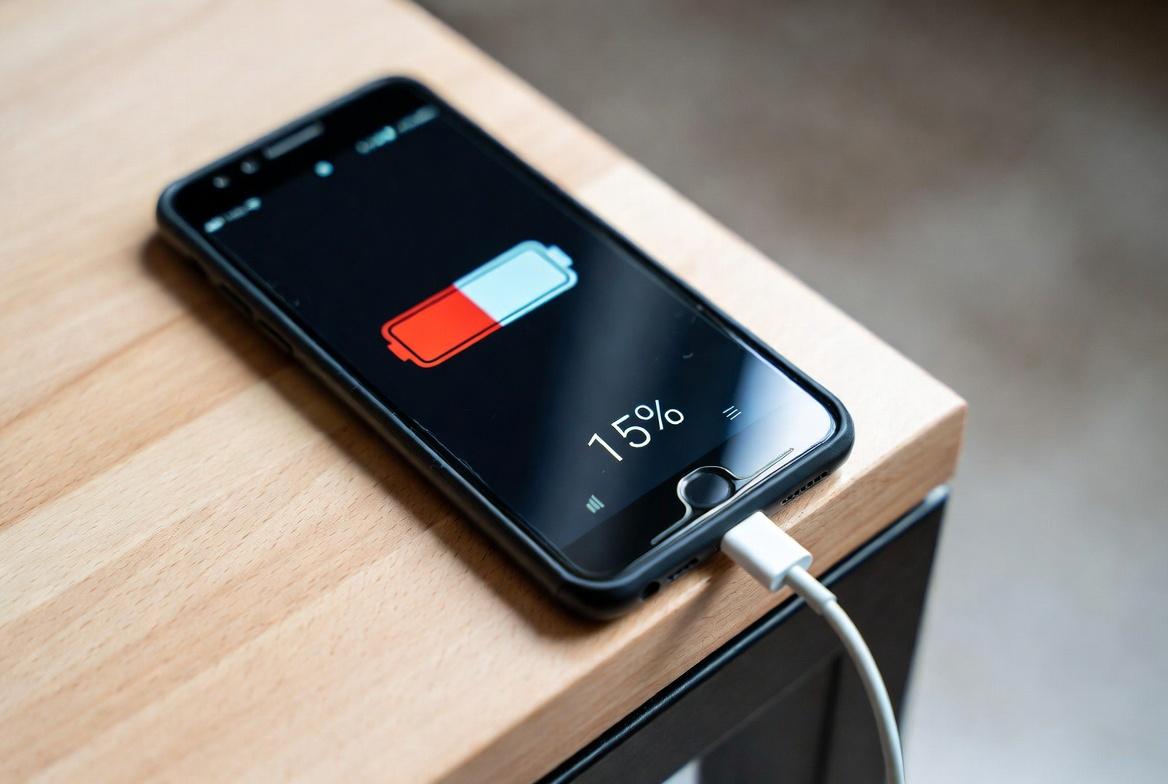
Does your iPhone battery seem to run out faster than it used to? Maybe you charge it in the morning, only to find the battery running low by the afternoon.
You’re not alone. Battery drain is a common frustration, especially as an iPhone gets older.
The good news is that you don’t necessarily need a new phone or a new battery.
Learning how to make your iPhone battery last longer often comes down to a few simple changes in Settings.
In this guide, we’ll walk through 12 easy fixes you can try today. You don’t need any technical experience, and most of these adjustments take less than a minute.
Table of Contents
Quick Answer: How to Make Your iPhone Battery Last Longer
If your iPhone battery is draining quickly, start with these five changes:
- Turn on Low Power Mode.
- Reduce your screen brightness.
- Check which apps use the most battery.
- Limit unnecessary background activity.
- Check your battery’s health.
These changes can help reduce unnecessary power use, although results depend on your iPhone model, battery condition, and how you use the phone.
If you’re wondering how to make your iPhone battery last longer, start with the settings that affect how you use your phone every day.
1. Turn On Low Power Mode
Low Power Mode is one of the easiest ways to make your iPhone battery last longer.
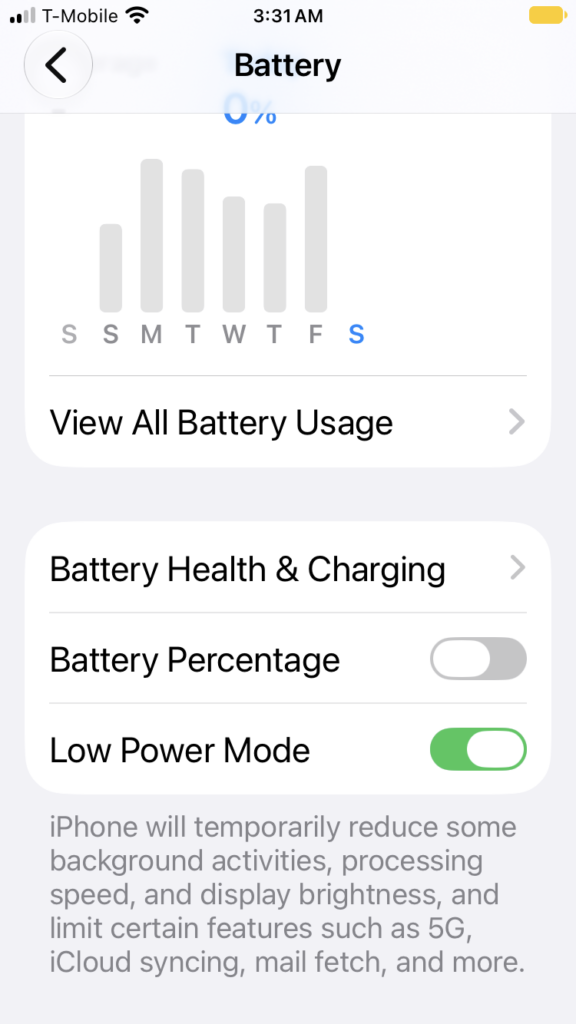
It temporarily reduces certain background activities and visual effects so your phone uses less electricity.
How to Turn On Low Power Mode
- Open Settings.
- Tap Battery.
- Find Low Power Mode and turn it on. On some newer iPhones, you may first need to tap Power Mode.
- Look for the yellow battery icon at the top of the screen.
Your iPhone will still make calls, send text messages, and perform most everyday tasks.
Some activities, such as automatic downloads and background updates, may be delayed.
Good to know: Low Power Mode usually turns off automatically after your iPhone charges to 80% or higher.
For more details, see Apple’s official guide to Low Power Mode.
2. Lower Your Screen Brightness
Your iPhone screen can use a lot of battery power, especially when brightness is set high.
Reducing brightness is an easy way to save power.
How to Lower Brightness
- Open Settings.
- Tap Display & Brightness.
- Move the brightness slider slightly to the left.
- Stop when the screen is still comfortable to read.
You can also open Control Center and adjust the brightness slider there.
Tip: Don’t make your screen so dim that it’s difficult to see. Comfortable reading is more important than squeezing out a few extra minutes of battery life.
3. Check Which Apps Are Draining Your Battery
Some apps use more battery power than others.
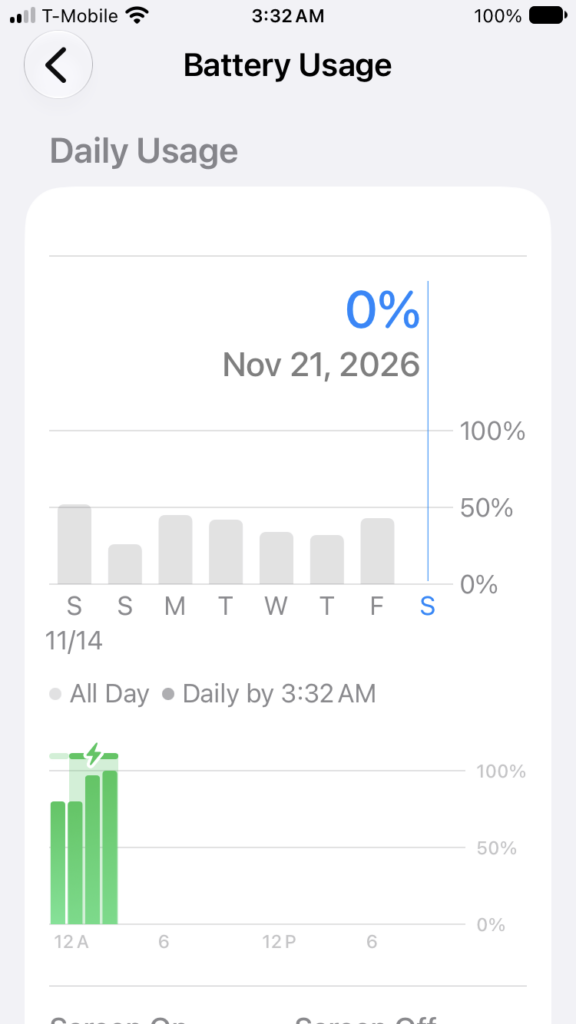
Video streaming, navigation, games, and apps that frequently access your location can use considerable energy.
Your iPhone can show you which apps are using the most battery.
How to Check Battery Usage
- Open Settings.
- Tap Battery.
- Review the battery usage information and app list.
- Look for apps using an unexpectedly large amount of power.
- Tap the available usage details to see whether an app was active on screen or in the background.
If you find an app you rarely use consuming substantial power, consider changing its settings or removing it.
Remember that an app you use frequently will naturally appear high on the list. That doesn’t automatically mean something is wrong.
4. Turn Off Background App Refresh for Unnecessary Apps
Some apps can update their content while you’re not actively using them.
This feature is called Background App Refresh.
It’s useful for certain apps, but you may not need it enabled for everything.
How to Change Background App Refresh
- Open Settings.
- Tap General.
- Tap Background App Refresh.
- Review the list of apps.
- Turn off the feature for apps that don’t need to refresh in the background.
You can also disable Background App Refresh entirely, although some apps may take longer to show updated information when you open them.
Our recommendation: Start with apps you rarely use rather than turning everything off at once.
5. Reduce Unnecessary Location Tracking
Your iPhone uses Location Services for features such as maps, weather, and finding nearby places.
Some apps may also request your location when they don’t really need it.
Reviewing these permissions can help reduce unnecessary activity.
How to Check Location Settings
- Open Settings.
- Tap Privacy & Security.
- Tap Location Services.
- Select an app.
- Choose an appropriate permission, such as While Using the App or Never.
Keep location access enabled for apps that genuinely need it.
For example, Maps needs your location for navigation, and Find My can help locate a missing device.
Important: Avoid disabling location features that you rely on for safety or finding your phone.
6. Shorten Your Screen Auto-Lock Time
If your iPhone screen stays on long after you stop using it, the battery may drain unnecessarily.
Auto-Lock automatically turns off the display after a period of inactivity.
How to Change Auto-Lock
- Open Settings.
- Tap Display & Brightness.
- Tap Auto-Lock.
- Select 30 Seconds or 1 Minute, whichever feels comfortable.
If Auto-Lock is unavailable or grayed out, check whether Low Power Mode is enabled.
Tip: A one-minute setting is a reasonable balance between convenience and battery savings for many people.
7. Use Wi-Fi When It’s Available
Your iPhone can connect to the internet using cellular data or Wi-Fi.
A reliable Wi-Fi connection often uses less battery than cellular data, particularly when the cellular signal is weak.
How to Connect to Wi-Fi
- Open Settings.
- Tap Wi-Fi.
- Turn Wi-Fi on.
- Choose your trusted home network.
- Enter the password if requested.
Once connected, your iPhone should remember the network.
Avoid connecting to unfamiliar networks simply to save battery.
8. Keep Your iPhone Updated
Apple releases iOS updates that can include security improvements, bug fixes, and performance changes.
Occasionally, a software issue can contribute to unexpected battery drain.
How to Check for Updates
- Open Settings.
- Tap General.
- Tap Software Update.
- Wait while your iPhone checks for available updates.
- Follow the instructions if an update is available.
Back up important information before major updates.
Good to know: After an iOS update, your iPhone may temporarily use more battery while completing background tasks. This often settles after those tasks finish.
9. Turn Off Unnecessary Notifications
Frequent notifications can wake your screen and interrupt what you’re doing.
Reducing unnecessary alerts may help limit screen activity.
How to Change Notification Settings
- Open Settings.
- Tap Notifications.
- Select an app.
- Turn off Allow Notifications if you don’t need alerts from that app.
You can also keep notifications enabled while changing how they appear.
For example, you may want to keep text message alerts but disable notifications from games or shopping apps.
10. Avoid Extreme Heat
Heat can affect battery performance and permanently reduce a lithium-ion battery’s capacity.
Try to keep your iPhone away from hot environments.
Avoid leaving it:
- On a car dashboard in direct sunlight
- Inside a hot parked vehicle
- Under a pillow while charging
- Near heaters or other sources of excessive heat
If your iPhone becomes unusually hot, stop demanding activities and allow it to cool naturally.
Don’t put it in a refrigerator or freezer.
11. Check Your iPhone Battery Health
As your iPhone ages, its battery gradually loses some of its original capacity.
This is normal for rechargeable batteries.
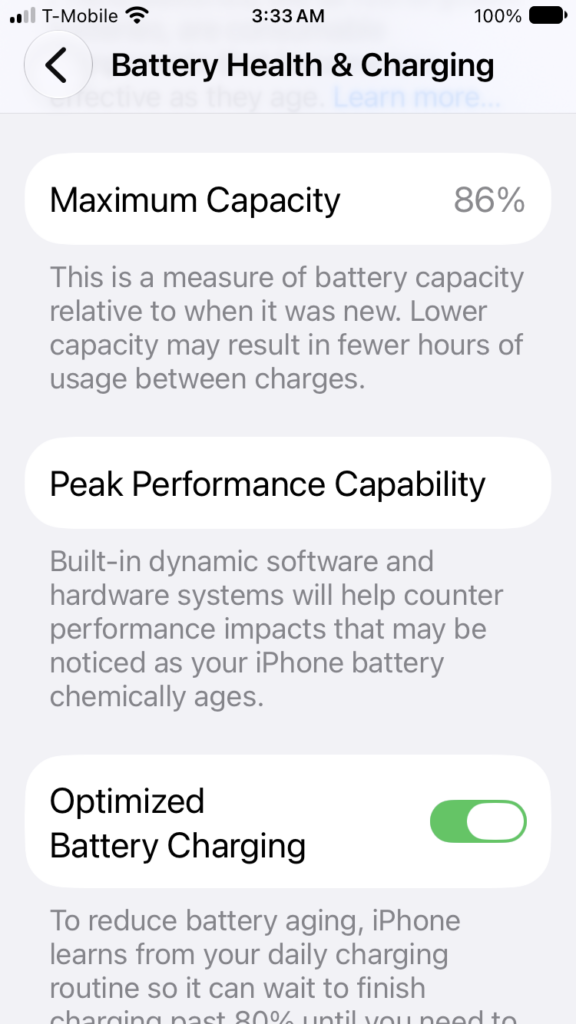
If your battery is significantly worn, changing settings may help somewhat, but it won’t restore the battery’s original capacity.
How to Check Battery Health
- Open Settings.
- Tap Battery.
- Look for Battery Health or Battery Health & Charging, depending on your model.
- Review the available battery condition information.
Some iPhones display a Maximum Capacity percentage.
For example, 85% maximum capacity means the battery can hold approximately 85% of the charge it could when new, under comparable conditions.
If your iPhone reports that battery service is recommended, a replacement may improve battery life.
Important: Battery health isn’t the same as your current charge level. A phone can show 100% charged while its battery has reduced maximum capacity.
12. Restart Your iPhone
Sometimes an app or temporary software problem causes unusual battery use.
Restarting your iPhone can help clear certain temporary problems.
How to Restart an iPhone
For most iPhones with Face ID:
- Press and hold the side button and either volume button.
- Wait for the power-off slider.
- Drag the slider to turn off the phone.
- Wait about 30 seconds.
- Hold the side button until the Apple logo appears.
For many iPhones with a Home button, press and hold the side or top button until the power-off slider appears.
Restarting won’t repair a worn-out battery, but it’s a reasonable troubleshooting step if battery drain suddenly becomes unusual.
Which Battery-Saving Changes Should You Try First?
You don’t need to change every setting at once.
Start with the fixes most relevant to your situation.
| Problem | What to Try First |
|---|---|
| Battery drains during normal daily use | Low Power Mode and screen brightness |
| Battery drains when you’re not using the phone | Battery usage and background activity |
| Battery drains while traveling | Cellular signal strength and location permissions |
| Screen stays on too long | Auto-Lock |
| Battery became worse after an update | Allow background tasks to finish, then check usage |
| Older iPhone needs frequent charging | Battery Health |
| Battery suddenly drains unusually fast | Check app usage and restart |
Make one or two changes, then observe your battery life over the next day or two.
This makes it easier to tell which adjustments are helping.
When Should You Replace Your iPhone Battery?
If your iPhone is several years old and no longer lasts through your normal day, the battery may be worn out.
Signs that replacement may be worth considering include:
- Battery health indicates service is recommended.
- Your phone shuts down unexpectedly.
- Battery life is much shorter than it used to be.
- You need to recharge several times a day despite light use.
Apple commonly uses 80% of original battery capacity as an important benchmark in its battery service and durability guidance, but it isn’t a universal rule that every battery must be replaced at that percentage.
A battery replacement may be more economical than buying a new iPhone.
For official repair information, visit Apple’s iPhone battery replacement page.
If your phone is getting older and you’re considering a replacement, our guide to the best simple smartphones for older adults can help you compare easy-to-use options.
If the battery is swollen, the phone’s case is separating, or the device becomes dangerously hot, stop using and charging it and arrange professional service.
Frequently Asked Questions
Why is my iPhone battery draining so fast all of a sudden?
Possible causes include a recently updated app, background activity, poor cellular reception, an iOS update, or an aging battery. Start by checking Settings → Battery to see which activities are using power.
Does Low Power Mode hurt your iPhone battery?
No. Low Power Mode is an Apple feature designed to reduce power consumption. It doesn’t damage the battery.
Should I close all my iPhone apps to save battery?
Usually not. Regularly force-closing every app isn’t necessary and may cause some apps to use extra energy when reopened. Close an app when it becomes unresponsive or behaves unexpectedly.
Is it bad to charge an iPhone overnight?
Modern iPhones manage charging automatically, and overnight charging is generally fine when you use suitable charging equipment and keep the phone in a well-ventilated place. Optimized Battery Charging and charging-limit features on supported models can help reduce battery wear.
Does Dark Mode save iPhone battery life?
Dark Mode can reduce power consumption on iPhones with OLED displays, particularly when the screen shows large dark areas. The benefit varies with brightness and usage. It may provide little or no display power savings on LCD-equipped models.
How long should an iPhone battery last?
That depends on the model, battery condition, screen brightness, signal strength, and how you use it. Watching videos or using navigation typically consumes more energy than occasional calls and messages.
Will replacing the battery make my iPhone faster?
It can improve performance if the iPhone was limiting performance because of an aging battery. It won’t necessarily make a normally functioning iPhone faster.
Final Thoughts
Learning how to make your iPhone battery last longer doesn’t require complicated settings or expensive accessories.
Start by turning on Low Power Mode, lowering screen brightness, and checking which apps use the most power.
If your iPhone is older, take a look at Battery Health. A worn battery may eventually need replacement, even if you’ve adjusted all the right settings.
The goal isn’t to turn off every useful feature. It’s to make a few sensible changes so your iPhone stays reliable throughout the day.
Want to make your iPhone easier to use? Read our guide on how to stop spam calls on your iPhone and learn how to reduce unwanted calls.
Looking for more easy phone tutorials? Browse our iPhone and Android help guides for step-by-step instructions.
Editorial note: iPhone settings and menu names vary by device and iOS version. These instructions are based on Apple’s documented features; Daily Tech Help has not independently tested every supported iPhone model.