How to Make Text Bigger on an iPhone (Easy Step-by-Step Guide)
Is the writing on your iPhone too small to read comfortably? Maybe you have trouble reading text messages, finding settings, or seeing the words on websites.
The good news is that you don’t need to buy a new phone or install a special app.
Your iPhone already includes several features that can make words, buttons, and other items easier to see.
In this guide, you’ll learn how to make text bigger on an iPhone using simple, step-by-step instructions. We’ll also show you how to enlarge individual apps, make letters bolder, and use your iPhone as a magnifying glass.
Most of these changes take less than a minute, and you can undo them whenever you want.
Table of Contents
Quick Answer: How to Make Text Bigger on an iPhone
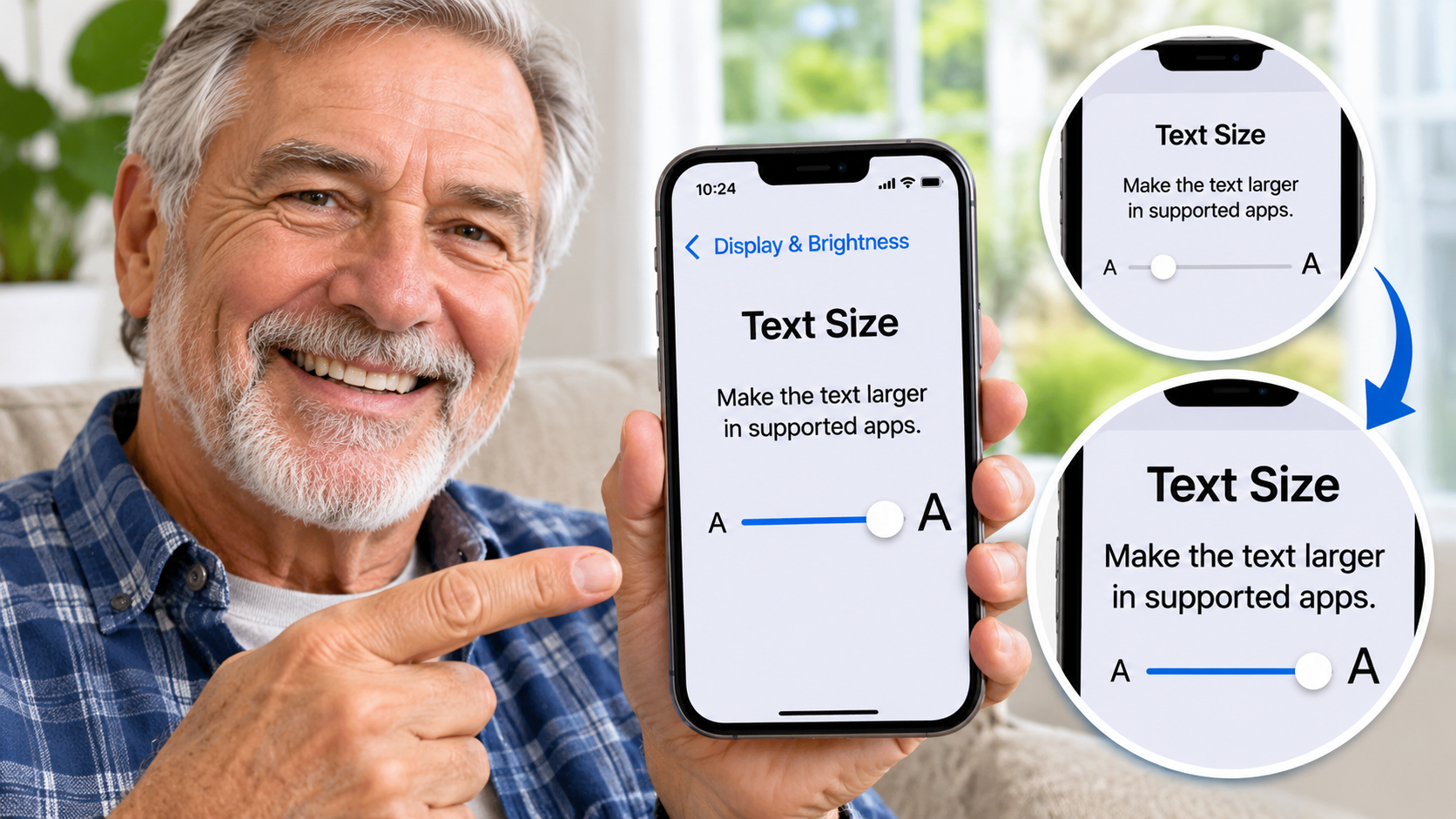
The easiest way to enlarge text is through your iPhone’s display settings.
- Open Settings.
- Tap Display & Brightness on many iPhone versions. On some newer versions, the option may be called Appearance.
- Tap Text Size.
- Move the slider to the right to make the text larger.
You’ll see the sample text change as you move the slider.
If the letters still aren’t large enough, don’t worry. Your iPhone has additional accessibility settings that can make text even bigger.
1. Increase Text Size in iPhone Settings
If you’re wondering how to make text bigger on an iPhone, start with the built-in Text Size setting.
This changes the size of writing in many apps, including Messages, Mail, Notes, and Settings.
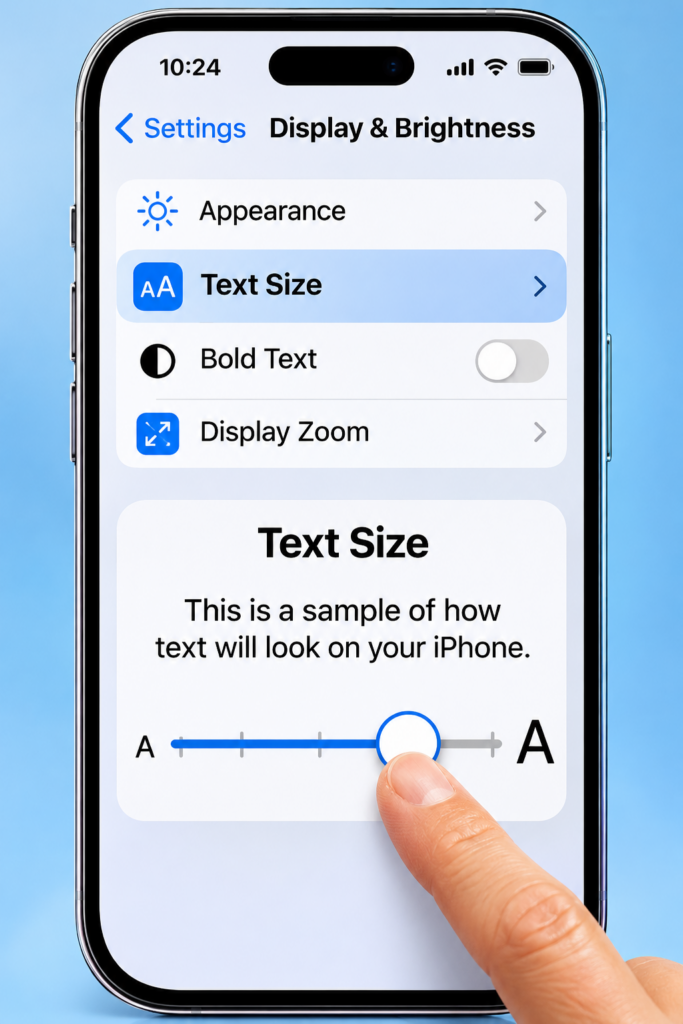
Step-by-Step Instructions
- Unlock your iPhone.
- Find and open the Settings app. Its icon looks like a gear.
- Tap Display & Brightness or Appearance, depending on your iOS version.
- Select Text Size.
- Move the slider toward the right.
- Stop when the sample text is comfortable to read.
You don’t need to restart your phone.
Open Messages or Mail to see whether the new size is easier to read.
Helpful tip: Start by moving the slider only a little. You can always return and make the text larger later.
Some apps may not respond to this setting because they use their own text-size controls.
2. Make iPhone Text Even Larger With Accessibility
What if you’ve already moved the Text Size slider all the way to the right, but the writing is still too small?
Your iPhone has an additional setting called Larger Accessibility Sizes.
This provides more size options than the regular Text Size control.
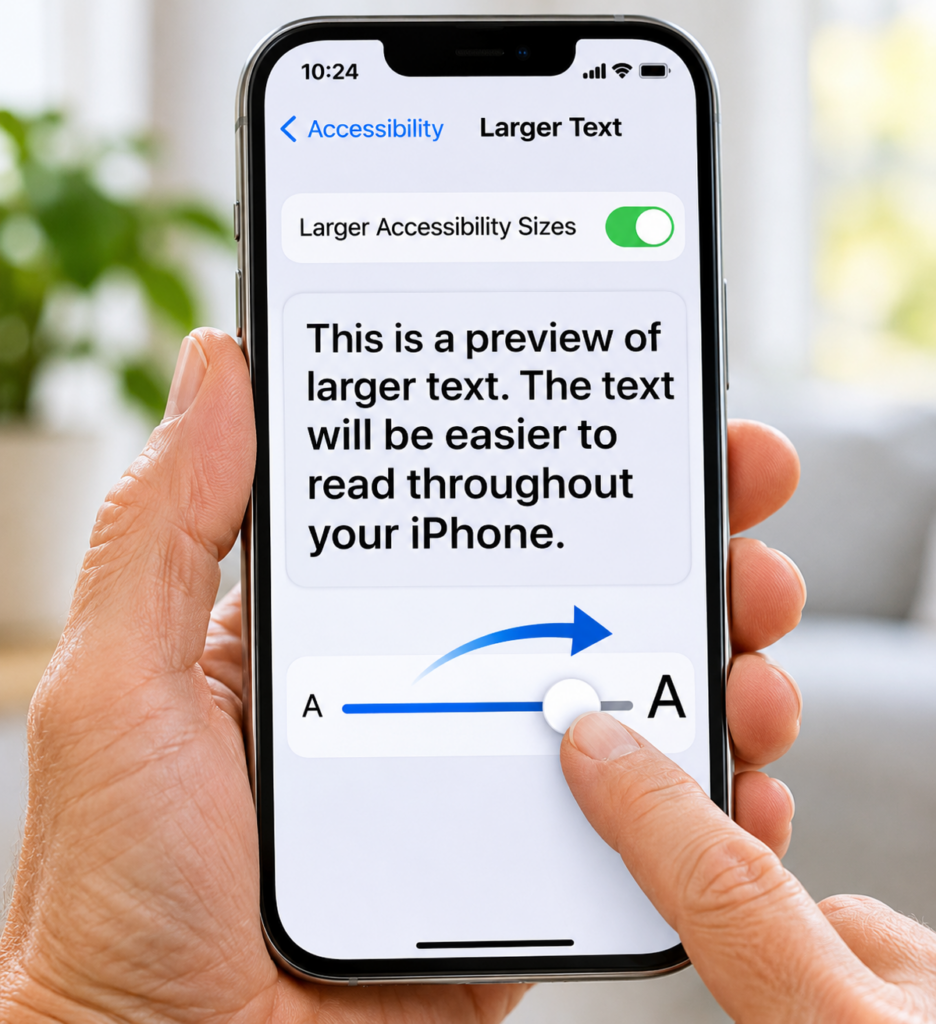
How to Enable Larger Accessibility Sizes
- Open Settings.
- Tap Accessibility.
- Select Display & Text Size.
- Tap Larger Text.
- Turn on Larger Accessibility Sizes.
- Move the slider toward the right until the text is comfortable.
This is especially helpful if you have difficulty reading small print.
Will Everything Become Larger?
Not necessarily.
Many built-in Apple apps support these larger text settings, but some third-party apps may not.
You might also notice that very large text causes certain menus or buttons to take up more space.
If that happens, move the slider slightly to the left until you find a comfortable balance.
For additional information, see Apple’s official instructions for making text easier to read.
3. Turn On Bold Text for Easier Reading
Sometimes the problem isn’t that the letters are too small. They may simply look too thin.
Making text bold can improve readability without dramatically changing the size of everything on your screen.
How to Turn On Bold Text
- Open Settings.
- Tap Accessibility.
- Tap Display & Text Size.
- Turn on Bold Text.
The letters in supported parts of your iPhone interface will appear thicker.
Our recommendation: Try combining slightly larger text with Bold Text. Many people find that combination easier to read than extremely large text alone.
4. Make Everything Bigger With Display Zoom
Increasing text size doesn’t necessarily make app icons, buttons, and other screen elements larger.
That’s where Display Zoom can help.
Display Zoom enlarges more of the iPhone interface, not just the words.
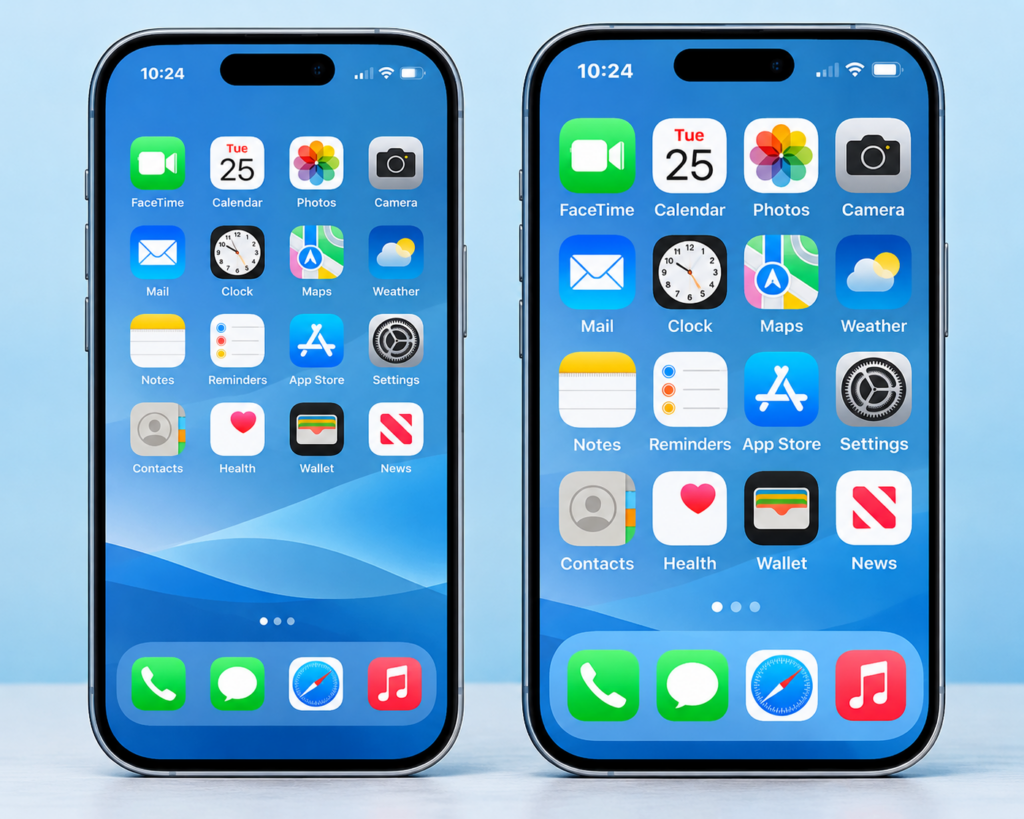
How to Turn On Display Zoom
- Open Settings.
- Tap Display & Brightness or Appearance, depending on your version.
- Tap Display Zoom.
- Select Larger Text or the enlarged display option shown on your phone.
- Tap Done, if prompted.
- Confirm the change.
Your screen may briefly adjust while the new display setting takes effect.
Is Display Zoom Better Than Larger Text?
It depends on what you find difficult to see.
If you only want larger writing, start with Text Size.
If you also struggle with small buttons and other screen controls, Display Zoom may be more helpful.
You can use both features together.
5. Make Text Bigger in Individual iPhone Apps
What if text messages are too small, but everything else looks fine?
You may prefer to change the text size in one app instead of enlarging it everywhere.
On supported iOS versions, the Text Size control in Control Center can help you do that.
How to Change Text Size for One App
- Open the app where you want larger text, such as Messages.
- Open Control Center by swiping down from the upper-right corner on most newer iPhones. On many models with a Home button, swipe up from the bottom.
- Find the Text Size control, usually shown as two letters A of different sizes.
- If it’s missing, use Control Center’s editing options to add the Text Size control.
- Tap the control.
- If offered, select the option to change text size for the current app only.
- Move the slider upward to enlarge the text.
Return to the app and check the results.
The exact controls vary by iOS version, and not every app supports separate text-size adjustments.
Helpful tip: This is a convenient option if you want larger text in Messages without making all your other apps bigger.
6. How to Make Text Messages Bigger on an iPhone
Text messages are one of the most common places people notice small writing.
Fortunately, Apple’s Messages app supports the iPhone’s text-size accessibility features.
The Easiest Method
- Open Settings.
- Tap Accessibility.
- Tap Display & Text Size.
- Tap Larger Text.
- Adjust the slider.
Now open Messages and look at a conversation.
The message text should be larger.
If you only want Messages to have larger text, try the individual-app method described in the previous section.
Remember: Making the text larger on your iPhone doesn’t change the size of the messages on the other person’s phone.
7. Make Website Text Bigger in Safari
Sometimes your iPhone’s text messages look fine, but websites are difficult to read.
Safari has its own page zoom controls.
How to Enlarge Text on a Website
- Open Safari.
- Visit the website you want to read.
- Tap the page menu button near the address bar. Its appearance varies by iOS version.
- Look for the page zoom or text-size controls.
- Increase the percentage or use the larger A control, if shown.
- Continue adjusting until the page is comfortable to read.
Depending on your iOS version, Safari may remember the zoom level for that website.
You can also use the familiar two-finger pinch-out gesture to zoom into many webpages.
What If a Website Still Has Tiny Text?
Some websites don’t respond well to enlarged text.
If Safari offers Reader for that page, try it. Reader removes many distractions and provides a cleaner reading layout.
Not every webpage supports Reader.
8. Use Your iPhone as a Magnifying Glass
Your iPhone can also help you read small print in the real world.
For example, you might want to read:
- A restaurant menu
- Directions on a medicine package
- A product label
- A receipt
- Fine print on a letter
Apple includes an app called Magnifier on supported iPhones.
How to Use Magnifier
- Find and open the Magnifier app. You can search for it from the Home Screen.
- Point your iPhone’s camera toward the text you want to read.
- Adjust the magnification control to make the writing larger.
- Move the phone until the text is clear.
- Use the available flashlight or contrast controls if needed.
Magnifier can be particularly helpful when you don’t have reading glasses nearby.
For critical information such as medication instructions, verify the text carefully rather than relying on a blurry magnified image.
9. What If the Text on Your iPhone Still Looks Too Small?
If you’ve tried increasing text size but haven’t noticed much difference, here are some common explanations.
| Problem | What to Try |
|---|---|
| Text is still too small | Turn on Larger Accessibility Sizes |
| App icons and buttons are too small | Try Display Zoom |
| Text looks thin or faint | Turn on Bold Text |
| Only one app has small text | Use its own text settings or the Control Center Text Size control |
| Websites have small writing | Use Safari page zoom or Reader |
| You need to enlarge a particular part of the screen | Try Accessibility Zoom |
| Changes don’t appear in an app | Check whether the app supports system text-size settings |
Another Option: Accessibility Zoom
Your iPhone also has a screen magnification feature called Zoom.
To enable it:
- Open Settings.
- Tap Accessibility.
- Tap Zoom.
- Turn on Zoom.
On supported configurations, you can double-tap with three fingers to magnify the screen and repeat the gesture to turn magnification off.
Be aware that Zoom changes how you navigate the screen, so it may take a little practice.
For more details, see Apple’s guide to Zoom on iPhone.
Which iPhone Text Setting Should You Use?
You don’t have to turn on every accessibility feature.
Here is a simple way to choose.
| If You Want To… | Use This Setting |
|---|---|
| Make ordinary text a little bigger | Text Size |
| Make text much larger | Larger Accessibility Sizes |
| Make letters thicker | Bold Text |
| Enlarge icons and screen controls | Display Zoom |
| Change text size in one supported app | Control Center Text Size |
| Enlarge websites | Safari page zoom |
| Magnify the screen temporarily | Accessibility Zoom |
| Read small printed labels | Magnifier |
Our recommendation: Start with Text Size and Bold Text. If those aren’t enough, try Larger Accessibility Sizes or Display Zoom.
Frequently Asked Questions
How do I make the font bigger on my iPhone?
Open Settings, find Text Size under Display & Brightness or Appearance, and move the slider to the right. For even larger text, use Settings → Accessibility → Display & Text Size → Larger Text.
Can I make iPhone text bigger without making everything else bigger?
Yes. The Text Size setting enlarges writing in supported apps without enlarging every icon and button. You can also adjust individual supported apps using Control Center.
How do I make text messages bigger on an iPhone?
Go to Settings → Accessibility → Display & Text Size → Larger Text and increase the size. Messages supports Apple’s text-size settings.
How do I make the keyboard letters bigger?
Display Zoom may make parts of the interface, including the keyboard, easier to see. The standard Text Size slider doesn’t necessarily enlarge keyboard keys.
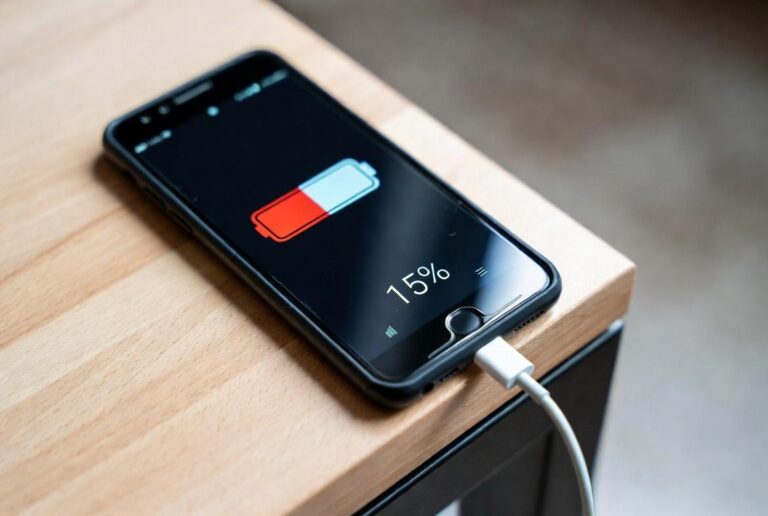
Does making text bigger drain my iPhone battery?
Changing font size alone is unlikely to make a meaningful difference to battery life. Screen brightness, cellular signal strength, and app activity generally matter much more.
For more practical tips, see our guide on how to make your iPhone battery last longer.
Can I return the text to its original size?
Yes. Go back to the same Text Size or accessibility setting and move the slider to your preferred position. You can also turn off Bold Text or Display Zoom whenever you want.
Do I need a special iPhone for larger text?
No. Many iPhone models support larger text, bold text, and accessibility features. Available options and menu locations depend on the model and iOS version.
Final Thoughts
Learning how to make text bigger on an iPhone is one of the simplest ways to make your phone more comfortable to use.
Start by increasing Text Size. If you need more help, turn on Bold Text or Larger Accessibility Sizes.
And if the buttons and icons are difficult to see, try Display Zoom.
The goal is to make your phone work comfortably for you—not to struggle with tiny writing every day.
If you’re thinking about replacing an older phone, read our guide to the best simple smartphones for older adults for more information about phones with accessible displays and helpful features.
You may also enjoy our guide on how to stop spam calls on your iPhone.
Editorial note: Menu names and available settings vary by iPhone model and iOS version. The instructions in this guide are based on Apple’s published accessibility documentation and should be checked against the menus shown on your device.