How to Stop Spam Calls on Your iPhone (2026 Step-by-Step Guide)
Updated November 2026 • Estimated reading time: 5 minutes
Tired of your iPhone ringing with unwanted calls from telemarketers, robocallers, and suspicious numbers?
If you’re wondering how to stop spam calls on iPhone, the good news is that Apple includes several built-in features that can help reduce unwanted calls. You don’t necessarily need to download an app or pay for a subscription.
In this easy step-by-step guide, you’ll learn how to block unwanted phone numbers, silence unknown callers, screen calls before answering, and filter suspected spam calls.
Table of Contents
1. How to Stop Spam Calls on iPhone by Silencing Unknown Callers
One of the simplest ways to reduce interruptions is to stop calls from unsaved numbers from ringing your phone.
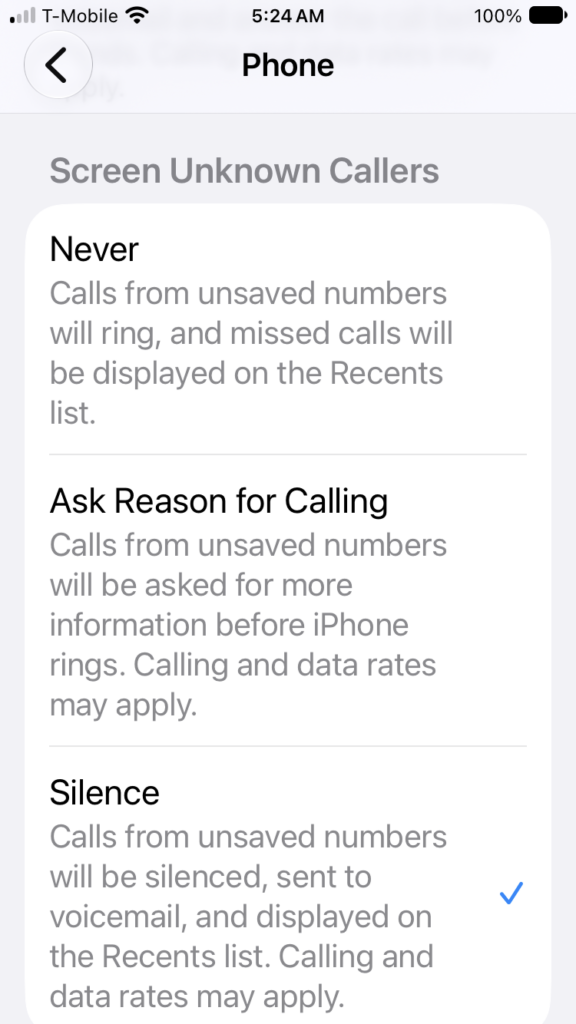
For iOS 26:
- Open Settings.
- Scroll down and tap Apps.
- Tap Phone.
- Find Screen, Unknown Callers.
- Select Silence.
Calls from unsaved numbers will be silenced and sent to voicemail rather than ringing normally.
These steps follow Apple’s current instructions. Menu names can differ on older iOS versions. Apple Support
Important: This feature can also silence legitimate calls from people whose numbers aren’t saved, such as a delivery driver or a new service provider.
Before enabling it, save important phone numbers to your Contacts.
2. Screen unknown calls before answering
If you don’t want to silence every unknown caller, newer iPhones offer another option.
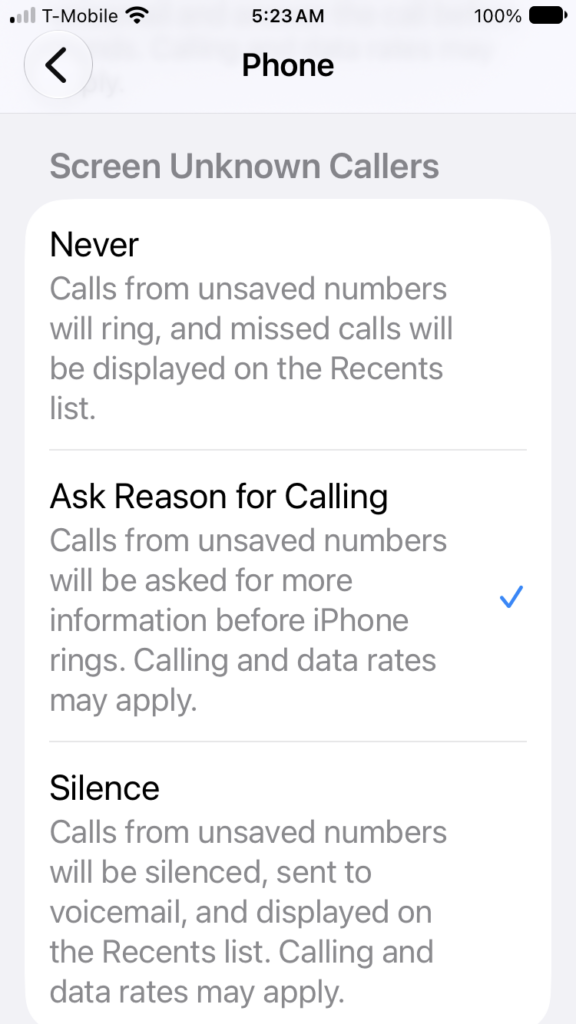
With Ask Reason for Calling, your iPhone asks an unknown caller to identify themselves and explain why they’re calling before your phone rings.
To enable it:
- Open Settings → Apps → Phone.
- Find Screen, Unknown Callers.
- Choose Ask Reason for Calling.
When someone calls from an unsaved number, you can review their response before deciding whether to answer. Apple Support
This is a good middle ground for people who want fewer interruptions but still need to receive legitimate calls from new numbers.
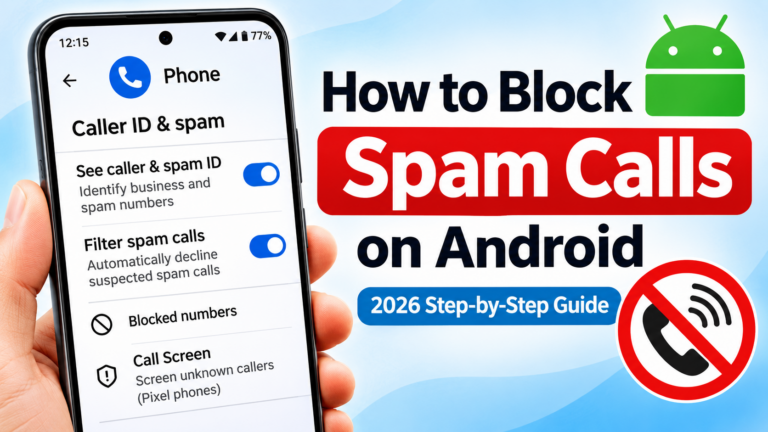
3. Turn on spam call filtering
Your iPhone may also support filtering calls that your mobile carrier identifies as spam or fraud.
If you’re looking for how to stop spam calls on iPhone, enabling your carrier’s spam filtering feature is another useful step. This can help identify suspicious calls before they interrupt your day.
- Open Settings.
- Tap Apps → Phone.
- Scroll to Call Filtering.
- Turn on Spam, if available.
Suspected spam calls identified by your carrier are silenced, sent to voicemail, and placed in the Spam list.
You can review these calls in the Phone app using the Filter button. Availability depends on your carrier and settings. Apple Support
4. Block a specific phone number
If the same number keeps calling, you can block it directly.
Step 1: Open your recent calls
Open the Phone app and find the unwanted number under Calls or Recents, depending on your iPhone’s layout.
Step 2: Open caller details
Tap the number or contact, or use the information button if your Phone app displays one.
Step 3: Block the caller
Scroll down and tap Block Caller or Block this Caller, then confirm if prompted.
Blocking a number prevents its calls and messages from reaching you normally, although the caller may still be able to leave voicemail without notifying you. Apple Support (IE)
How to Block a Number on iPhone to Protect Your Child’s Privacy
5. Check your blocked numbers
If you accidentally block someone, you can remove them from your blocked list.
On iOS 26:
- Open Settings.
- Tap Privacy & Security.
- Tap Blocked Contacts.
- Find the contact you want to unblock.
- Tap Edit and Unblock.
On older iPhones, the blocked list may be under the Phone settings instead. Apple Support
6. Which method should you use?
The best approach to how to stop spam calls on iPhone depends on whether you want to block specific numbers, screen unfamiliar callers, or silence unknown calls entirely. Each option offers a different level of protection and convenience.
| Method | Best for |
|---|---|
| Block a number | One specific caller repeatedly bothering you |
| Silence unknown callers | Avoiding interruptions from unsaved numbers |
| Ask Reason for Calling | Screening unfamiliar callers without automatically silencing them |
| Spam filtering | Reducing calls your carrier flags as suspicious |
For most people, I’d start with carrier spam filtering, if available, and use Ask Reason for Calling if their iPhone supports it. This avoids automatically silencing every legitimate caller whose number isn’t saved.
7. What If Spam Calls Still Come Through on Your iPhone?
If you’re still receiving unwanted calls after enabling spam protection, try these additional steps:
- Check your call screening settings. Open Settings → Apps → Phone and review the available options for screening or silencing unknown callers. Menu names vary by iOS version.
- Check your carrier’s spam protection. Your mobile provider may offer additional call filtering.
- Block repeat callers. If the same number keeps calling, block it from your recent calls.
- Restart your iPhone. If you’ve recently changed your call settings, restarting can help rule out a temporary software issue.
Remember, scammers frequently change or disguise their phone numbers. No setting can guarantee that every spam call will be stopped.
Important: Silencing unknown callers can also affect legitimate calls from businesses, medical offices, and other numbers you haven’t saved. Check your missed calls and voicemail regularly.
8. Frequently asked questions
Will blocking a number stop all spam calls?
No. Blocking one number only blocks that number or contact. Spammers often use different numbers, so spam filtering or call screening can provide broader protection.
Can I still receive voicemail from blocked numbers?
Yes. Blocked callers may still leave voicemail, but you won’t receive the usual notification.
Does Silence Unknown Callers block calls permanently?
No. It silences calls from unsaved numbers and sends them to voicemail. It doesn’t permanently block those numbers.
Do I need a paid app to stop spam calls?
Not necessarily. Start with the features built into your iPhone and any spam filtering offered by your carrier.
Why don’t I see Screen Unknown Callers?
Your iPhone may be using an older version of iOS. Check Settings → General → About to see your software version, and compare it with Apple’s instructions for your version.
Final thoughts
Learning how to stop spam calls on iPhone doesn’t require expensive apps or complicated settings. By combining call screening, spam filtering, and individual number blocking, you can significantly reduce unwanted interruptions.
Unwanted calls can be frustrating, but you have several ways to make your iPhone quieter and safer.
Start by enabling spam filtering if your carrier supports it. Then decide whether you prefer to screen unknown callers or silence them completely.
And remember: never give passwords, verification codes, or financial information to an unexpected caller, even if the number looks familiar.
For further instructions, see Apple’s official guide to managing unknown callers.
Want to get more out of your iPhone? Our guide on how to make your iPhone battery last longer explains 12 easy ways to reduce battery drain and keep your phone running throughout the day.
Related DailyTechHelp.com guides: