How to Tell If Your Password Has Been Stolen (And What to Do)
Updated November 18, 2026 | Reading time: approximately 9 minutes
Have you ever received an email warning that your password was found in a data breach?
Or perhaps you noticed an unfamiliar login notification and wondered whether someone had accessed your account.
Knowing how to tell if your password has been stolen can help you protect your email, banking, shopping, and other online accounts before a small problem becomes a serious one.
The good news is that you don’t need to be a computer expert to check for warning signs.
In this beginner-friendly guide, you’ll learn how to recognize a compromised password, check for known data breaches, and take practical steps to secure your accounts.
Table of Contents
How to Tell If Your Password Has Been Stolen: 7 Warning Signs
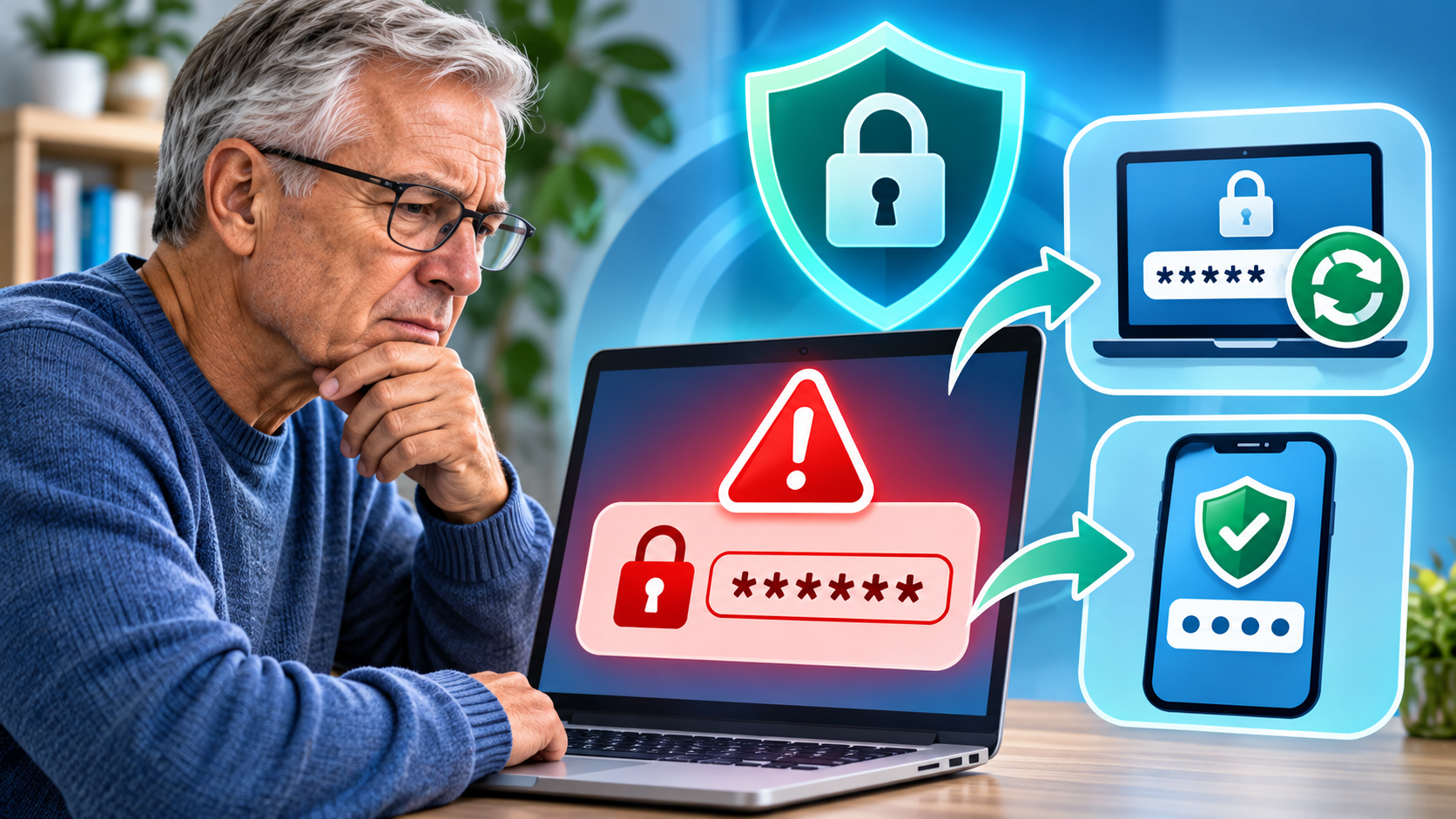
A stolen password doesn’t always cause obvious problems. Sometimes criminals obtain login information and wait before attempting to use it.
However, there are several warning signs worth investigating.
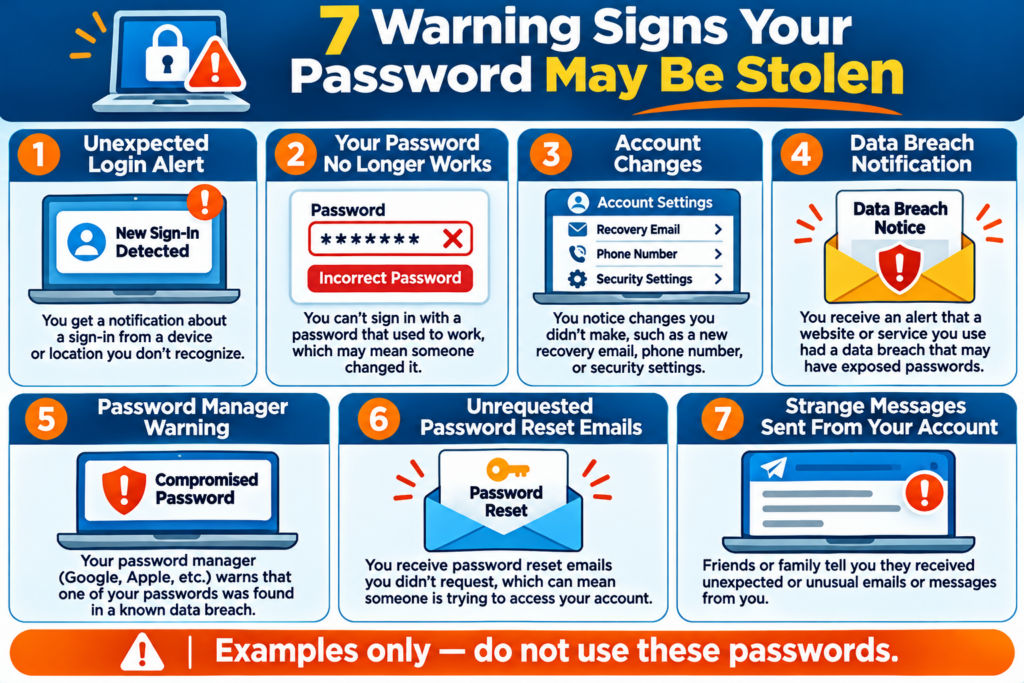
1. You Receive an Unexpected Login Alert
Many online services send security notifications when someone signs in from a new device or location.
For example, Google or Microsoft might alert you about an unfamiliar sign-in attempt.
If you receive a notification you don’t recognize:
- Don’t click links in an unexpected email.
- Open the company’s official app or website directly.
- Check your recent account activity.
- Follow the service’s instructions for securing your account if the activity is unfamiliar.
A new-device alert doesn’t automatically mean your password was stolen, but it deserves attention.
2. Your Password Suddenly Stops Working
If you can no longer sign in with a password that previously worked, someone may have changed it.
However, there are other possible explanations, including typing mistakes, account restrictions, or technical problems.
Try the service’s official account recovery process.
If you suspect unauthorized access, secure your recovery email and other connected accounts as well.
3. You Notice Changes You Didn’t Make
Unexpected account changes can indicate that someone has gained access.
Examples include:
- A different recovery email address
- An unfamiliar phone number
- Changed security settings
- New devices connected to your account
- Purchases or transactions you don’t recognize
- Emails sent from your account without your knowledge
If you discover these changes, treat them as a possible account compromise.
4. You Receive a Data Breach Notification
A company may notify customers after discovering that account information was exposed.
Depending on the incident, stolen information could include email addresses, passwords, or other personal details.
Not every breach exposes passwords, and not every exposed password is usable by criminals.
Read the notification carefully, but verify it through the company’s official website rather than trusting links in an unexpected message.
5. Your Password Manager Reports a Compromised Password
Some password managers can identify saved passwords that appear in known breach datasets.
For example, Google Password Manager and Apple’s Passwords app provide security alerts for certain compromised credentials.
If you receive a warning, review the affected account and change its password using the legitimate website or app.
6. You Find Password Reset Emails You Didn’t Request
An unexpected password reset email can mean someone is trying to access your account.
It doesn’t necessarily mean they know your password.
Someone may have entered your email address into a password recovery form.
If you receive repeated reset messages, check your account activity and security settings.
Don’t share password reset links or verification codes with anyone.
7. Friends Receive Strange Messages From Your Account
If friends or family tell you they’ve received unusual emails or messages from you, investigate immediately.
Someone may have accessed your account, or a scammer may be impersonating your address.
Check your sent messages, recent sign-ins, and account security settings.
If you confirm unauthorized access, change your password and warn your contacts not to follow suspicious links.
How to Check If Your Password Has Been Stolen
There are several ways to investigate whether your login information may have been compromised.
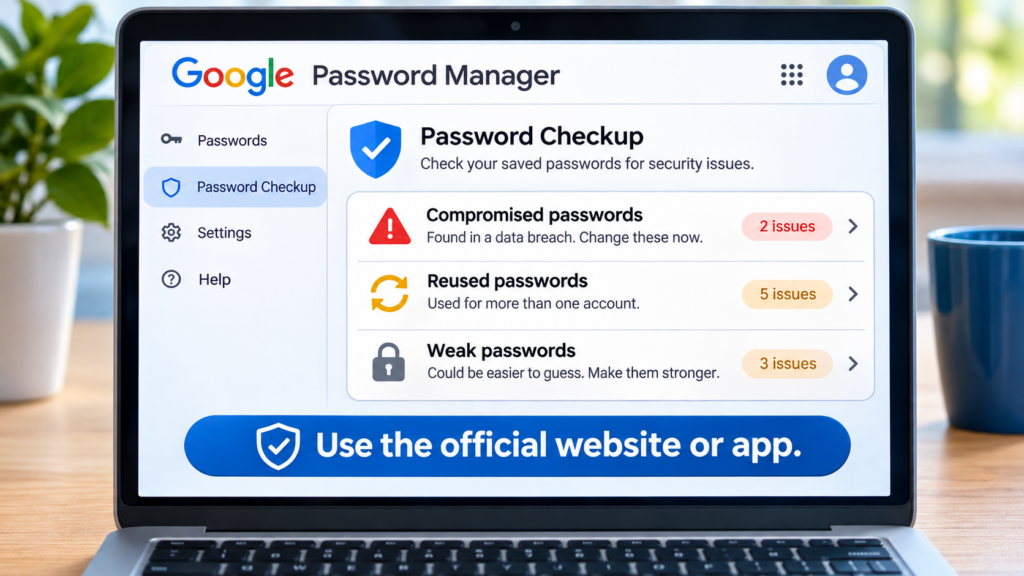
Method 1: Check Google Password Manager
If you use Chrome or Android, Google Password Manager may already be saving your passwords.
To check:
- Open Google Password Manager.
- Sign in to your Google account if prompted.
- Open Password Checkup or the available password security section.
- Review any warnings about compromised, reused, or weak passwords.
- Follow the instructions to update affected passwords.
The exact menus may differ depending on your device and browser version.
Important: A password manager warning is a reason to act, but the absence of a warning doesn’t guarantee that your password has never been stolen.
Method 2: Check Apple’s Passwords App
If you use an iPhone, iPad, or Mac, Apple’s Passwords app can identify certain compromised passwords.
On a supported iPhone:
- Open the Passwords app.
- Authenticate using Face ID, Touch ID, or your device passcode.
- Look for Security or any available compromised-password recommendations.
- Review the affected accounts.
- Change passwords directly through the legitimate services.
Older Apple software may organize saved passwords under Settings instead of a separate Passwords app.
Method 3: Check Have I Been Pwned
Have I Been Pwned is a well-known service that helps people check whether an email address appears in known data breaches.
Here’s how:
- Visit haveibeenpwned.com.
- Enter your email address.
- Review the results.
- If your address appears in a breach, read which service was affected and what types of data were exposed.
- Secure any accounts that may be affected.
Important: Finding your email address in a breach does not necessarily mean your current password was stolen.
Likewise, a result showing no known breaches doesn’t prove your accounts are safe.
The service can only report information contained in its available breach records.
You don’t need to enter your account password to check an email address for breaches.
What to Do Immediately If Your Password Was Stolen
If you believe someone has obtained your password, take these steps.
Step 1: Change the Affected Password
Open the legitimate website or app directly.
Sign in if you still can, then change your password.
Choose a long, unique password that you haven’t used anywhere else.
Don’t simply add a number to the end of your old password.
If you can’t access the account, use the service’s official account recovery process.
Step 2: Change Reused Passwords
If you used the same password on other websites, change it on those accounts too.
This is especially important for:
- Email accounts
- Banking and financial services
- Online shopping accounts
- Social media accounts
- Cloud storage services
Criminals sometimes try stolen passwords across many different websites.
Step 3: Turn On Two-Factor Authentication
Two-factor authentication adds another verification step when someone tries to sign in.
Depending on the service, you may be able to use:
- A passkey
- A security key
- An authenticator app
- A trusted-device confirmation
- A text-message verification code
Phishing-resistant methods, including properly implemented passkeys and security keys, are generally stronger than text-message codes.
Use the strongest practical option supported by your account.
Step 4: Sign Out of Unfamiliar Devices
Many services allow you to review devices currently signed in to your account.
Look for devices, locations, or sessions you don’t recognize.
Use the service’s security controls to sign out of unfamiliar sessions or all other sessions when appropriate.
Changing your password doesn’t always immediately end every existing session.
Step 5: Review Your Account Settings
Check whether anyone changed your:
- Recovery email
- Recovery phone number
- Two-factor authentication methods
- Connected apps
- Email forwarding rules
- Payment information
Remove unauthorized changes and review recent account activity.
If your email account was compromised, pay particular attention to forwarding rules that could send your messages to another address.
Step 6: Watch for Financial or Identity Theft
If the compromised account contained payment information or sensitive personal details, review your transactions and notifications.
Contact your bank or card issuer promptly if you notice unauthorized activity.
For identity theft concerns in the United States, visit IdentityTheft.gov for recovery guidance.
What If Your Email Password Was Stolen?
Your email account deserves special attention because it may be used to reset passwords for other services.
If someone controls your email, they may be able to access password reset messages for banking, shopping, and social media accounts.
If you suspect your email password was stolen:
- Change your email password immediately.
- Enable strong two-factor authentication.
- Review recent sign-in activity.
- Sign out of unfamiliar sessions.
- Check forwarding rules and connected apps.
- Confirm that your recovery information hasn’t changed.
- Review other important accounts for unauthorized activity.
If you can’t sign in, use your email provider’s official account recovery process.
Can Someone Steal Your Password Without You Knowing?
Yes.
Passwords can be exposed through several methods.
Data breaches: A website or service may suffer a security incident that exposes account information.
Phishing: A fake email or website may trick someone into entering their password.
Malware: Malicious software can sometimes capture login information.
Password reuse: Criminals may try credentials stolen from one service on unrelated websites.
Social engineering: A scammer may persuade someone to reveal a password or verification code.
That’s why it’s important to use unique passwords and additional account protection.
What If You Receive a Password Breach Email?
Not every email warning about a stolen password is genuine.
Some scammers send fake security alerts designed to steal login information.
Before responding:
- Examine the message for unexpected requests.
- Don’t click unfamiliar password reset links.
- Open the service’s official app or website.
- Check its security notifications directly.
- Change your password through the legitimate service if necessary.
Never send your password or one-time verification code in response to an unexpected message.
How to Prevent Your Password From Being Stolen Again
You can’t prevent every data breach, but you can reduce the risk of someone using stolen credentials.
Follow these habits:
- Use a unique password for every account. A breach at one service then won’t expose the same password everywhere.
- Use a password manager. It can generate and securely store long, random passwords.
- Enable two-factor authentication. This adds protection if a password is compromised.
- Use passkeys when available. Passkeys can provide phishing-resistant sign-in.
- Keep your devices updated. Security updates help protect against known vulnerabilities.
- Be careful with unexpected links. Open important websites directly instead of trusting unsolicited messages.
- Review security alerts. Investigate unfamiliar sign-ins or changes promptly.
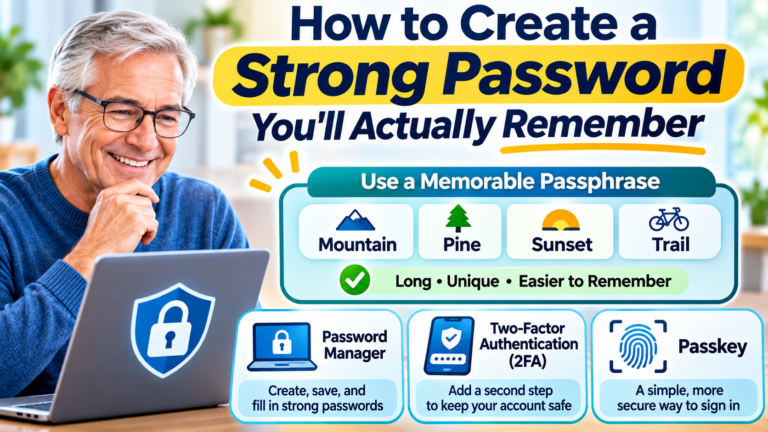
For help creating better passwords, read our related guide: How to Create a Strong Password You’ll Actually Remember.
What If You Still Think Someone Has Access to Your Account?
If you’re still wondering how to tell if your password has been stolen, look for unusual account activity even after changing your password. Check for unfamiliar devices, unexpected security changes, and suspicious login notifications that could indicate someone still has access.
If suspicious activity continues after changing your password, investigate further.
- Check for unfamiliar signed-in devices.
- Review account recovery information.
- Remove unauthorized connected applications.
- Examine email forwarding rules.
- Update your device and run a reputable security scan if you suspect malware.
- Contact the service’s official support team if you can’t secure the account.
If a device may be infected with malware, use another trusted device to change important passwords.
You may also need professional technical assistance if the problem continues.
Frequently Asked Questions
How can I tell if my password has been stolen?
Look for unfamiliar login alerts, unexpected account changes, compromised-password warnings, and suspicious account activity. You can also check known breaches using a password manager or Have I Been Pwned.
Can I check whether my password was leaked?
Some password managers can warn you about passwords found in known breaches. Have I Been Pwned can also show whether your email address appears in reported incidents.
Does a data breach mean someone knows my password?
Not necessarily. A breach may expose email addresses or other information without revealing usable passwords. Review the incident details and follow the affected service’s security advice.
Should I change my password if it was found in a breach?
Yes, if the password was exposed or you reasonably suspect compromise. Change it on the affected account and anywhere else you’ve reused it.
Can someone use my password without changing it?
Yes. An attacker may sign in without changing your password. That’s why reviewing recent account activity and signed-in devices is important.
Will changing my password remove a hacker from my account?
Not always. Some sessions, connected applications, or recovery settings may remain active. Review the service’s options for signing out devices and removing unauthorized access.
Is Have I Been Pwned safe to use?
It’s an established breach-notification service. Use its official website, and remember that an email-address breach check doesn’t require you to submit your account password.
What should I do first if my Gmail password is stolen?
Secure your Google account through its official security settings. Change your password, review recent activity, enable strong two-factor authentication, and check signed-in devices and forwarding rules.
Final Thoughts
Learning how to tell if your password has been stolen can help you respond quickly to suspicious activity.
Start by checking account security alerts and known breach notifications. If you discover a compromised password, change it immediately, secure any accounts where you reused it, and review your sign-in activity.
The most important habits are simple: use unique passwords, enable strong account protection, and investigate unexpected security warnings.
You don’t need to be a technology expert to take these steps.
Related DailyTechHelp.com guides:
- How to Create a Strong Password You’ll Actually Remember
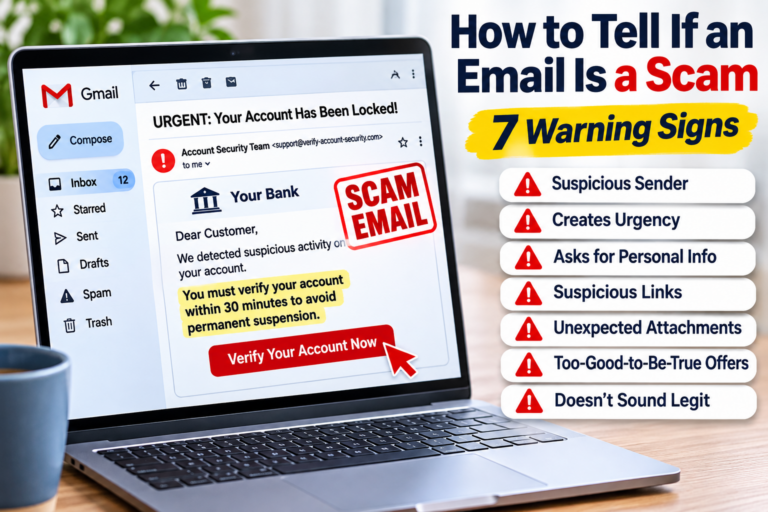
- How to Tell If an Email Is a Scam (7 Warning Signs)
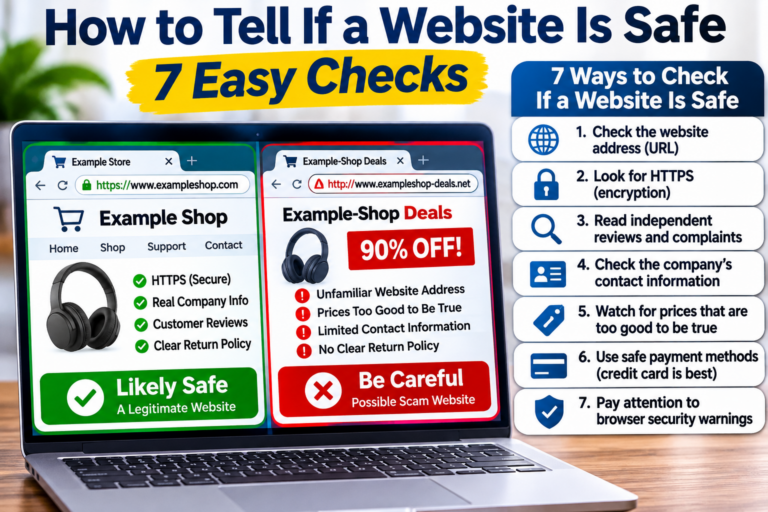
- How to Tell If a Website Is Safe (7 Easy Checks)
Official resources: