How to Fix a Printer That Keeps Going Offline (10 Easy Fixes)
Does your printer keep going offline, even though it’s turned on and connected to Wi-Fi?
You try to print a document, but your computer says the printer is unavailable. You restart the printer; it works for a while, and then the same problem happens again.
Fortunately, an offline printer doesn’t necessarily mean your printer is broken. In many cases, the problem is related to your wireless connection, computer settings, or printer software.
In this guide, you’ll learn how to fix a printer that keeps going offline and how to prevent the problem from happening again.
These troubleshooting steps cover common HP, Canon, Epson, and Brother printers used with Windows and Mac computers.
Table of Contents
Quick Answer: How to Fix a Printer That Keeps Going Offline
Try these simple solutions first:
- Make sure your printer is turned on.
- Restart your printer and computer.
- Check your printer’s Wi-Fi connection.
- Make sure your printer and computer are on the same local network.
- Disable Use Printer Offline if that setting is available.
- Clear any stuck print jobs.
- Set your printer as the default printer.
- Update or reinstall your printer software.
If your printer continues going offline, follow the detailed troubleshooting instructions below.
What Does It Mean When a Printer Is Offline?
When your computer says your printer is offline, it usually means the computer cannot communicate with the printer or that printing has been paused or disabled.
Your printer may still be powered on and appear to be working normally.
Common reasons a printer goes offline include:
- A weak wireless signal.
- A temporary network connection problem.
- Printer sleep or power-saving settings.
- Incorrect computer settings.
- Stuck print jobs.
- Outdated printer drivers.
- A changed printer network address.
- Problems with your wireless router.
Identifying the cause can help you prevent the problem from returning.
1. Restart Your Printer and Computer
Restarting your devices is one of the easiest ways to resolve temporary communication problems.
How to Restart Your Printer
- Turn off your printer.
- Wait until it has completely shut down.
- Unplug the power cord.
- Wait approximately 60 seconds.
- Plug the power cord back in.
- Turn on your printer.
- Wait for it to reconnect to Wi-Fi.
- Restart your computer.
Try printing a document once both devices have finished starting up.
Avoid unplugging your printer while it’s printing, performing maintenance, or installing an update.
If restarting temporarily fixes the problem but your printer continues going offline, continue with the remaining steps.
2. Check Your Printer’s Wi-Fi Connection
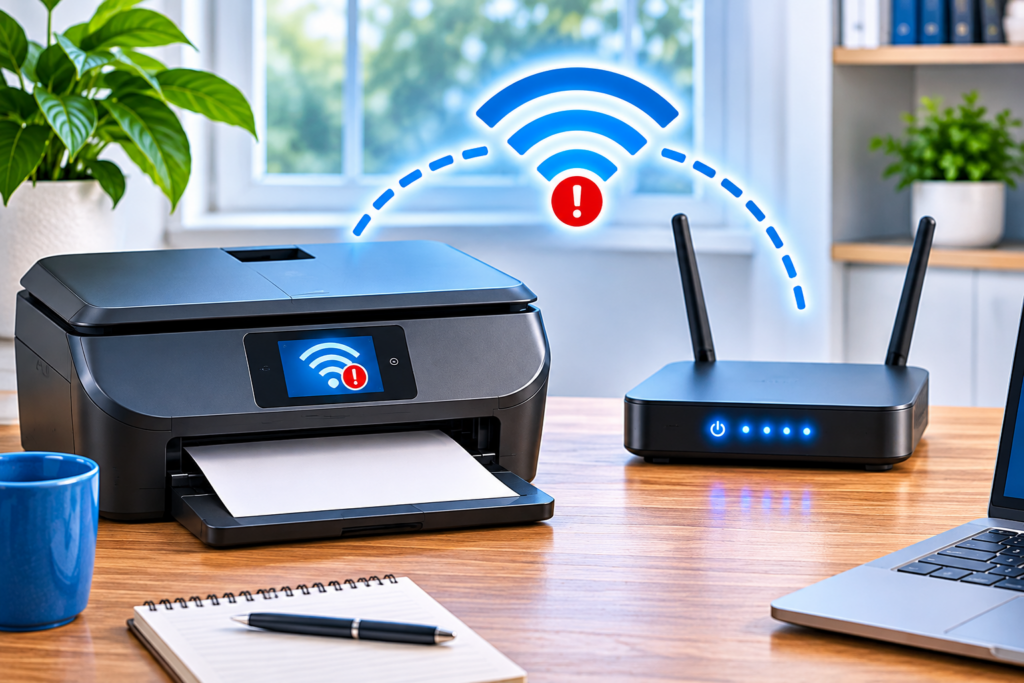
A weak or unreliable wireless connection is a common reason a printer repeatedly goes offline.
Even if your computer has a strong Wi-Fi signal, your printer may not.
What to Check
- Make sure the printer’s wireless connection is active.
- Check the printer’s wireless status indicator.
- Confirm that your printer and computer are on the same local network.
- Move your printer closer to your router if possible.
- Avoid placing your printer inside a metal cabinet or behind large obstacles.
- Check whether other wireless devices are also experiencing connection problems.
If your printer has a display screen, open its wireless settings and check the connection status.
You may need to reconnect your printer to your home network.
For detailed instructions, read our guide on how to connect a wireless printer to Wi-Fi.
3. Turn Off Use Printer Offline in Windows
Some Windows printer configurations include a setting called Use Printer Offline.
When enabled, this setting can prevent your computer from sending documents to your printer normally.
How to Check Printer Offline Settings in Windows 11
- Open Settings.
- Select Bluetooth & devices.
- Click Printers & scanners.
- Select your printer.
- Click Open print queue.
- Check whether printing has been paused.
- Resume printing if necessary.
Depending on your Windows version and printer software, you may also see a Use Printer Offline option in the print queue menu.
If that option is available and enabled, turn it off.
How to Turn Off Use Printer Offline in Windows 10
- Open Settings.
- Select Devices.
- Click Printers & scanners.
- Select your printer.
- Click Open queue.
- Open the Printer menu.
- Uncheck Use Printer Offline if it is selected.
- Make sure Pause Printing is also unchecked.
If these options are not available, continue with the other troubleshooting steps.
4. Clear Stuck Print Jobs
A document that becomes stuck in the print queue can prevent other documents from printing.
This can sometimes make a printer appear unavailable or unresponsive.
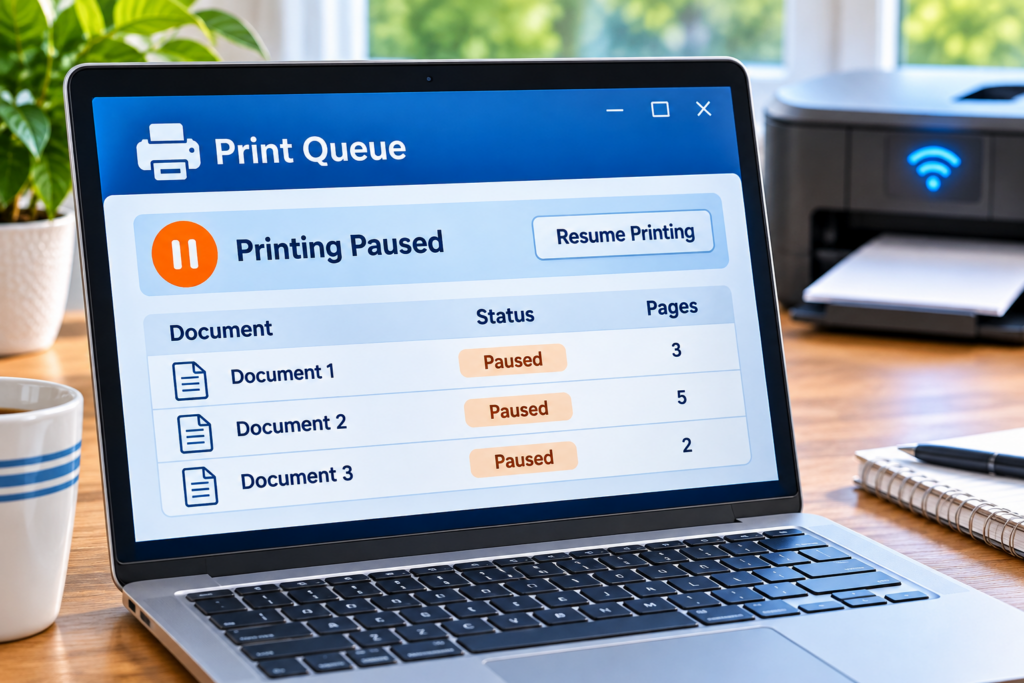
How to Clear the Print Queue in Windows 11
- Open Settings.
- Select Bluetooth & devices.
- Click Printers & scanners.
- Select your printer.
- Click Open print queue.
- Cancel any stuck or unwanted documents.
Restart your printer and try printing a single document.
How to Clear the Print Queue on a Mac
- Open the Apple menu.
- Select System Settings.
- Click Printers & Scanners.
- Select your printer.
- Open its print queue.
- Cancel any stuck print jobs.
- Resume printing if it has been paused.
Helpful tip: Avoid repeatedly clicking Print when nothing happens. You may end up with multiple copies waiting in the print queue.
5. Set Your Printer as the Default Printer
If you have several printers installed on your computer, Windows may select a printer that is no longer connected.
This can make it appear that your current printer is offline when your computer is actually trying to use a different device.
How to Set Your Default Printer in Windows 11
- Open Settings.
- Select Bluetooth & devices.
- Click Printers & scanners.
- Turn off Let Windows manage my default printer.
- Select the printer you normally use.
- Click Set as default.
Your computer should now use that printer by default in most applications.
When printing a document, double-check that the correct printer is selected.
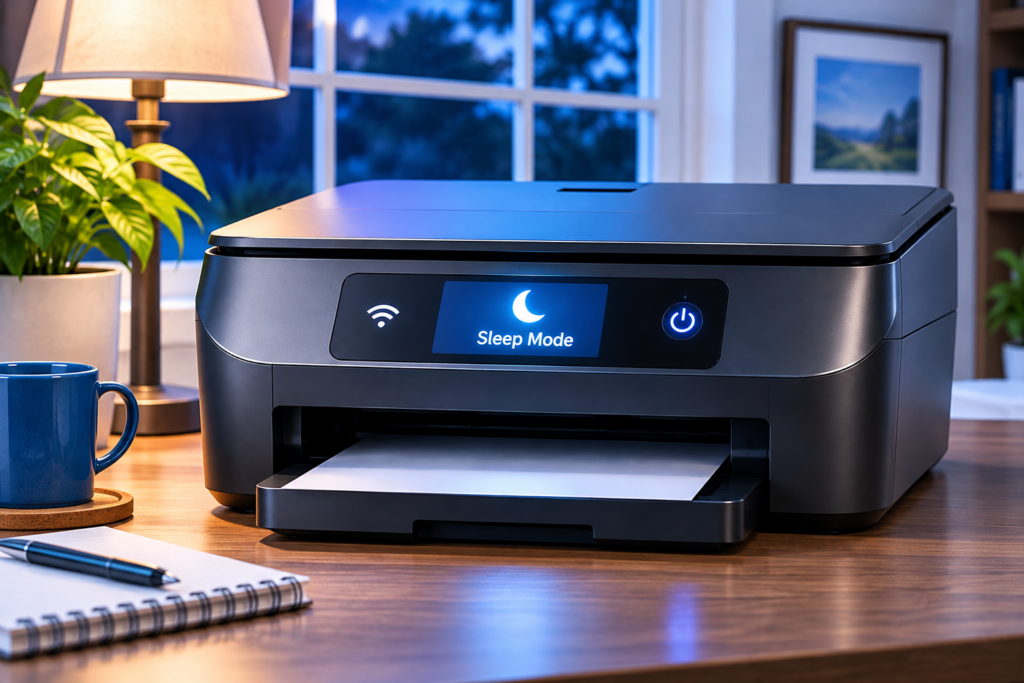
6. Check Your Printer’s Sleep Mode Settings
Many modern printers enter sleep mode after a period of inactivity to save electricity.
Normally, the printer should wake up automatically when you send a document.
However, some printers may experience communication problems when waking from sleep mode.
How to Check Printer Sleep Settings
- Open your printer’s settings menu.
- Look for Power Management, Energy Saving, Sleep Mode, or similar settings.
- Check how quickly the printer enters sleep mode.
- Increase the sleep timer if your printer allows it.
- Check whether an automatic shutdown setting is enabled.
- Test the printer after it has been inactive.
You may be able to adjust these settings using your printer manufacturer’s software.
You don’t necessarily need to disable sleep mode completely. Increasing the sleep timer or adjusting automatic shutdown settings may help if power management is causing the problem.
If the printer goes offline every time it enters sleep mode, check for firmware updates and model-specific support instructions.
7. Restart the Windows Print Spooler
The Print Spooler is a Windows service that manages documents waiting to be printed.
If this service stops working correctly, your printer may become unresponsive.
Restarting the Print Spooler can sometimes resolve persistent printing problems.
How to Restart the Print Spooler
- Press the Windows key and R at the same time.
- Type services.msc into the Run box.
- Press Enter.
- Scroll down until you find Print Spooler.
- Right-click Print Spooler.
- Select Restart.
- Close the Services window.
- Try printing again.
You may need administrator permissions to restart the service.
If the Restart option is unavailable, check whether the service is running.
For additional troubleshooting assistance, visit Microsoft’s official Windows support website.
8. Update Your Printer Drivers and Firmware
Outdated printer software can cause communication problems, particularly after a computer or operating system update.
Printer drivers help your computer communicate with your printer.
Firmware is the software built into the printer itself.
Updating either may resolve recurring connection problems.
Official Printer Support Websites
Search for your exact printer model and follow the manufacturer’s instructions for installing compatible updates.
Some printers can check for firmware updates directly through their control panels or official mobile apps.
Important: Never turn off or unplug your printer while a firmware update is being installed.
Avoid third-party websites that charge for printer driver downloads or request remote access to your computer.
9. Remove and Reinstall Your Printer
If your printer continues going offline, removing and reinstalling it may resolve incorrect settings or outdated connection information.
This can be particularly helpful after replacing a wireless router or changing network settings.
How to Reinstall a Printer in Windows 11
- Open Settings.
- Select Bluetooth & devices.
- Click Printers & scanners.
- Select your printer.
- Click Remove.
- Restart your computer.
- Return to Printers & scanners.
- Click Add device.
- Select your printer and complete the setup.
Make sure your printer is turned on and connected to your home network before reinstalling it.
How to Reinstall a Printer on a Mac
- Open the Apple menu.
- Select System Settings.
- Click Printers & Scanners.
- Select the printer that is causing problems.
- Remove the printer using the available controls.
- Click Add Printer, Scanner, or Fax.
- Select your printer.
- Click Add.
Try printing a test document after completing the installation.
10. Give Your Printer a Reserved IP Address
If your wireless printer repeatedly goes offline despite having a strong Wi-Fi connection, its network address may be changing.
Every device connected to your home network has an IP address.
Your router normally assigns these addresses automatically. In some situations, a printer may receive a different address after restarting or reconnecting.
If your computer continues trying to communicate with the printer at its previous address, printing may stop working.
What Is a Reserved IP Address?
A reserved IP address tells your router to assign the same local network address to your printer whenever it connects.
This feature is often called DHCP Reservation or Address Reservation.
It may help prevent recurring offline problems caused by changing printer addresses.
How to Reserve Your Printer’s IP Address
The exact instructions depend on your wireless router, but the general process is:
- Open your router’s official management app or settings page.
- Find the connected devices list.
- Locate your printer.
- Look for DHCP Reservation or Address Reservation.
- Reserve an address for your printer using the router’s instructions.
- Save the settings.
- Restart your printer if necessary.
If your computer still cannot find the printer, you may need to remove and reinstall it.
Not all printers require a reserved IP address. Modern printer discovery systems can often handle address changes automatically.
If you’re uncomfortable changing router settings, try the other solutions first or contact your internet provider for assistance.
Why Does My HP Printer Keep Going Offline?
HP printers may repeatedly go offline because of wireless connection problems, sleep settings, outdated software, or incorrect printer settings.
Try these steps:
- Restart the printer and computer.
- Check the wireless connection.
- Clear the print queue.
- Check for printer software and firmware updates.
- Use the diagnostic tools available for your printer model.
- Remove and reinstall the printer if necessary.
Visit HP’s official support website for troubleshooting instructions specific to your printer.
Why Does My Canon, Epson, or Brother Printer Keep Going Offline?
Many of the same problems affect Canon, Epson, and Brother wireless printers.
Start by checking the printer’s network connection and power-saving settings.
If the problem continues, check for software updates and reconnect the printer to your wireless network.
Printers that repeatedly disconnect may also benefit from a stronger Wi-Fi signal or a reserved IP address when address changes are the cause.
Always use the official support instructions for your specific printer model.
Why Does My Printer Go Offline After Sitting Idle?
If your printer works normally but goes offline after sitting unused, the problem may be related to its power-saving settings.
Possible causes include:
- Automatic shutdown.
- Problems waking from sleep mode.
- Wireless connection interruptions.
- Printer firmware problems.
- Network address changes.
Try increasing the printer’s sleep timer, checking for firmware updates, and improving its wireless connection.
If your printer has automatically shut down, you may need to turn it back on before printing.
Common Offline Printer Problems and Solutions
| Printer Problem | What to Try |
|---|---|
| Printer says offline but is turned on | Check Wi-Fi and restart both devices |
| Printer goes offline after sitting idle | Check sleep and automatic shutdown settings |
| Printer goes offline every day | Check wireless signal and network settings |
| Printer stopped working after a router replacement | Reconnect it to the new Wi-Fi network |
| Printer goes offline after a Windows update | Check printer drivers and reinstall if necessary |
| Documents are stuck in the print queue | Cancel stuck jobs and restart the Print Spooler |
| Mac says printer is unavailable | Check the network and re-add the printer |
| USB printer says offline | Check the USB cable and computer port |
| Printer works after restarting but goes offline again | Investigate sleep settings, firmware, and network address changes |
How to Prevent Your Printer From Going Offline
Once your printer is working again, a few simple changes may help prevent future problems.
- Keep your printer within range of your wireless router.
- Use your regular home network instead of a guest network.
- Keep printer software and firmware updated.
- Check your printer’s sleep and shutdown settings.
- Clear stuck print jobs when necessary.
- Avoid unnecessary changes to your router settings.
- Reserve your printer’s IP address if address changes are causing problems.
If wireless problems continue and your printer supports USB or Ethernet, a wired connection may provide a more reliable alternative.
If your printer is online but still refuses to print, read our complete guide on how to fix a printer that won’t print.
Frequently Asked Questions
Why does my printer say offline when it is turned on?
Your computer may be unable to communicate with the printer because of a wireless connection problem, incorrect settings, or a software issue. Being powered on does not necessarily mean the printer is available to your computer.
How do I get my printer back online?
Restart your printer and computer, check the network connection, clear stuck print jobs, and make sure printing has not been paused.
Why does my wireless printer keep disconnecting?
Possible reasons include a weak Wi-Fi signal, router problems, outdated printer firmware, or power-saving settings.
Why does restarting my printer only fix the problem temporarily?
Restarting can restore communication without correcting the underlying problem. Check your printer’s wireless connection, sleep settings, firmware, and network address configuration.
Should I turn off printer sleep mode?
Not necessarily. Sleep mode saves electricity and normally allows your printer to wake when needed. Try increasing the sleep timer or checking for firmware updates before disabling power-saving features.
Will reinstalling my printer fix offline problems?
It may help if the problem involves outdated connection information, damaged drivers, or incorrect settings. It will not necessarily fix a weak wireless signal or hardware problem.
Does my printer need a static IP address?
Most home printers do not need one. However, reserving an IP address through your router may help if changing network addresses are causing repeated offline problems.
Do I need to replace a printer that keeps going offline?
Usually, replacement should not be your first step. Many offline printer problems can be resolved by correcting network connections, computer settings, or printer software.
Final Thoughts
Learning how to fix a printer that keeps going offline can save you from repeatedly restarting your printer or struggling to print important documents.
Start with the simplest solutions: restart your devices, check your wireless connection, and clear the print queue.
If the problem keeps returning, investigate your printer’s sleep settings, firmware, and network configuration.
You may be able to restore reliable printing without spending money on a replacement printer.
For additional printer help, explore these related guides:
Editorial note: Printer controls, software, router settings, and troubleshooting options vary by manufacturer, model, and operating system. Consult your manufacturer’s official documentation for model-specific instructions.