
Why Is My Printer Printing Blank Pages? Find the Cause Before Buying More Ink
If your printer sounds like it’s working normally but the paper comes out blank, don’t rush to buy replacement ink cartridges.
A printer can produce blank pages even when its ink cartridges are full. Dried ink, clogged printhead nozzles, incorrectly installed cartridges, and document settings can all cause this frustrating problem.
The fastest way to find out why your printer is printing blank pages is to print a diagnostic page directly from the printer itself.
This simple test can help you determine whether the problem is with the printer or the device you’re printing from.
Table of Contents
Find Your Printer Problem
Start by finding the symptom that best describes what’s happening.
| What’s Happening | Possible Cause | What to Try First |
|---|---|---|
| Every page is completely blank | Ink delivery or toner problem | Print an internal diagnostic page |
| Pages are blank even though ink is full | Clogged printhead | Run a nozzle check |
| Printing stopped after replacing ink | Cartridge installation problem | Check protective tape and installation |
| Black text is missing but colors print | Black ink supply or nozzle problem | Check black ink and nozzle pattern |
| Extra blank pages appear between documents | Document or paper feeding problem | Check print preview |
| Printer test page looks normal | Application or printer software problem | Print from a different application |
| Laser printer produces blank pages | Toner or imaging component problem | Check the toner cartridge |
| Printer hasn’t been used for months | Dried ink or blocked nozzles | Run the manufacturer’s cleaning procedure |
You don’t need to try every solution in this guide. Start with the section that matches your printer’s symptoms.
Start Here: The Printer Diagnostic Test
Before changing computer settings, reinstalling software, or buying ink, find out whether your printer can produce a page on its own.
Many printers have a built-in diagnostic report that doesn’t require a computer or smartphone.
How to Print a Diagnostic Page
- Turn on your printer.
- Load plain white paper.
- Open the printer’s Settings, Maintenance, Tools, or Reports menu.
- Look for one of the following options:
- Print Quality Report
- Nozzle Check
- Printer Status Report
- Configuration Page
- Diagnostic Page
- Select the appropriate report and print it.
Printers without a display screen may require a specific button combination. Check the instructions for your exact printer model.
For this particular problem, a print quality report or nozzle check is especially useful because it can reveal missing ink colors.
What Does Your Diagnostic Page Look Like?
The page prints normally: Your printer can place ink or toner on the paper. Investigate the original document, application, and computer printing settings before replacing cartridges.
The page contains missing lines or colors: Your inkjet printer may have blocked nozzles or an ink supply problem.
The page is completely blank: Concentrate on ink or toner delivery, cartridge installation, and the printer’s internal printing mechanism.
No paper comes out: This may be a different printing problem altogether. Read our guide on how to fix a printer that won’t print.
If your printer has a scanner and photocopy function, you can also try copying a document directly from the printer. A successful copy is another useful indication that the printing mechanism can work independently of your computer.
However, a blank copy alone doesn’t prove that the printing mechanism is faulty because scanner settings or document positioning could also be involved.
Why Is My Printer Printing Blank Pages When It Has Ink?
Seeing a full ink indicator on your printer doesn’t guarantee that ink is reaching the paper.
Inkjet printers use a component called a printhead, which contains extremely small openings called nozzles.
These nozzles release tiny droplets of ink onto the paper.
If the nozzles become blocked, ink cannot flow properly. Your printer may still move the printhead and feed paper normally, but the printed page may contain missing colors, streaks, or no visible printing at all.
This is particularly worth investigating if your printer hasn’t been used for an extended period.
Check Whether the Printhead Is Clogged
Most inkjet printers provide a maintenance function called a nozzle check or print quality test.
A nozzle check produces patterns that help you identify whether individual ink colors are printing correctly.
Examine the printed pattern:
- Continuous lines generally indicate that the corresponding nozzles are working.
- Broken lines or gaps suggest a possible ink delivery problem.
- An entirely missing color suggests that the corresponding ink isn’t reaching the paper.
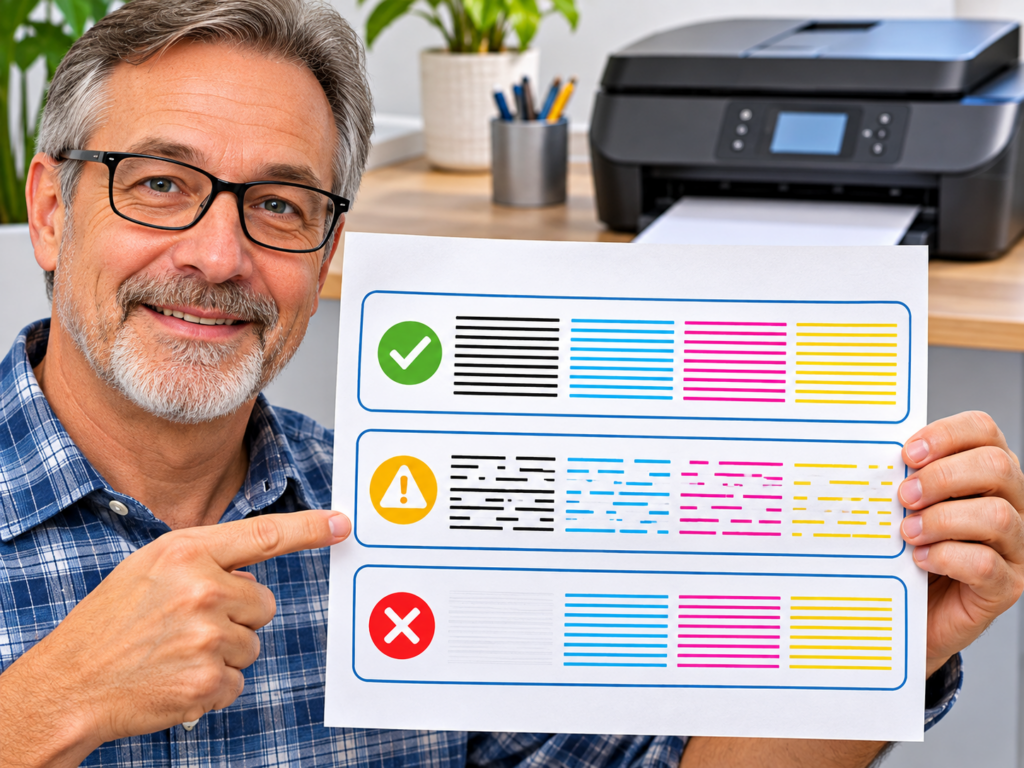
Compare your results with the examples in your printer’s manual. Different manufacturers use different test patterns.
If the pattern is incomplete, run the printer’s built-in cleaning function.
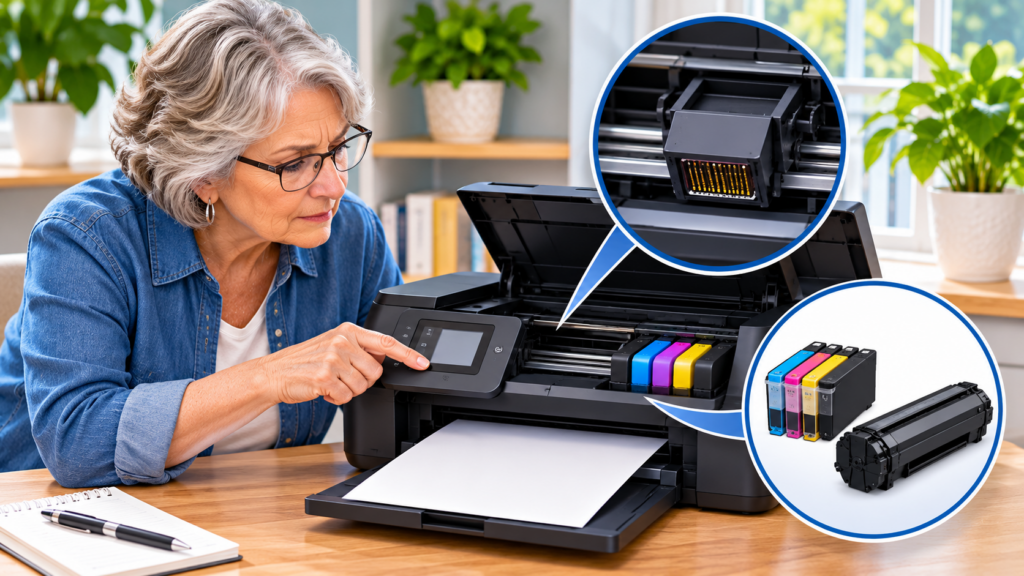
How to Clean Your Printer’s Printhead
- Load plain paper into the printer.
- Open its maintenance menu or official printer software.
- Find the printhead or nozzle cleaning option.
- Run a standard cleaning cycle.
- Print another nozzle check.
- Compare the results with the original pattern.
If printing improves but some lines are still missing, consult the manufacturer’s instructions before repeating the cleaning procedure.
Some printers offer deeper cleaning options, but these can consume considerably more ink.
Money-saving tip: Don’t repeatedly run cleaning cycles without checking the results. Follow your printer manufacturer’s recommended cleaning limits and waiting periods.
Avoid removing or soaking the printhead unless the manufacturer specifically provides instructions for doing so.
Printer Printing Blank Pages After Changing Ink
If your printer was working before you installed new cartridges, the replacement process is a useful place to begin troubleshooting.
There may be nothing wrong with the printer itself.
Check the New Cartridge
Follow your printer’s cartridge replacement instructions and check the following:
Protective packaging: New cartridges may have removable protective tape, caps, or seals. Make sure the required packaging has been removed.
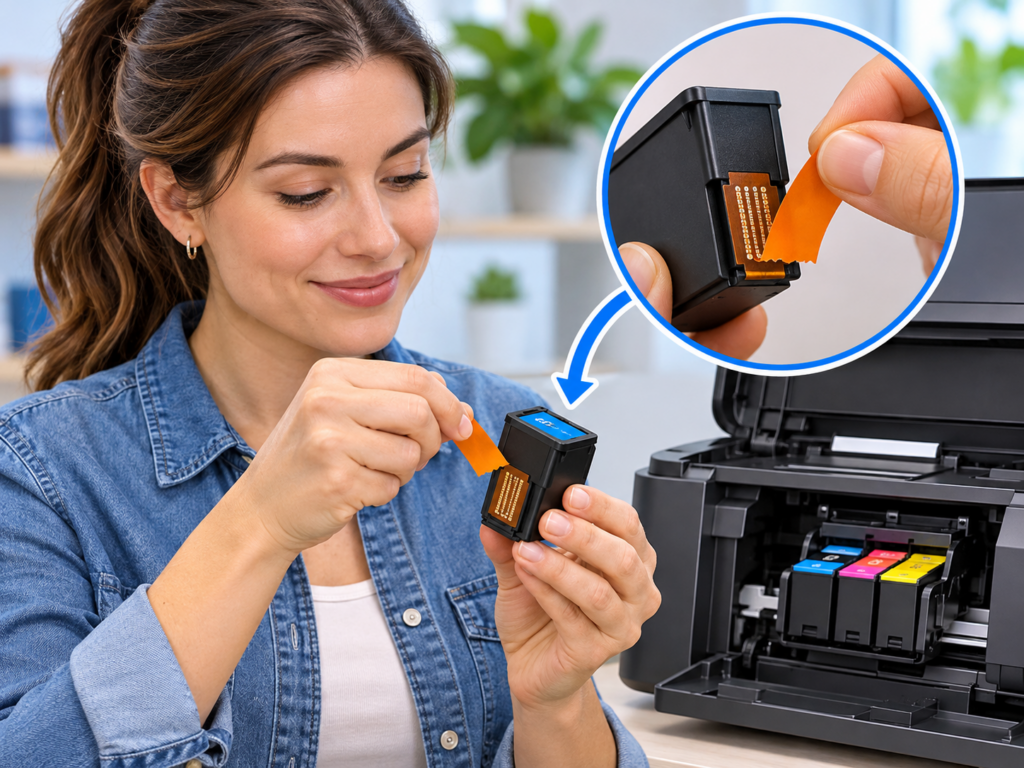
Cartridge compatibility: Confirm that the cartridge number matches the cartridges supported by your printer.
Installation: Ensure that the cartridge is properly seated in its designated position.
Error messages: Look for warnings about unrecognized, incompatible, or incorrectly installed cartridges.
Initial setup: Complete any required ink initialization, alignment, or installation procedure.
Be careful not to remove labels or seals that are supposed to remain attached to the cartridge.
Avoid touching the ink nozzles and electrical contacts.
After checking the installation, print a nozzle check or diagnostic page.
If the problem started immediately after installing a particular cartridge, that cartridge may be defective. Check the seller’s return policy or contact the manufacturer before buying another replacement.
Printer Not Printing Black Ink but Printing Color
Sometimes a printer continues printing color images but leaves black text completely missing.
This can help narrow the problem to a particular ink supply or printing setting.
Start by checking the black ink level.
If your black ink appears sufficient, print a nozzle check and examine the black portion of the pattern.
What Your Results May Mean
Black lines are missing from the nozzle check: Standard printhead cleaning may help if the black nozzles are blocked.
Black appears normally on the nozzle check but not in your document: Try a different application or review the document’s font color and printing settings.
Black ink stopped working after replacement: Check the cartridge installation and compatibility.
Some photo printers use separate cartridges for regular black ink and photo black ink. Which cartridge is used may depend on the selected paper type and print settings.
Check your printer’s documentation before replacing a cartridge that appears to contain ink.
Laser Printer Printing Blank Pages
Laser printers work differently from inkjet printers.
Instead of spraying liquid ink through tiny nozzles, they use toner powder and imaging components to transfer an image onto the paper.
A laser printer cannot develop clogged inkjet printhead nozzles. Running an inkjet cleaning procedure therefore won’t solve a laser printer problem.
What to Check on a Laser Printer
First, examine the toner information on your printer’s display or in its official software.
If you’ve recently replaced the toner cartridge, check whether the required shipping seal or protective packaging has been removed.
Make sure the toner cartridge and any user-replaceable imaging components are installed correctly.
Print an internal configuration or diagnostic page.
If the page remains blank, possible causes include:
- An empty or defective toner cartridge.
- An incorrectly installed cartridge.
- A problem with the imaging drum.
- An internal toner transfer or imaging failure.
Some laser printers have a separate drum unit, while others combine the drum with the toner cartridge.
Do not automatically purchase a replacement drum without checking your printer’s design and troubleshooting instructions.
Avoid touching the drum surface or disassembling internal laser printer components. Some components, including the fuser, can become very hot.
If basic toner checks don’t resolve the problem, consult the manufacturer’s instructions for your exact model.
Printer Printing Extra Blank Pages Between Documents
If your printer produces normal printed pages along with unwanted blank sheets, the problem may not involve ink or toner at all.
The printer has already demonstrated that it can print.
Instead, investigate the document, print settings, and paper feeding system.
Check Print Preview
- Open the document you want to print.
- Select File and then Print.
- Examine each page in the print preview.
- Look for unwanted blank pages.
- Select only the pages you actually need.
For example, if a document contains four pages and the fourth page is blank, select pages 1–3 in the print settings.
Common causes of unwanted blank pages include extra paragraphs, page breaks, section breaks, and content that extends beyond the selected page boundaries.
Check the Paper Size
Make sure the paper size selected in your application matches the paper loaded into your printer.
Most home printers in the United States use Letter-size paper, which measures 8.5 × 11 inches.
If your document is configured for a different paper size, it may create unexpected page breaks.
Look for a Skip Blank Page Setting
Some printer software includes an option to skip blank pages.
Epson, for example, documents this feature on certain printer models.
If your printer supports it, this setting can help prevent unnecessary blank sheets from being printed.
Check for Multiple Sheets Feeding Together
If the print preview contains no blank pages but the printer produces extra sheets, check whether multiple sheets are being pulled into the printer simultaneously.
Try fresh, dry paper and load it according to the printer’s instructions.
Do not exceed the maximum capacity of the paper tray.
Printer Prints a Test Page but Not Your Documents
A successful internal diagnostic page suggests that the printer’s basic printing mechanism is functioning.
Before spending money on replacement ink, try printing a simple document from a different application.
Create a Simple Test Document
Open a basic word-processing or text-editing application and type:
Printer Test
This is a test of black text printing.
Make sure the text is black and the page background is white.
Print the document using normal printing settings.
If it prints correctly, the original document or application may be causing the problem.
If Only PDF Files Print Blank Pages
Try opening the PDF in another compatible PDF reader.
Check whether the document appears correctly in print preview.
If the problem occurs only with one PDF, try printing a different PDF before changing your printer’s settings.
Some PDF readers also offer a Print as Image option under advanced printing settings. This may help with certain document-rendering problems.
If Every Computer Document Prints Blank
If the printer’s own diagnostic report prints correctly but documents sent from your computer remain blank:
- Confirm that you’ve selected the correct printer.
- Check the print settings.
- Try another application or connected device.
- Check for compatible printer software updates.
- Remove and reinstall the printer if necessary.
Our complete printer troubleshooting guide explains how to reinstall a printer on Windows or Mac.
Inkjet vs. Laser: Which Problem Are You Dealing With?
Understanding which type of printer you own can prevent you from wasting time and money on the wrong solution.
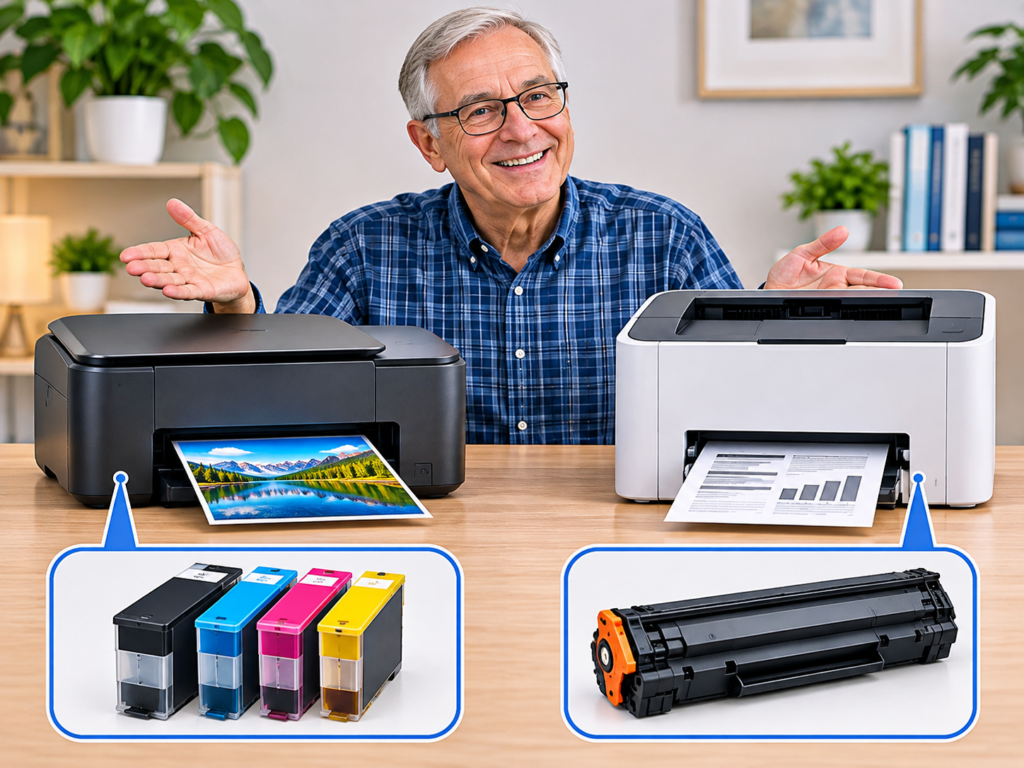
| Inkjet Printer | Laser Printer | |
|---|---|---|
| Printing material | Liquid ink | Toner powder |
| Common blank-page causes | Blocked nozzles, ink supply problems | Toner or imaging problems |
| Can ink dry inside nozzles? | Yes | Not applicable |
| Useful diagnostic test | Nozzle check or print quality report | Configuration or print quality page |
| Built-in printhead cleaning | Commonly available | Not applicable |
| Replacement components | Cartridges or printhead, depending on model | Toner or drum, depending on model |
If you’re unsure which type of printer you own, look up its model number on the manufacturer’s website.
What Not to Do When Your Printer Prints Blank Pages
Some troubleshooting mistakes can turn a relatively simple problem into an expensive one.
Avoid these actions until you’ve identified the likely cause:
- Buying new cartridges solely because a page came out blank.
- Running cleaning cycles over and over.
- Using alcohol, household cleaners, or solvents on a printhead without manufacturer approval.
- Forcing cartridges or toner assemblies into position.
- Performing a complete factory reset before checking ink delivery.
- Downloading printer drivers from unfamiliar websites.
- Paying an unknown online support company to remotely access your computer.
A printer that produces blank pages isn’t necessarily broken beyond repair.
Start with diagnostic testing and work toward the solution that matches your results.
How to Prevent Blank Pages in the Future
If you own an inkjet printer, avoid leaving it unused for extended periods whenever practical.
Periodically printing a small document containing black text and color can help keep ink flowing. Check your manufacturer’s recommendations for your particular model.
Other helpful habits include:
- Monitor ink or toner supplies.
- Follow cartridge replacement instructions carefully.
- Keep paper clean and dry.
- Use the printer’s normal power button when shutting it down.
- Install compatible firmware updates when appropriate.
- Perform printhead cleaning only when needed.
If you print only occasionally and mainly need black-and-white documents, a monochrome laser printer may be worth considering when it’s time to replace your existing printer.
Unlike an inkjet printer, it does not use liquid ink that can dry inside printhead nozzles.
Blank Page Troubleshooting Checklist
Use this checklist before purchasing replacement ink or considering a new printer.
- Print an internal diagnostic page.
- Determine whether the printer is inkjet or laser.
- Check the ink or toner supply.
- Check recently installed cartridges for protective packaging.
- Run a nozzle check if using an inkjet printer.
- Follow the recommended cleaning procedure if necessary.
- Check the original document in print preview.
- Try printing from another application.
- Consult the manufacturer’s troubleshooting instructions.
- Check warranty coverage before paying for repairs.
If your diagnostic page remains blank after completing the appropriate manufacturer-recommended procedures, professional repair or replacement may be necessary.
Official Printer Troubleshooting Resources
The following manufacturer resources provide additional information about blank pages, ink delivery, and print quality problems.
- HP Support – HP printer prints blank pages
- Epson Support – Blank pages print unexpectedly
- Canon G4010 Series Manual – Blank pages and print quality problems
The Epson and Canon documentation applies to particular printer models or product families. Always check the manual for your own printer before performing maintenance.
About this guide: This article was developed using manufacturer troubleshooting documentation and general printer diagnostic principles. The procedures have not been independently tested on every printer model.