Why Are My Emails Going to Spam in Gmail? (And How to Fix It)
Updated November 17, 2026 • Estimated reading time: 7 minutes
Are important emails from friends, family, or businesses ending up in your Gmail Spam folder instead of your inbox?
If you’re wondering why your emails are going to spam in Gmail, you’re not alone. Gmail automatically filters suspicious messages to protect you, but sometimes it mistakenly identifies legitimate emails as spam.
Fortunately, you can usually fix the problem in just a few minutes.
In this beginner-friendly guide, you’ll learn how to find missing emails, mark them as safe, unblock trusted senders, and prevent important messages from going to Spam again.
These instructions focus on Gmail on a computer, with additional tips for Android and iPhone.
Table of Contents
1. Why Are My Emails Going to Spam in Gmail?
Gmail uses automatic filtering to identify suspicious or unwanted emails.
Sometimes legitimate messages get caught because:
- The sender was blocked. Gmail automatically moves emails from blocked addresses to Spam.
- You previously reported the sender as spam. Gmail may continue treating similar messages as unwanted.
- The message looks suspicious. Gmail may detect unusual links, misleading content, or problems verifying the sender.
- You previously unsubscribed. Gmail may send later messages from that sender to Spam.
- The sender has email authentication problems. Gmail may have difficulty confirming the message’s origin.
If you recognize and trust the sender, you can take steps to correct the mistake.
Important: Don’t mark an unfamiliar or suspicious message as safe just because it appears to come from a familiar company. Scammers can impersonate legitimate senders.
2. Find Missing Emails in Your Gmail Spam Folder
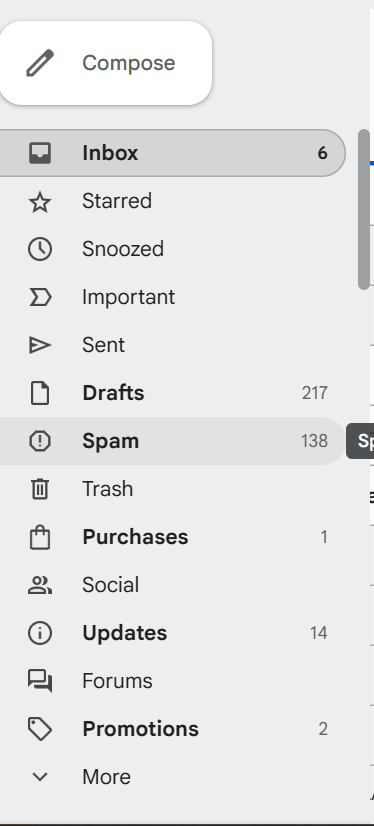
The first step is to check whether Gmail has already filtered the missing email.
- Open Gmail on your computer.
- Look at the menu on the left.
- Click More if the Spam folder isn’t visible.
- Select Spam.
- Look for the missing email.
If you find the message, check the sender carefully before restoring it.
Gmail normally deletes emails from Spam after 30 days, so don’t wait too long to check.
Tip: If you can’t find the email, search Gmail using the sender’s address or a phrase from the message. You can use advanced search options to include Spam and Trash.
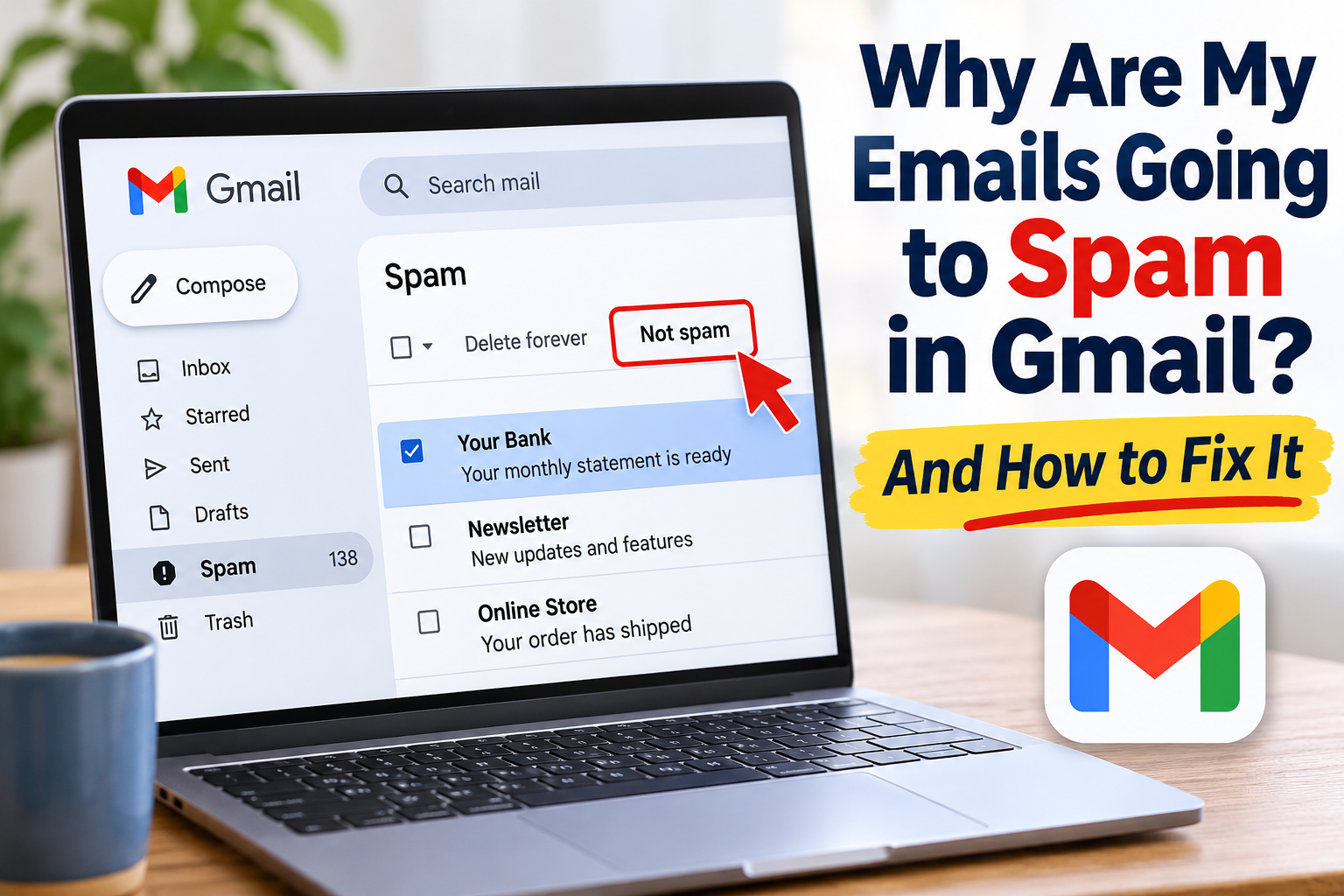
3. Mark an Important Gmail Message as Not Spam
If Gmail incorrectly filtered a legitimate message, you can mark it as safe.
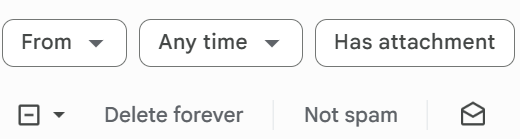
Here’s how:
- Open Gmail.
- Click Spam in the left sidebar.
- Find the legitimate email.
- Select the checkbox beside it.
- Click Not spam at the top.
Gmail moves the message out of Spam and uses your correction to improve how it handles that sender’s emails.
This is usually the easiest fix when an important email has been incorrectly filtered.
4. Add a Trusted Email Sender to Google Contacts
Adding someone to Google Contacts can help Gmail recognize that their messages are wanted.
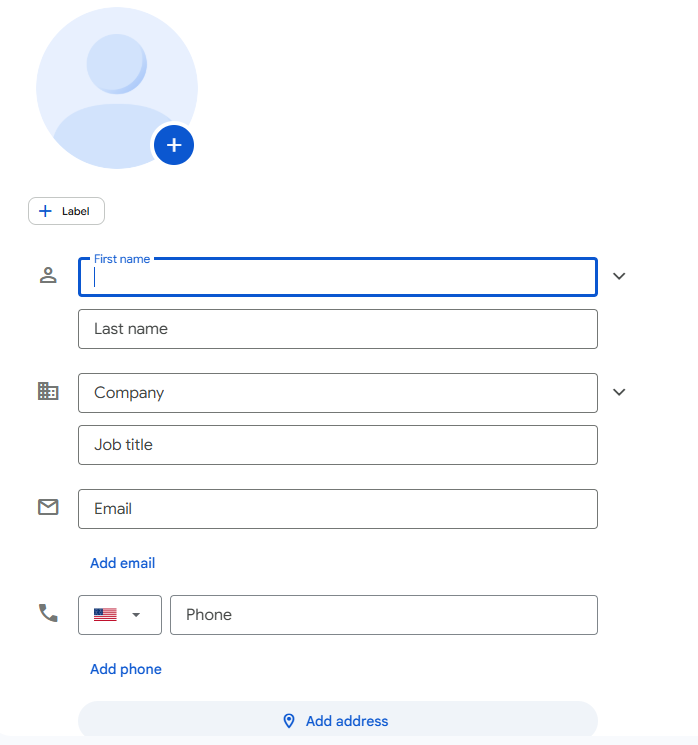
Follow these steps:
- Open Google Contacts on your computer.
- Click Create contact.
- Select Create a contact.
- Enter the person’s name and email address.
- Click Save.
Make sure you enter the correct email address.
For example, if you regularly receive important messages from a family member or a trusted business, adding that address to Contacts can help keep future messages out of Spam.
Only add senders you recognize and trust.
5. Create a Gmail Filter to Keep Important Emails Out of Spam
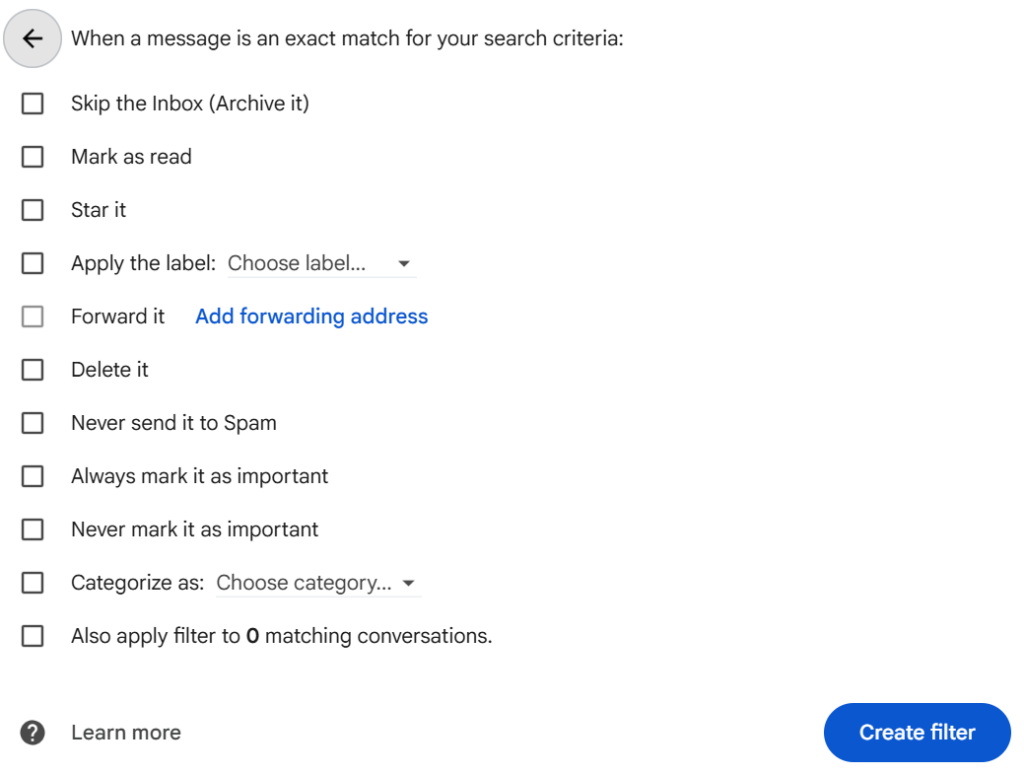
If emails from a particular trusted sender keep going to Spam, Gmail lets you create a filter.
A filter tells Gmail how to handle messages that match specific conditions.
Here’s how:
- Open Gmail on your computer.
- Click the Show search options icon at the right end of the Gmail search bar.
- In the From field, enter the trusted sender’s full email address.
- Click Create filter.
- Check Never send it to Spam.
- Click Create filter again to save.
Gmail will apply the rule to matching incoming messages.
Important: Use this option only for specific, trusted email addresses. Don’t create broad rules that allow all messages from unknown senders to bypass spam protection.
6. Check Whether You Accidentally Blocked the Sender
Sometimes important emails go to Spam because you previously blocked the sender.
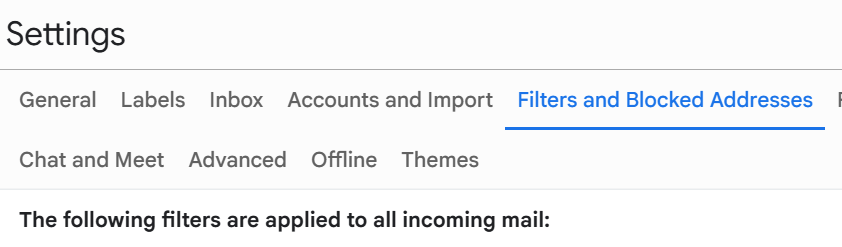
Here’s how to check:
- Open Gmail.
- Click the Settings gear in the upper-right corner.
- Select See all settings.
- Open Filters and Blocked Addresses.
- Scroll to the blocked-address list.
- Find the sender’s email address.
- Click Unblock if you want to receive their messages normally.
After unblocking the sender, check whether future messages arrive in your inbox.
If they still go to Spam, mark a legitimate message as Not spam or add the sender to Contacts.
7. Check Gmail Filters That Might Be Hiding Your Emails
Not every missing email is in Spam.
Sometimes a Gmail filter automatically archives or deletes incoming messages.
To check your filters:
- Open Gmail.
- Click Settings → See all settings.
- Select Filters and Blocked Addresses.
- Review the filters you’ve created.
- Look for actions such as Skip Inbox or Delete it.
- Edit or delete any rule that is incorrectly handling important emails.
Be careful when changing filters you intentionally created.
If a message isn’t in Spam, also check All Mail and Trash.
8. What If Important Emails Are Still Missing?
If you’re still wondering why are my emails going to spam in Gmail, the problem may involve more than Gmail’s spam filter. Check the following settings to find out what happened to your missing messages.
If you still can’t find an expected email, try these additional checks:
- Search all folders. Use Gmail’s advanced search to include Mail, Spam, and Trash.
- Check available storage. A full Google account may prevent new emails from arriving.
- Review forwarding settings. Go to Settings → See all settings and check the available forwarding options.
- Check other email programs. If you use Outlook, Apple Mail, or another email app, its settings may archive or delete messages.
- Ask the sender to verify delivery. The sender may have typed your address incorrectly or received a delivery failure notification.
If Gmail shows an unfamiliar forwarding address, review your Google account security immediately.
Tip: When an important email repeatedly goes to Spam, try marking it Not spam before creating a special filter. You may not need any additional settings.
9. Fix Emails Going to Spam in the Gmail Mobile App
You can also restore legitimate emails using the Gmail app.
On Android
- Open the Gmail app.
- Tap the menu icon.
- Select Spam.
- Open the legitimate email.
- Tap the three-dot menu.
- Select Report not spam.
On iPhone
- Open the Gmail app.
- Tap the menu icon.
- Select Spam.
- Touch and hold the message.
- Tap the three-dot menu.
- Select Report not spam.
If you want to create a Gmail filter with Never send it to Spam, use Gmail on a computer.
10. Frequently Asked Questions
Why is Gmail sending emails from my contacts to Spam?
Gmail may have previously identified the sender as suspicious, or the message may have authentication problems. Try marking a legitimate message as Not spam and confirming that the sender isn’t blocked.
How do I stop Gmail from sending important emails to Spam?
Mark legitimate emails as Not spam, add trusted senders to Google Contacts, and create a Never send it to Spam filter when necessary.
Does adding someone to Google Contacts prevent their emails from going to Spam?
Google recommends adding trusted senders to Contacts as a way to prevent their messages from being classified as spam.
Can I turn off Gmail spam filtering completely?
Gmail doesn’t provide a simple setting to disable its entire spam protection system. You can create exceptions for specific trusted senders.
Why do emails disappear from my Gmail inbox?
They may have been archived, deleted, moved to Spam, or affected by a filter or another connected email program.
How long do emails stay in Gmail Spam?
Gmail normally deletes emails in Spam after 30 days.
Will marking an email as Not spam help future messages?
Yes. Google says marking a legitimate email as Not spam helps prevent future messages from that sender from going to Spam.
Final Thoughts
If you’re wondering why your emails are going to spam in Gmail, start with the simplest solution: find a legitimate message in Spam and click Not spam.
If the problem continues, check whether the sender is blocked, add their address to Google Contacts, or create a filter for that trusted sender.
These steps can help you receive important messages without weakening Gmail’s protection against suspicious emails.
Related DailyTechHelp.com guide:
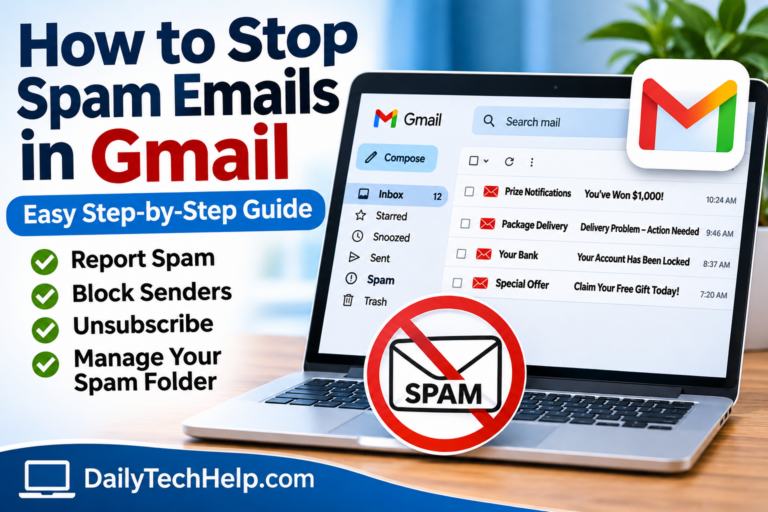
How to Stop Spam Emails in Gmail (Easy Step-by-Step Guide)
Official Google resources: