How to Fix a Printer That Won’t Print (10 Easy Fixes)
Updated – November 26, 2026
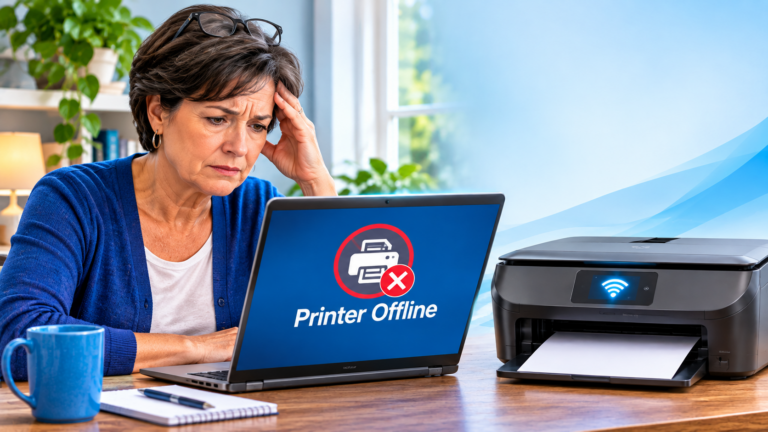
You click Print, wait a few seconds, and nothing happens. You try again, but your printer still refuses to print.
It’s frustrating, especially when you need to print an important document, shipping label, recipe, or email.
Fortunately, many common printer problems can be fixed without buying a new printer or paying for technical support.
In this guide, you’ll learn how to fix a printer that won’t print using 10 simple troubleshooting steps. These instructions cover common HP, Canon, Epson, and Brother printers connected to Windows or Mac computers.
Table of Contents
Quick Answer: How to Fix a Printer That Won’t Print
If your printer suddenly stops working, try these simple steps first:
- Make sure the printer is turned on.
- Check the paper and ink or toner levels.
- Restart your printer and computer.
- Check the Wi-Fi or USB connection.
- Make sure you’ve selected the correct printer.
- Clear any stuck print jobs.
- Check whether your printer is offline.
If your printer still won’t work, follow the detailed instructions below.
Printer Troubleshooting Checklist: Start Here
Before changing your printer settings, reinstalling software, or purchasing replacement ink, take a minute to identify what’s causing the problem.
Start with these basic checks:
Check each item only after confirming it is working correctly.
If your printer still won’t print, use the following troubleshooting chart to narrow down the problem.
Find the Solution to Your Printer Problem
| What’s Happening | What to Check First |
|---|---|
| Printer won’t turn on | Power cord and electrical outlet |
| Printer doesn’t respond | Connection and print queue |
| Printer says offline | Network connection and printer status |
| Printer repeatedly disconnects | Wi-Fi signal and power-saving settings |
| Printer feeds paper but prints nothing | Ink, toner, or printhead |
| Printer prints extra blank pages | Document settings and print preview |
| Paper gets stuck inside the printer | Paper path and feed rollers |
| Printer prints very slowly | Print quality settings and connection |
| Printer works from one device but not another | Device settings and printer software |
| Printer’s internal test page is blank | Ink delivery, toner, or internal printing mechanism |
If your printer works but takes an unusually long time to produce documents, see our guide on why your printer is printing so slowly. It explains how to measure printing speed and identify common causes of printing delays.
Find More Help for Your Specific Printer Problem
If you’ve identified a particular problem, one of our specialized printer troubleshooting guides may help you resolve it faster.
- How to Connect a Wireless Printer to Wi-Fi
- How to Fix a Printer That Keeps Going Offline
- Why Is My Printer Printing Blank Pages?
- How to Fix a Printer Paper Jam
If you’re still unsure what’s causing the problem, continue with the step-by-step troubleshooting instructions below.
1. Make Sure Your Printer Is Turned On
It may sound obvious, but power problems are an easy thing to overlook.
Some printers automatically enter sleep mode when they haven’t been used for a while.
What to Check
- Make sure the power cord is securely connected.
- Check that the electrical outlet is working.
- Press the printer’s power button.
- Look for lights or messages on the printer’s display.
- Wait until the printer finishes starting up.
If the printer displays an error message or flashing warning light, check its manual or the manufacturer’s support website.
If the printer won’t turn on at all, try another working electrical outlet.
2. Restart Your Printer and Computer
Restarting both devices can resolve temporary communication problems.
This is one of the easiest things to try when your printer was working normally but suddenly stopped.
How to Restart Your Printer
- Turn off your printer.
- Unplug its power cord.
- Wait approximately 60 seconds.
- Plug the printer back in.
- Turn it on.
- Restart your computer.
- Try printing again.
Avoid unplugging your printer while it’s actively printing, cleaning its printhead, or installing an update.
3. Check the Paper and Ink or Toner
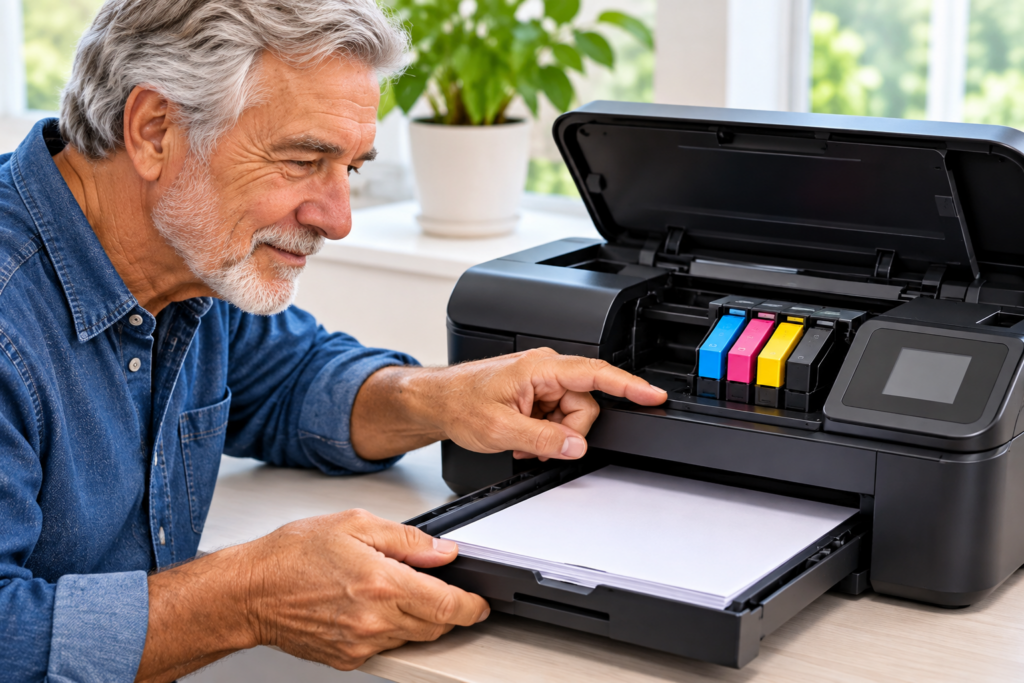
Your printer may refuse to print if it’s out of paper, has a paper jam, or detects a problem with an ink or toner cartridge.
Check the Paper
- Make sure there is paper in the tray.
- Check that the paper is loaded correctly.
- Adjust the paper guides so they fit comfortably.
- Remove any damaged or crumpled paper.
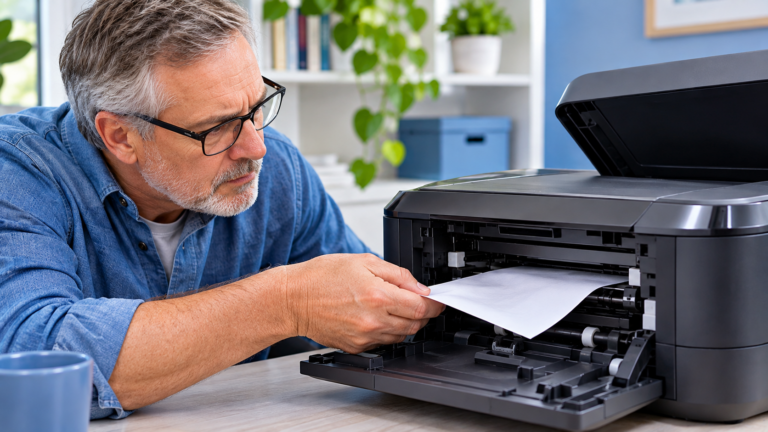
- Check for a paper jam.
If paper is stuck inside, turn off the printer and follow the manufacturer’s instructions for removing it. Avoid pulling forcefully.
Check the Ink or Toner
Open your printer’s ink or toner menu, if available, and check the estimated supply levels.
If a cartridge is empty or isn’t installed correctly, the printer may stop working.
Some color printers also refuse to print black-and-white documents when a color cartridge is empty.
If you’ve recently installed a new cartridge, make sure any protective tape or packaging has been removed according to the manufacturer’s instructions.
If paper is stuck inside your printer or you keep receiving a paper jam warning, follow our detailed guide on how to fix a printer paper jam. It explains how to remove stuck paper safely, find hidden paper fragments, and prevent recurring paper jams.
4. Check Your Printer’s Wi-Fi or USB Connection
A connection problem is a common reason a printer won’t print.
Your computer needs to communicate with the printer before it can send documents.
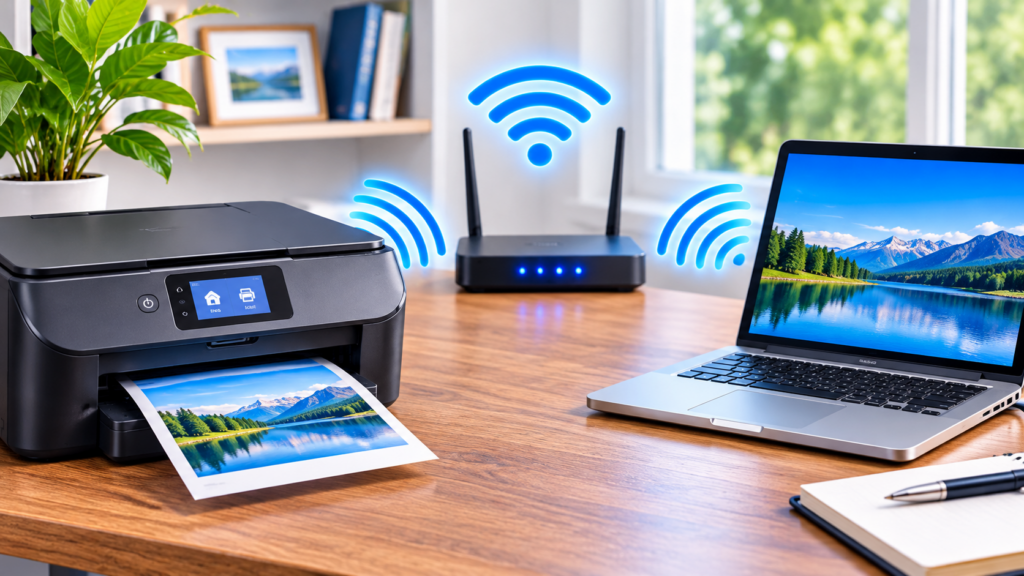
If You Have a Wireless Printer
- Make sure your printer is connected to Wi-Fi.
- Check that your computer and printer are connected to the same local network.
- Look for a Wi-Fi indicator on your printer.
- Move the printer closer to your router if the signal is weak.
- Reconnect the printer to Wi-Fi if necessary.
Need help getting your printer connected to your home network? Follow our step-by-step guide on how to connect a wireless printer to Wi-Fi for easy setup instructions for HP, Canon, Epson, and Brother printers.
If you’ve recently changed your internet provider, router, or Wi-Fi password, your printer may still be trying to connect using the old information.
You may need to run the printer’s wireless setup again.
If You Have a USB Printer
- Disconnect the USB cable from your computer.
- Reconnect it securely.
- Check the connection at the printer.
- Try another USB port on your computer.
- Try another compatible USB cable if available.
If you’re using a USB hub, try connecting the printer directly to your computer instead.
5. Make Sure You’ve Selected the Correct Printer
Your computer may be sending documents to the wrong printer.
This can happen if you’ve owned several printers or if your computer has virtual printing options such as Microsoft Print to PDF.
How to Select the Correct Printer
- Open the document you want to print.
- Click File.
- Select Print.
- Look at the selected printer.
- Choose your actual printer from the list.
- Click Print.
Make sure the selected printer matches the brand and model of the printer you’re trying to use.
If Microsoft Print to PDF is selected, your computer will create a PDF file instead of printing a paper copy.
Set Your Default Printer in Windows 11
- Open Settings.
- Select Bluetooth & devices.
- Click Printers & scanners.
- Turn off Let Windows manage my default printer if necessary.
- Select your printer.
- Click Set as default, if available.
This helps prevent Windows from automatically selecting a different printer.
6. Clear Stuck Print Jobs
Sometimes a document gets stuck in the print queue and prevents other documents from printing.
You might click Print several times without realizing that multiple documents are waiting.
How to Clear the Print Queue in Windows 11
- Open Settings.
- Select Bluetooth & devices.
- Click Printers & scanners.
- Select your printer.
- Click Open print queue.
- Cancel any stuck or unwanted print jobs.
Once the queue is empty, restart your printer and try printing one document.
How to Clear the Print Queue on a Mac
- Open the Apple menu.
- Select System Settings.
- Click Printers & Scanners.
- Select your printer.
- Open its print queue.
- Cancel any stuck print jobs.
If printing has been paused, resume it.
Helpful tip: Avoid repeatedly clicking Print when nothing happens. This can create additional copies in the queue.
7. Fix a Printer That Says Offline
If your computer says your printer is offline, it usually means the computer cannot communicate with the printer or that printing has been paused or disabled.
The printer may still be turned on.
How to Fix an Offline Printer
- Make sure the printer is powered on.
- Check the Wi-Fi or USB connection.
- Restart the printer.
- Restart your computer.
- Open your printer’s print queue.
- Resume printing if it is paused.
- Disable Use Printer Offline if that option is available and enabled.
Some Windows versions display the offline option differently.
Does your printer repeatedly go offline, even after restarting it? Our detailed guide on how to fix a printer that keeps going offline explains additional solutions, including wireless connection problems, sleep settings, and printer network addresses.
For more assistance, visit Microsoft’s official Windows printer support page.
Why Does My Wireless Printer Keep Going Offline?
Possible reasons include:
- A weak Wi-Fi signal
- A changed Wi-Fi password
- Router connection problems
- Outdated printer software
- Printer sleep or power-saving settings
- Network configuration problems
If the problem happens frequently, check your printer manufacturer’s support instructions for your specific model.
8. Run the Windows Printer Troubleshooter
Windows includes troubleshooting tools that can help identify common printer problems.
How to Run the Printer Troubleshooter
On Windows 11:
- Open Settings.
- Select System.
- Click Troubleshoot.
- Select Other troubleshooters.
- Find Printer and select Run, if available.
- Follow the on-screen instructions.
Newer Windows versions may open the Get Help app instead. You can also open Get Help directly and search for printer troubleshooting.
Windows may identify connection problems, print queue issues, or configuration errors.
When troubleshooting finishes, try printing again.
9. Update or Reinstall Your Printer
If you’re still wondering how to fix a printer that won’t print, the problem could be related to its software.
Printer drivers help your computer communicate with your printer.
Outdated, missing, or damaged drivers can sometimes cause printing problems.
How to Update Your Printer Driver
Visit your printer manufacturer’s official support website:
Search for your exact printer model and follow the manufacturer’s installation instructions.
Many newer printers can also work with drivers already included in Windows or with Apple’s AirPrint technology.
Safety tip: Avoid unfamiliar websites that claim you need to pay to download printer drivers. Use your printer manufacturer’s official website whenever possible.
How to Remove and Reinstall a Printer in Windows 11
- Open Settings.
- Select Bluetooth & devices.
- Click Printers & scanners.
- Select the printer that’s causing problems.
- Click Remove.
- Restart your computer.
- Return to Printers & scanners.
- Click Add device.
- Follow the instructions to reinstall your printer.
Make sure you have any necessary Wi-Fi or setup information before removing the printer.
How to Remove and Reinstall a Printer on a Mac
- Open the Apple menu.
- Select System Settings.
- Click Printers & Scanners.
- Select the printer.
- Remove the printer using the available controls.
- Add the printer again.
For additional Mac troubleshooting information, visit Apple’s official Mac support website.
10. Print a Test Page
A test page can help you determine whether the problem is with your printer, computer, or the document you’re trying to print.
Print a Test Page in Windows 11
- Open Settings.
- Select Bluetooth & devices.
- Click Printers & scanners.
- Select your printer.
- Choose Print test page, if available.
Many printers also allow you to print a diagnostic or configuration page directly from their control panel.
What the Results Mean
If the printer prints a test page directly from its own control panel, its basic printing hardware is probably working.
If it prints directly but not from your computer, the problem may involve the connection, software, or print settings.
If the printer cannot print its own diagnostic page, check for paper jams, cartridge problems, error messages, or mechanical issues.
Why Is My Printer Printing Blank Pages?
If paper comes out of the printer but nothing appears on it, the problem may involve the ink, toner, or printhead.
Try these steps:
- Check the ink or toner levels.
- Make sure the cartridges are installed correctly.
- Check whether protective tape was removed from new cartridges.
- Run a nozzle check if your inkjet printer supports it.
- Run the manufacturer’s recommended printhead cleaning procedure.
- Try printing a different document.
Inkjet printers that sit unused for extended periods may develop clogged printhead nozzles.
Avoid repeatedly running cleaning cycles because they can consume a significant amount of ink.
If your printer feeds paper normally but nothing appears on the page, follow our detailed guide on why your printer is printing blank pages. It explains how to identify ink delivery problems, clogged printheads, toner problems, and document errors before spending money on replacement supplies.
Common Printer Problems and Their Solutions
| Printer Problem | What to Try First |
|---|---|
| Printer won’t turn on | Check the power cord and outlet |
| Printer says offline | Check the connection and restart |
| Nothing happens when you click Print | Check the selected printer and print queue |
| Printer prints blank pages | Check ink or toner |
| Wireless printer won’t connect | Reconnect it to Wi-Fi |
| Printer has a paper jam | Follow the manufacturer’s paper removal instructions |
| Printer prints very slowly | Check print quality settings and connection |
| Computer cannot find the printer | Reconnect or reinstall the printer |
| Printer prints the wrong document | Clear the print queue |
| Printer prints faded text | Check supplies and run recommended maintenance |
Should You Repair or Replace Your Printer?
Before buying a new printer, consider whether the problem is something simple.
A stuck print job, incorrect setting, or Wi-Fi connection problem doesn’t necessarily mean your printer is broken.
However, replacement may be worth considering if:
- Your printer frequently develops mechanical problems.
- Replacement ink or toner is unusually expensive.
- The manufacturer no longer supports your printer.
- Repair costs approach the price of a suitable replacement.
- Your printer no longer meets your needs.
If you mainly print black-and-white documents, a monochrome laser printer may be worth considering.
Unlike inkjet printers, laser printers use toner rather than liquid ink, so they don’t have inkjet printhead nozzles that can dry out.
Frequently Asked Questions
Why is my printer connected but not printing?
The printer may have a stuck print job, incorrect settings, an empty cartridge, or a software problem. Start by restarting both devices and clearing the print queue.
Why won’t my printer print even though it has ink?
The printhead may be clogged, the cartridge may be installed incorrectly, or the computer may be sending the document to another printer. Try printing a diagnostic page.
Why does my printer say offline when it’s turned on?
Being powered on doesn’t necessarily mean the printer is communicating with your computer. Check the Wi-Fi or USB connection and make sure printing hasn’t been paused.
Why won’t my printer print after changing Wi-Fi routers?
Your printer may still have the old wireless network information saved. Use the printer’s wireless setup menu to connect it to your new network.
Can I print without Wi-Fi?
Yes. Many printers support a direct USB connection. Some also support Wi-Fi Direct or other direct wireless printing methods, depending on the model.
Why is my printer printing blank pages after changing the ink?
Check that the cartridge is installed correctly and that any protective tape has been removed. Follow the manufacturer’s instructions for checking and cleaning the printhead.
Will restarting my printer delete its settings?
A normal restart generally does not erase your saved settings. A factory reset is different and may remove Wi-Fi information and other preferences.
Do I need to buy a new printer if mine stops printing?
Not necessarily. Many printer problems are caused by connections, settings, software, or supplies rather than permanent hardware failure.
Final Thoughts
Learning how to fix a printer that won’t print can save you time, frustration, and unnecessary expenses.
Start with the simplest solutions:
- Restart the printer.
- Check the paper and ink.
- Check the connection.
- Select the correct printer.
- Clear stuck print jobs.
If those steps don’t work, try updating the printer software or reinstalling the printer.
Always use official manufacturer support websites when downloading drivers or troubleshooting model-specific problems.
Looking for more simple technology advice? Explore our Computer & Email help guides for more easy-to-follow solutions.
Editorial note: Printer controls, computer settings, and troubleshooting options vary by manufacturer, model, and operating system version. Consult your printer’s official documentation for model-specific instructions.