How to Connect a Wireless Printer to Wi-Fi (Easy Step-by-Step Guide)
Updated – November 27, 2026
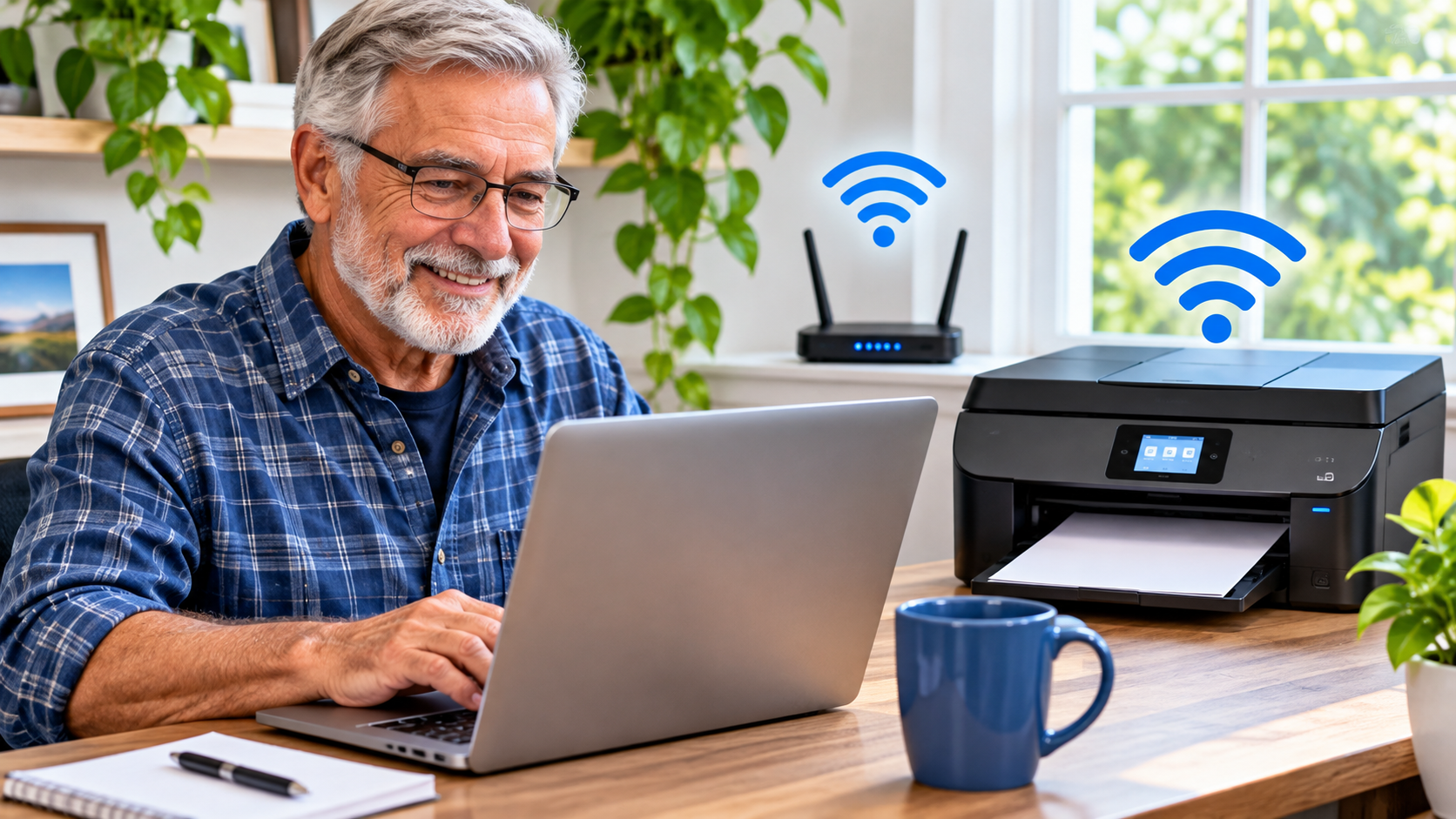
Have you purchased a new wireless printer but aren’t sure how to connect it to your home Wi-Fi? Or perhaps your printer stopped working after you installed a new router or changed your Wi-Fi password.
Connecting a wireless printer doesn’t have to be complicated.
Once your printer is connected to your home network, you can often print documents, emails, recipes, and photos without connecting a cable to your computer.
In this guide, you’ll learn how to connect a wireless printer to Wi-Fi, including common setup methods for HP, Canon, Epson, and Brother printers.
We’ll also explain how to connect your computer, iPhone, or Android phone to your wireless printer and what to do if something goes wrong.
Table of Contents
Quick Answer: How to Connect a Wireless Printer to Wi-Fi
Connecting a wireless printer involves two separate steps.
Step 1: Connect your printer to your home Wi-Fi network. Use your printer’s wireless setup menu, the manufacturer’s official setup app, or WPS if supported.
Step 2: Add the printer to your computer, smartphone, or tablet. Once the printer is connected to your network, your device can usually discover it through its printing settings.
Before starting, make sure you know your Wi-Fi network name and password, your printer is turned on, and your computer or mobile device is connected to your home network.
The exact setup instructions depend on your printer’s manufacturer and model.er’s mobile app or another supported wireless setup method.
Before You Connect Your Wireless Printer
Having a few things ready can make the setup process much easier.
You will need:
- A wireless-capable printer.
- A working home Wi-Fi network.
- Your Wi-Fi network name.
- Your Wi-Fi password.
- A computer, smartphone, or tablet.
Place your printer reasonably close to your wireless router during setup.
A weak wireless signal can make it difficult for your printer to connect.
Where Can You Find Your Wi-Fi Password?
If you haven’t changed your original Wi-Fi password, it may be printed on a label on your router.
Look for information labeled:
- Wi-Fi Password
- Wireless Password
- Network Key
- Security Key
If you’ve changed your password, you’ll need to use the current password instead.
Remember that Wi-Fi passwords are case-sensitive. Capital letters, lowercase letters, numbers, and symbols must be entered correctly.
1. Connect a Printer to Wi-Fi Using Its Display Screen
Many wireless printers have a small touchscreen or display with navigation buttons.
This is often the easiest way to connect a printer to your home network.
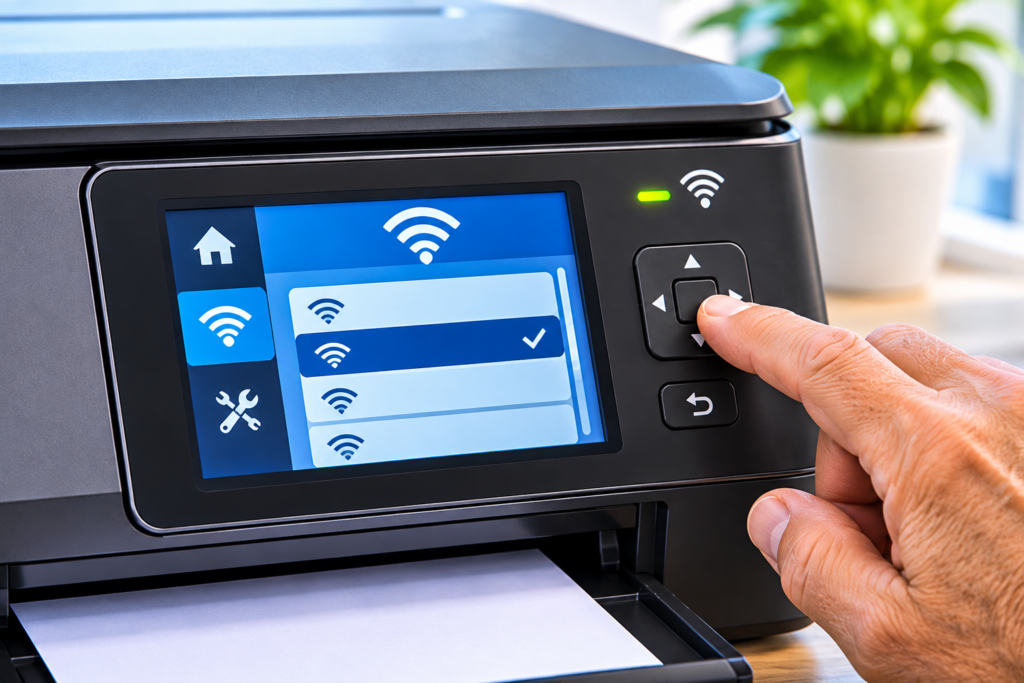
Step-by-Step Instructions
- Turn on your printer.
- Open the Settings, Setup, or Network menu.
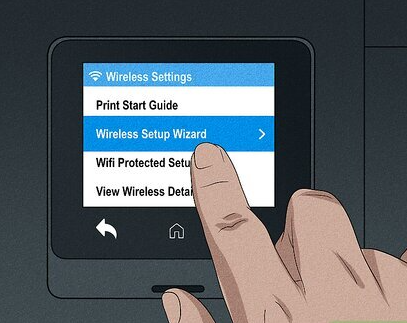
- Look for Wireless Settings or Wi-Fi Setup.
- Select Wireless Setup Wizard or a similar option.
- Wait while the printer searches for nearby networks.
- Select your home Wi-Fi network.
- Enter your Wi-Fi password.
- Confirm the connection.
Your printer may display a confirmation message or a steady wireless indicator when the connection is successful.
The exact menu names depend on your printer’s brand and model.
2. Connect a Wireless Printer Without a Display Screen
What Is Wireless Setup Mode?
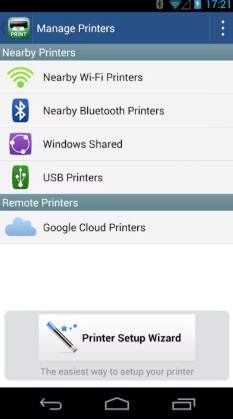
Printers without a touchscreen often need to enter wireless setup mode before they can connect to a new Wi-Fi network.
A flashing wireless indicator may mean that your printer is ready for setup, depending on the model.
Some printers enter this mode automatically when first turned on. Others require you to press a particular button or combination of buttons.
Check your printer’s official setup instructions before pressing or holding buttons, because the procedure varies between models.
Once the printer is in setup mode, open the manufacturer’s official setup app and follow its instructions to connect the printer to your home Wi-Fi network.
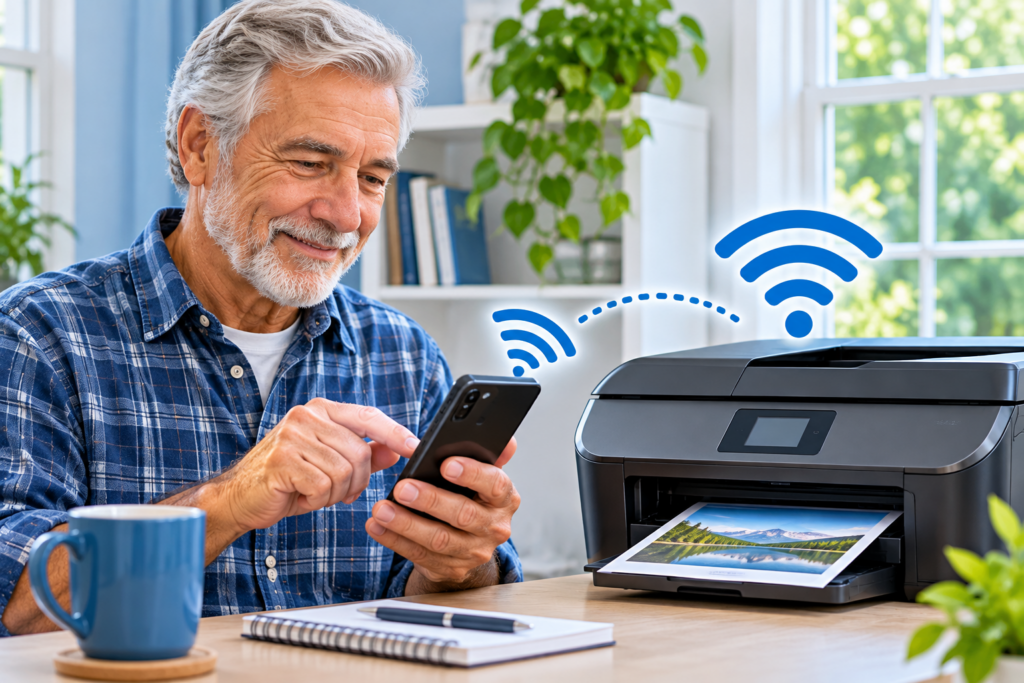
General Setup Instructions
- Turn on your printer.
- Download the official setup app recommended by your printer manufacturer.
- Follow your printer’s instructions to enter wireless setup mode.
- Open the app on your smartphone or computer.
- Select the option to add or set up a printer.
- Choose your home Wi-Fi network when prompted.
- Enter your Wi-Fi password.
- Complete the setup process.
Some printers require you to press and hold a wireless button to enter setup mode. Others use a combination of buttons.
Check the instructions for your exact model rather than experimenting with unfamiliar button combinations.
Safety tip: Download printer setup apps only from official manufacturer websites, the Apple App Store, or Google Play. Avoid unfamiliar websites offering paid printer setup assistance.
3. Connect a Printer Using the WPS Button
Some wireless routers and printers support Wi-Fi Protected Setup, commonly called WPS.
This feature can allow you to connect compatible devices without manually entering your Wi-Fi password.
Before Using WPS
Wi-Fi Protected Setup (WPS) is an optional way to connect compatible devices to a wireless network.
Both your printer and router must support WPS push-button setup for this method to work.
Start WPS on your printer according to its manual, then activate WPS on your router within the specified time. Many devices allow approximately two minutes to complete this process.
Do not confuse the router’s WPS button with its factory reset button.
If your router does not support WPS or the feature is disabled, use your printer’s wireless setup menu or manufacturer-provided setup app instead.
How to Connect Using WPS
- Make sure your printer and router support push-button WPS.
- Start WPS connection mode on your printer according to its instructions.
- Press the WPS button on your router when prompted.
- Wait for the printer to establish a connection.
- Check the printer’s wireless connection status.
Not every router or printer supports WPS, and some routers have it disabled for security reasons.
If WPS isn’t available, use the regular Wi-Fi password setup method instead.
Do not press your router’s Reset button. A factory reset can erase your network settings.
4. How to Connect an HP Printer to Wi-Fi
HP wireless printers can generally be connected using the printer’s control panel or the official HP setup app.
HP Printers With a Touchscreen
- Turn on the printer.
- Open the Wireless, Network, or Setup menu.
- Look for Wireless Setup Wizard.
- Select your Wi-Fi network.
- Enter your Wi-Fi password.
- Wait for the connection confirmation.
HP Printers Without a Touchscreen
Use the official HP app or setup software recommended for your printer model.
You may need to place the printer in Wi-Fi setup mode before the app can find it.
Visit HP’s official support website for instructions specific to your printer.
5. How to Connect a Canon Printer to Wi-Fi
Many Canon PIXMA and other wireless Canon printers support wireless setup through their control panels or the Canon PRINT app.
General Canon Wireless Setup
- Turn on your Canon printer.
- Open the wireless or network settings.
- Select the appropriate wireless setup option.
- Choose your home Wi-Fi network.
- Enter your password if prompted.
- Complete the connection process.
If your printer doesn’t have a display, follow the setup instructions in the Canon PRINT app or Canon’s computer setup software.
Visit Canon’s official support website for model-specific instructions.
6. How to Connect an Epson Printer to Wi-Fi
Many Epson wireless printers, including EcoTank models, support Wi-Fi setup through a display screen or mobile setup app.
General Epson Wireless Setup
- Turn on your Epson printer.
- Open the Wi-Fi or Network Settings menu.
- Select Wi-Fi Setup or Wi-Fi Setup Wizard.
- Choose your wireless network.
- Enter your Wi-Fi password.
- Confirm the settings.
Compatible models may also support setup through the Epson Smart Panel app.
Visit Epson’s official support website for instructions for your exact printer model.
7. How to Connect a Brother Printer to Wi-Fi
Brother printers commonly include wireless network setup options through their control panels or official setup software.
General Brother Wireless Setup
- Turn on your Brother printer.
- Open the Settings or Menu screen.
- Look for Network or WLAN settings.
- Select the wireless setup wizard.
- Choose your Wi-Fi network.
- Enter your network password.
- Confirm the connection.
Some Brother printers also support mobile setup through compatible Brother apps.
Visit Brother’s official support website for instructions for your printer.
8. Add Your Wireless Printer to a Windows Computer
Connecting your printer to Wi-Fi is only part of the setup process.
Your Windows computer also needs to recognize the printer.
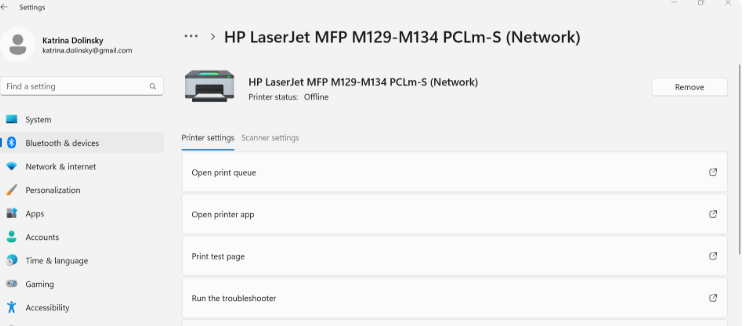
How to Add a Wireless Printer in Windows 11
- Make sure the printer is turned on and connected to your home network.
- Open the Windows Start menu.
- Select Settings.
- Select Bluetooth & devices.
- Open Printers & scanners.
- Select Add device.
- Wait for Windows to discover your printer.
- Select Add device next to your printer if it is not added automatically.
- After installation, try printing a document.
If Windows cannot find your printer, look for the option to add a printer manually.
For additional instructions, visit Microsoft’s official printer installation guide.
Once the printer has been added, open a document and try printing.
If Windows cannot find your printer, confirm that both devices are connected to the same local network.
You may also need to install the manufacturer’s recommended printer software.
9. Add Your Wireless Printer to a Mac
Many wireless printers work with Apple’s AirPrint technology, which allows compatible printers to operate without additional manufacturer drivers.
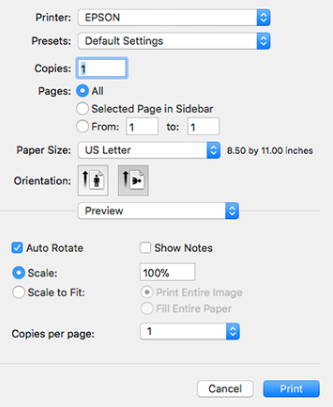
How to Add a Wireless Printer on a Mac
- Make sure your printer and Mac are connected to the same local network.
- Open the Apple menu.
- Select System Settings.
- Open Printers & Scanners.
- If your printer is not already listed, select Add Printer, Scanner, or Fax.
- Choose your printer from the available devices.
- Complete the setup by selecting Add.
Many modern printers support Apple AirPrint, allowing you to print without installing additional printer drivers.
For older printers that do not support AirPrint, compatible manufacturer software may be necessary.
See Apple’s official guide to adding printers on a Mac.ts network connection and consult the manufacturer’s setup instructions.
10. Print From Your iPhone or Android Phone
One of the advantages of a wireless printer is that you may be able to print directly from your smartphone.
You don’t necessarily need to turn on your computer.
How to Print From an iPhone
If your printer supports AirPrint:
- Connect your iPhone and printer to the same local Wi-Fi network.
- Open the document, photo, email, or webpage you want to print.
- Tap the Share button or look for the app’s Print option.
- Select Print.
- Choose your printer.
- Select the number of copies.
- Tap Print.
Not every iPhone app supports printing.
For additional information, visit Apple’s official AirPrint support guide.
How to Print From an Android Phone
- Connect your Android phone and printer to the same local network.
- Open the document or photo you want to print.
- Open the app’s menu or sharing options.
- Select Print if available.
- Choose your printer.
- Adjust the print settings.
- Tap the print button.
Some Android devices may require you to enable a printing service or install a compatible printer app.
How to Reconnect a Printer After Changing Your Router
Did your printer stop working after you installed a new wireless router?
This is a common problem because your printer may still have your previous network information saved.
How to Reconnect Your Printer
- Make sure your new Wi-Fi network is working.
- Open your printer’s wireless settings.
- Start the wireless setup process again.
- Select your new network name.
- Enter your new Wi-Fi password.
- Confirm the connection.
- Try printing from your computer or phone.
If your computer still cannot find the printer, you may need to remove it from your printer list and add it again.
You generally do not need to perform a complete factory reset simply because your Wi-Fi password has changed.
Why Won’t My Printer Connect to Wi-Fi?
If you’re having trouble connecting your printer, try the following solutions.
Check Your Wi-Fi Password
Make sure you’ve entered the correct password.
Pay particular attention to capital letters and similar-looking characters, such as the number zero and the letter O.
Move Your Printer Closer to the Router
Walls, floors, and other obstacles can weaken your wireless signal.
Try moving your printer closer to the router during setup.
Check Your Router’s 2.4 GHz and 5 GHz Wi-Fi Settings
Many older and inexpensive wireless printers support only 2.4 GHz Wi-Fi, while some newer printers also support 5 GHz.
If your printer cannot find your wireless network, check its specifications to determine which frequencies it supports.
Your computer does not necessarily need to use the same Wi-Fi frequency as your printer. A printer connected through 2.4 GHz and a computer connected through 5 GHz can usually communicate if both are on the same local network and the router allows devices to communicate.
Some printer setup apps may require your phone or computer to connect to a particular Wi-Fi band temporarily during installation.
Avoid changing your router’s security settings or disabling its 5 GHz network unless your router or printer manufacturer specifically recommends doing so.
Avoid Guest Wi-Fi Networks
Guest networks often prevent connected devices from communicating with one another.
Connect your printer and computer to your regular home network instead.
Restart Your Devices
Restart your printer, computer, and router if necessary.
Allow your router to reconnect completely before attempting to set up the printer again.
Remember that restarting your router will temporarily interrupt internet access for other devices in your home.
Check Your Router’s Security Settings
Some older printers may not support newer wireless security standards, such as WPA3-only networks.
Check your printer’s documentation for compatibility.
Do not disable wireless security or create an unsecured network to connect your printer.
Check Whether Your Printer Is Offline
Your printer may be connected to Wi-Fi but still appear offline on your computer.
If that happens, check the print queue, restart the printer, and confirm that you’ve selected the correct device.
If your printer connects to Wi-Fi but frequently becomes unavailable, follow our guide on fixing a printer that keeps going offline to identify and resolve recurring connection problems.
For more solutions, read our guide on how to fix a printer that won’t print.
Common Wireless Printer Problems and Solutions
| Problem | What to Try |
|---|---|
| Printer cannot find Wi-Fi | Check network compatibility and signal strength |
| Wi-Fi password is rejected | Re-enter the correct password |
| Printer won’t connect after router replacement | Run wireless setup again |
| Computer cannot find the printer | Check that both devices are on the same local network |
| Printer says offline | Restart the printer and check its connection |
| Printer disconnects frequently | Improve wireless signal strength |
| Phone cannot find the printer | Check network and mobile printing compatibility |
| Printer connects but won’t print | Check the selected printer and print queue |
If your wireless printer connects successfully but takes a long time to print, our slow printer troubleshooting guide can help you determine whether the delay is caused by your network, print settings, or computer.
Can You Use a Wireless Printer Without a Router?
Some wireless printers support a feature called Wi-Fi Direct.
Wi-Fi Direct allows compatible computers, smartphones, and tablets to connect directly to a printer without using a traditional wireless router.
This can be useful if you don’t have a home Wi-Fi network or need to print somewhere without internet access.
However, the setup process varies by printer.
Your device may also temporarily lose its regular Wi-Fi internet connection while connected directly to the printer.
Check your printer’s manual to see whether Wi-Fi Direct is supported.
Frequently Asked Questions
How do I connect my printer to my home Wi-Fi?
Open your printer’s wireless settings, select your home network, and enter your Wi-Fi password. Printers without display screens may require an official setup app.
Do wireless printers need internet access?
Not necessarily. Many wireless printers can print over a local network without internet access. Some cloud printing, remote printing, and setup features may require an internet connection.
Do I need a USB cable to set up a wireless printer?
Usually not. Many modern wireless printers can be configured using their display screen or a mobile app. Some older models may require a temporary USB connection during setup.
Why can’t my printer find my Wi-Fi network?
Your printer may be too far from the router, or your network may use an unsupported frequency or security setting. Check your printer’s wireless compatibility.
Can several computers use the same wireless printer?
Yes. Multiple computers and compatible mobile devices can generally use the same wireless printer when they are connected to the appropriate local network.
Will changing my Wi-Fi password disconnect my printer?
Yes, if your printer is using the old password. You’ll need to update the printer’s wireless settings with the new password.
How do I know if my printer is connected to Wi-Fi?
Look for a wireless connection indicator, a connected status in the printer’s network settings, or a network configuration report. The exact method depends on your printer model.
Why is my wireless printer connected but not printing?
The problem could involve a stuck print job, incorrect printer selection, software issues, or an offline printer status.
See our guide to fixing a printer that won’t print for additional troubleshooting steps.
Final Thoughts
Learning how to connect a wireless printer to Wi-Fi can make printing documents and photos much more convenient.
Most printers can be connected using their built-in wireless settings or the manufacturer’s official setup app.
Start by making sure you have the correct Wi-Fi password, a strong wireless signal, and a compatible home network.
Once your printer is connected, add it to your computer or smartphone and print a test page.
If something goes wrong, work through the troubleshooting steps one at a time.
For more easy-to-follow technology advice, explore our Computer & Email help guides.
Editorial note: Wireless setup instructions vary by printer manufacturer, model, router, and operating system. This guide provides general setup instructions. Consult the official documentation for your specific printer when necessary.