How to Stop Spam Emails in Gmail (Easy Step-by-Step Guide)
Updated November 17, 2026 • Estimated reading time: 7 minutes
Are you tired of opening Gmail and finding unwanted advertisements, suspicious offers, and messages from people you don’t recognize?
If you’re wondering how to stop spam emails in Gmail, there are several simple ways to make your inbox cleaner and safer.
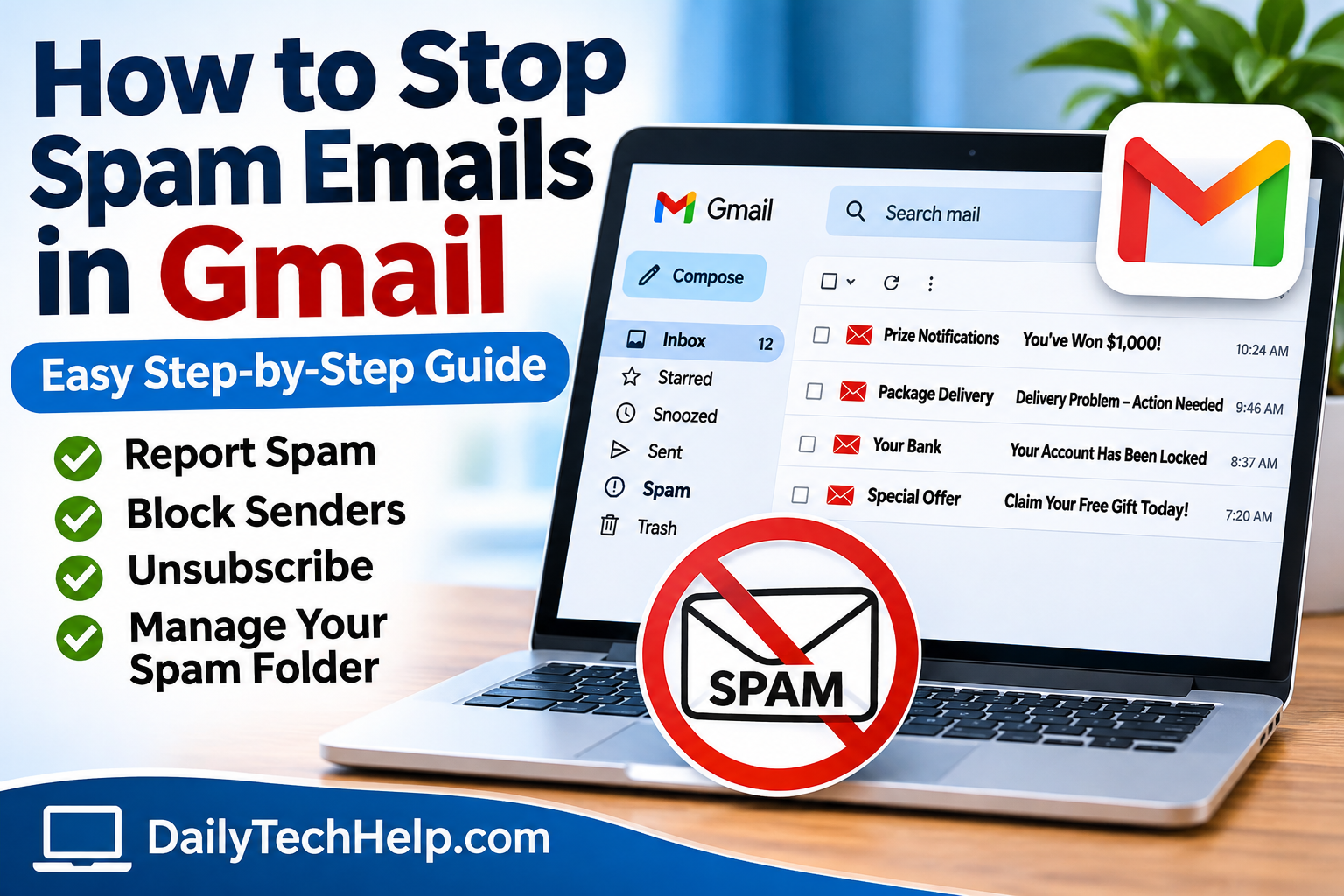
Gmail already includes automatic spam filtering, but some unwanted messages can still get through. Fortunately, you can report spam, block unwanted senders, unsubscribe from newsletters, and check messages that Gmail may have filtered incorrectly.
This step-by-step guide explains everything in plain English. We’ll start with Gmail on a computer, then cover a few helpful options for your phone.
Table of Contents
1. How to Stop Spam Emails in Gmail by Reporting Spam
One of the easiest ways to reduce unwanted email is to report suspicious messages as spam.
When you report spam, Gmail moves the message into your Spam folder. Reporting unwanted emails also helps Google’s filtering system identify similar messages.
Here’s how:
- Open Gmail on your computer.
- Find the unwanted email in your inbox.
- Click the small checkbox beside the message.
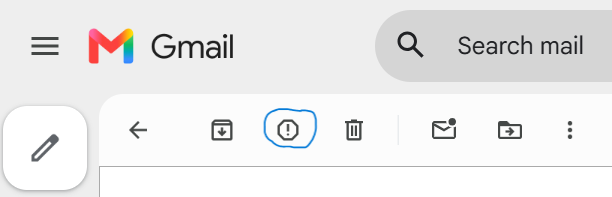
- Look for the Report spam button near the top of Gmail. Its icon resembles an octagon with an exclamation mark.
- Click Report spam.
The message will move out of your inbox and into your Spam folder.
Tip: You can select several unwanted emails and report them together.
Only report messages you believe are spam. For legitimate newsletters you signed up for, unsubscribing is usually a better option.
2. Block an Email Address in Gmail
If the same person or business repeatedly sends unwanted messages, you can block their email address.
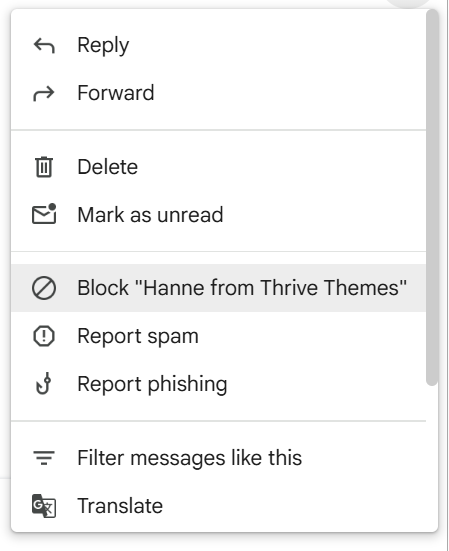
Follow these steps:
- Open Gmail.
- Open an email from the unwanted sender.
- Find the three vertical dots beside the Reply button in the message header.
- Click the three dots.
- Select Block “[sender’s name]”.
- Confirm if Gmail asks you to.
After blocking someone, future messages from that email address will automatically go to Spam.
Important: Blocking an email address doesn’t prevent someone from creating a different address and contacting you again.
3. Unsubscribe From Unwanted Newsletters
Not every unwanted email is a scam.
You might receive promotional emails from stores, websites, or companies you previously signed up with.
Instead of reporting legitimate newsletters as spam, unsubscribe.

Here’s how:
- Open a promotional email from a business you recognize.
- Look for an Unsubscribe link near the sender’s name or at the bottom of the email.
- Click Unsubscribe.
- Follow any confirmation instructions.
It may take several days for the emails to stop.
Safety tip: Only use unsubscribe links in messages from senders you trust. If an email looks fraudulent, report it as spam instead of clicking its links.
Gmail may also provide a Manage subscriptions feature, depending on your account and interface.
4. Find Your Gmail Spam Folder
Gmail automatically moves many suspicious emails into a separate Spam folder.
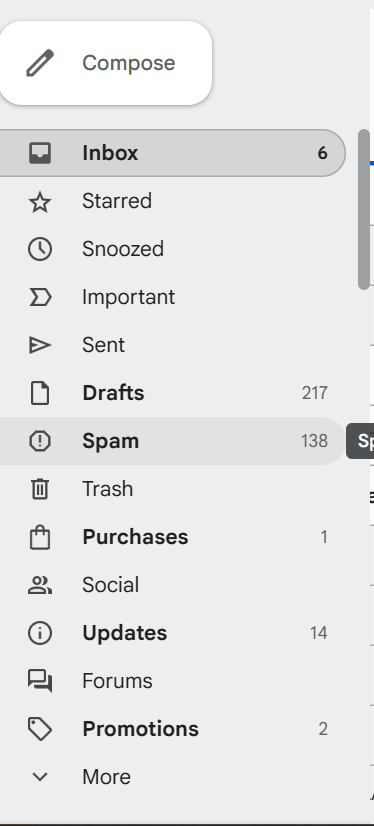
Here’s how to find it:
- Open Gmail on your computer.
- Look at the menu on the left side of the screen.
- Click More if you don’t see Spam.
- Select Spam.
- Review the messages.
You may find advertisements, suspicious offers, or messages Gmail believes are unwanted.
Gmail normally deletes messages in Spam after 30 days.
Tip: Check the Spam folder occasionally if you’re waiting for an important email that hasn’t arrived.
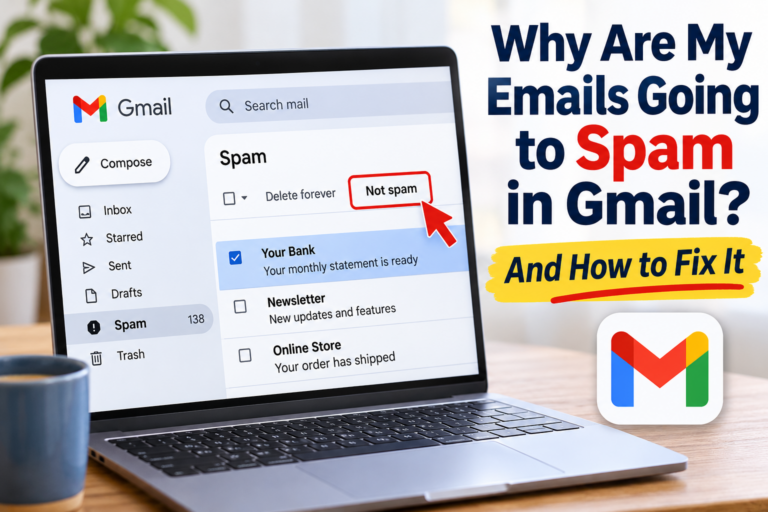
5. Stop Important Emails From Going to Spam
Sometimes Gmail makes a mistake and moves a legitimate message into Spam.
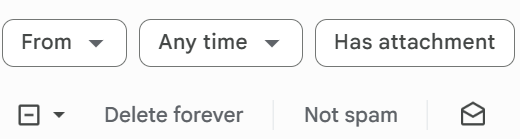
If this happens:
- Open Gmail.
- Click More → Spam in the left menu.
- Find the legitimate email.
- Select the checkbox beside it.
- Click Not spam at the top.
The message should return to your inbox.
You can also add trusted senders to Google Contacts to help Gmail recognize their messages.
If you previously blocked that sender, you may need to unblock the address as well.
6. Create a Gmail Filter for Unwanted Emails
Gmail filters let you automatically organize or delete messages based on rules you create.
For example, you can filter messages from a particular sender.
Here’s how:
- Open Gmail on your computer.
- Click Show search options on the right side of the search bar.
- Enter an email address in the From field.
- Click Create filter.
- Choose an action, such as Delete it, if you’re certain you don’t want those messages.
- Click Create filter again.
Be careful when creating filters that automatically delete emails. An overly broad filter could remove messages you actually want.
For suspicious spam, Gmail’s Report spam feature is generally a better starting point.
7. How to Recognize Spam and Phishing Emails
Some unwanted emails are merely annoying advertisements. Others are attempts to steal your money or personal information.
Watch for these warning signs:
- Fake bank warnings: An email claims your account has been locked and demands immediate action.
- Unexpected package notices: A message says you must pay a small fee to receive a delivery.
- Prize announcements: You’re told you won something you never entered to win.
- Requests for passwords: The sender asks for your password or verification code.
- Suspicious attachments: An unfamiliar sender includes a file you weren’t expecting.
- Urgent threats: The message pressures you to act immediately.
Scammers can make an email appear to come from a familiar company.
If you’re uncertain, visit the company’s official website yourself rather than clicking a link in the email.
For messages trying to steal personal information, use Gmail’s Report phishing option when available.
8. Stop Spam Emails in the Gmail App on Your Phone
You can also report spam and block senders using the Gmail app on Android or iPhone.
Report spam
- Open the Gmail app.
- Open the unwanted email.
- Tap the three-dot menu.
- Select Report spam.
Block a sender
- Open the unwanted email.
- Tap the three dots beside the sender’s information.
- Select Block “[sender]”.
Make sure you use the menu associated with the sender, not a different menu for the entire email.
The available options may vary slightly between Android and iPhone.
9. Which Gmail Spam Protection Method Is Best?
| Method | Best for |
|---|---|
| Report spam | Suspicious or unsolicited messages |
| Block sender | Repeated emails from one address |
| Unsubscribe | Legitimate newsletters and promotions |
| Spam folder | Reviewing automatically filtered emails |
| Not spam | Recovering important emails |
| Gmail filters | Automatically organizing specific messages |
| Report phishing | Emails attempting to steal personal information |
For most people, the best way to stop spam emails in Gmail is to report suspicious messages, block repeat senders, and unsubscribe from legitimate newsletters they no longer want.
10. What If Spam Emails Keep Arriving in Gmail?
If you’re still receiving unwanted emails after reporting spam or blocking senders, try these additional steps:
- Check the sender’s email address. Spammers often change addresses, so blocking one address won’t necessarily stop similar messages.
- Report new spam messages. Select suspicious emails and click Report spam to help Gmail recognize unwanted messages.
- Unsubscribe from legitimate newsletters. If the messages come from businesses you recognize, use Gmail’s Unsubscribe option.
- Review your Gmail filters. Open Settings → See all settings → Filters and Blocked Addresses to check for rules that may be affecting how messages are handled.
- Check your Spam folder. Gmail may already be filtering many suspicious messages before they reach your inbox.
Important: If you suddenly receive hundreds of unexpected emails, check your account activity and security notifications. Sometimes scammers flood an inbox to hide an important purchase or account alert.
Frequently Asked Questions
Can I completely stop spam emails in Gmail?
No email service can guarantee that every spam message will be blocked. However, Gmail’s automatic filtering, reporting tools, and blocking features can significantly reduce unwanted messages.
Does Gmail automatically block spam?
Gmail automatically identifies many suspicious messages and moves them to Spam. Some unwanted messages may still reach your inbox.
What happens when I block someone in Gmail?
Future messages from the blocked email address go to your Spam folder rather than your regular inbox.
Is it better to block or report spam?
Report suspicious or unsolicited emails as spam. Block a sender when you specifically want future messages from that address sent to Spam.
Should I unsubscribe from spam emails?
Only unsubscribe from legitimate businesses or newsletters you recognize. Avoid clicking links in suspicious messages.
How long does Gmail keep spam emails?
Gmail normally deletes messages in the Spam folder after 30 days.
Why am I suddenly receiving hundreds of spam emails?
Sometimes your email address ends up on mailing lists or is exposed in a data breach. A sudden flood of messages can also be used to hide an important security alert. Review account notifications carefully and check your Google account security.
Final Thoughts
Learning how to stop spam emails in Gmail doesn’t require advanced computer skills.
Start by reporting unwanted messages as spam. Block repeat offenders, unsubscribe from legitimate newsletters, and occasionally check your Spam folder for messages that may have been filtered by mistake.
These simple steps can help you enjoy a cleaner inbox while reducing your exposure to email scams.
Related DailyTechHelp.com guides:
- How to Stop Spam Calls on Your iPhone
- How to Stop Spam Text Messages on iPhone
- How to Block Spam Calls on Android
- How to Stop Spam Text Messages on Android
Official Google resources: